
Google Translate is a helpful tool built into Google Chrome that automatically translates webpages into your preferred language. Sometimes you may want to enable it to read foreign websites easily, or disable it if you don’t want automatic translation. In this blog, you’ll learn simple step-by-step instructions to turn Google Translate on or off in Chrome, making browsing in any language smooth and comfortable.
🔧 How to Enable Google Translate in Google Chrome
Follow these steps to turn ON Google’s translation feature:
Step 1: Open Google Chrome
Start by launching the Chrome browser on your PC or laptop.
Step 2: Go to Chrome Settings
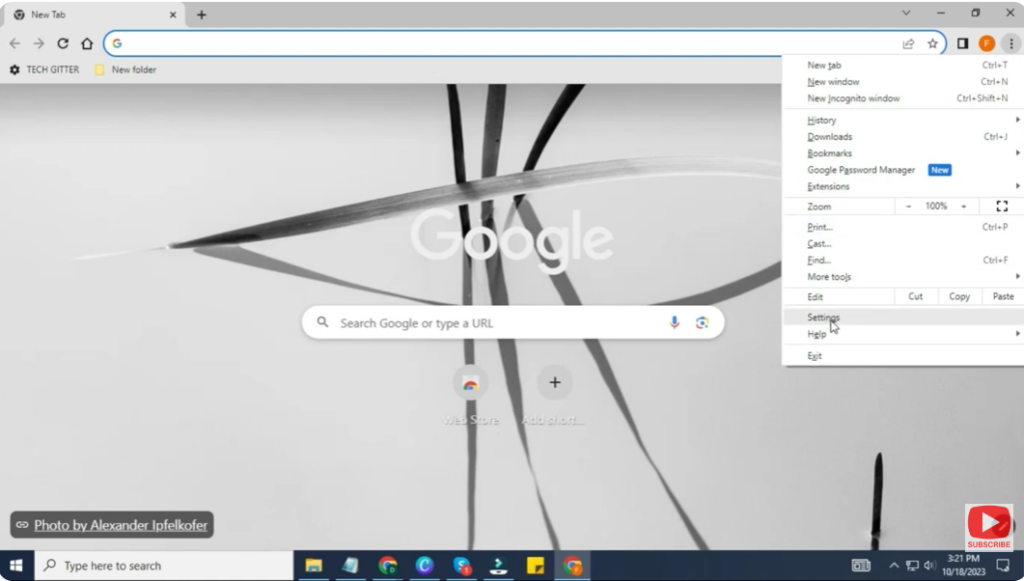
- Click the three dots (⋮) at the top-right corner.
- Select Settings from the menu.
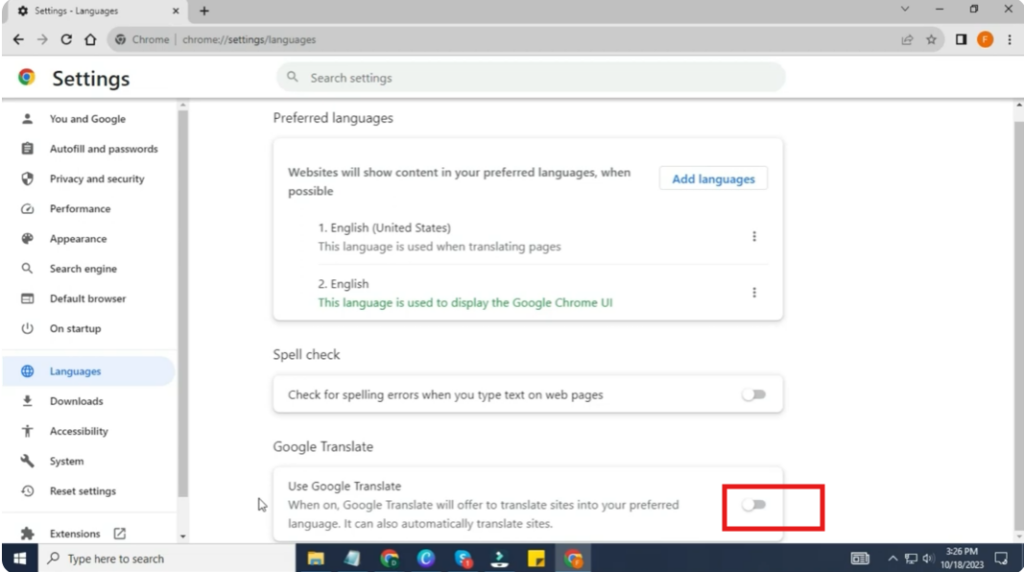
Step 3: Open the Language Settings
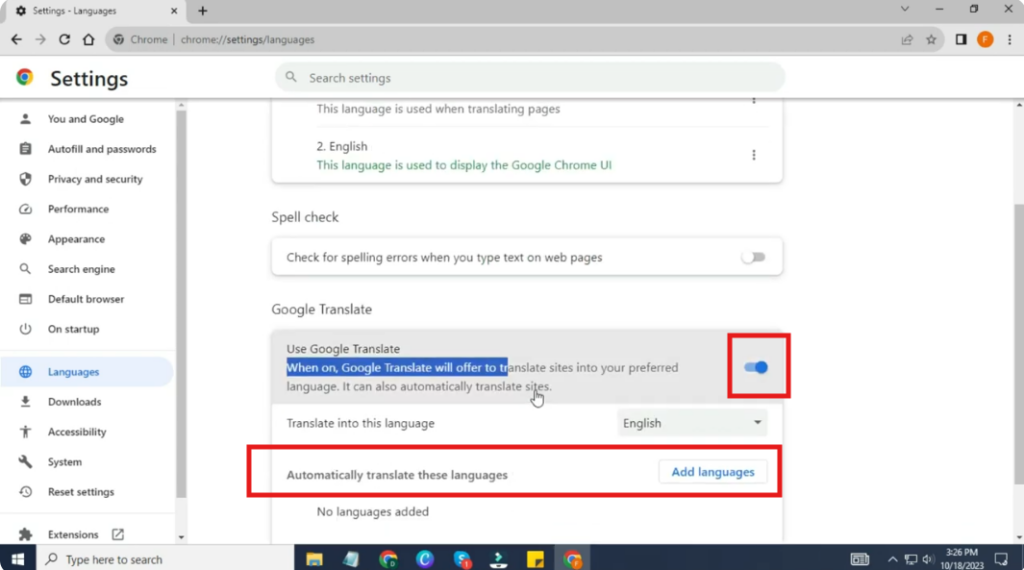
- On the left sidebar, click on Languages.
(In some versions, go to Advanced → Languages.)
Step 4: Enable Page Translation
You will see an option:
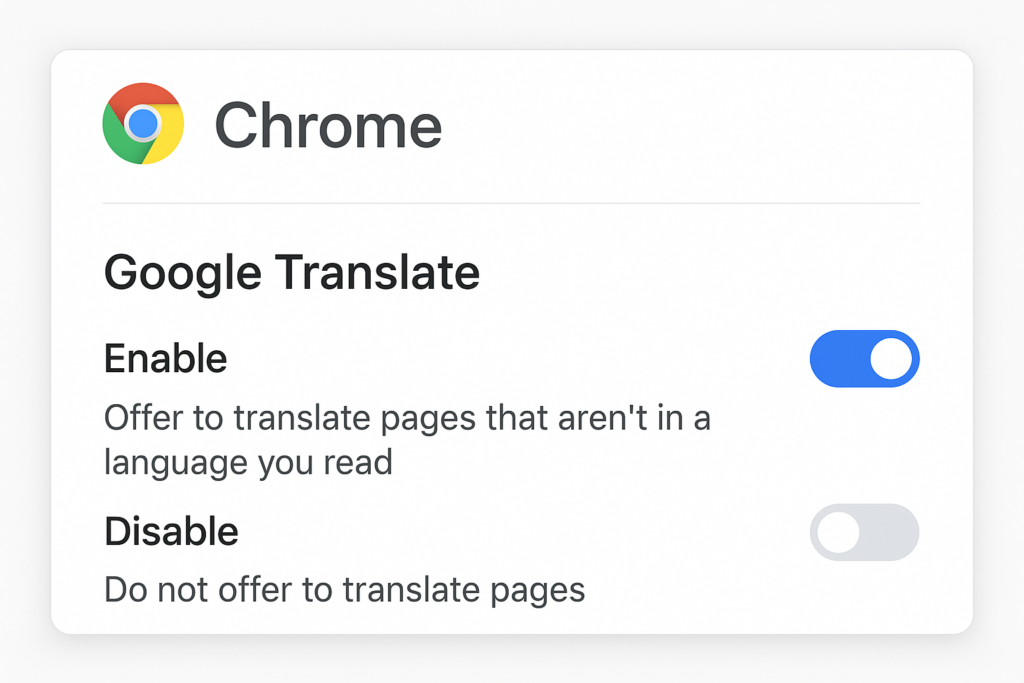
👉 “Offer to translate pages that aren’t in a language you read”
- Turn ON this toggle button.
This activates Google Translate for all foreign-language pages.
Step 5: Add Languages (Optional)
You can add languages you understand:
- Click Add languages
- Choose your preferred languages
Chrome will NOT show translation option for languages you’ve added as “known.”
❌ How to Disable Google Translate in Google Chrome
If you no longer want Chrome to automatically translate webpages, follow these steps:
Step 1: Open Chrome Settings
Click ⋮ → Settings again.
Step 2: Go to Languages
Step 3: Turn Off Auto-Translation
Disable this option:
👉 “Offer to translate pages that aren’t in a language you read”
This will stop Chrome from showing translation popups.
Step 4: Remove Added Translate Rules
If you previously clicked options like:
- “Never translate this site”
- “Never translate this language”
You can reset them:
- Click Language → Arrow beside a language
- Remove specific translation rules
🎯 Final Thoughts
Google Chrome’s translation feature is extremely useful for browsing foreign websites, studying, or reading international content.
Whether you want it ON or OFF, the process is simple, and you can control everything through Chrome’s language settings.






