
Getting the Valorant Error Code VAN 79 can be really frustrating, especially when you just want to jump into a match. This error usually pops up because of connection issues or problems with Riot’s Vanguard system, and it stops you from playing the game. The good news is, it’s not as complicated as it looks—you can fix it with a few quick steps. In this beginner-friendly blog, we’ll explain how to fix Valorant Error Code VAN 79 easily and quickly, so you can get back to gaming without interruptions.
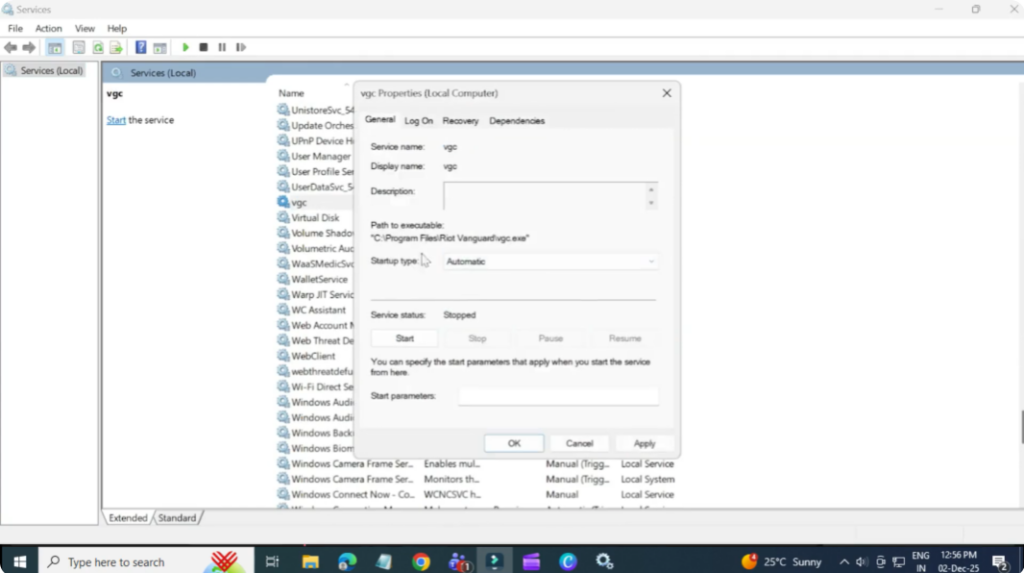
Step One: Enable VGC Service
Open the Start menu and search for services. In the services window, scroll down until you find VGC. Double click VGC and set startup type to automatic. Click apply and then okay. Open it again and make sure the service status is set to running. If not, click start then click okay again.
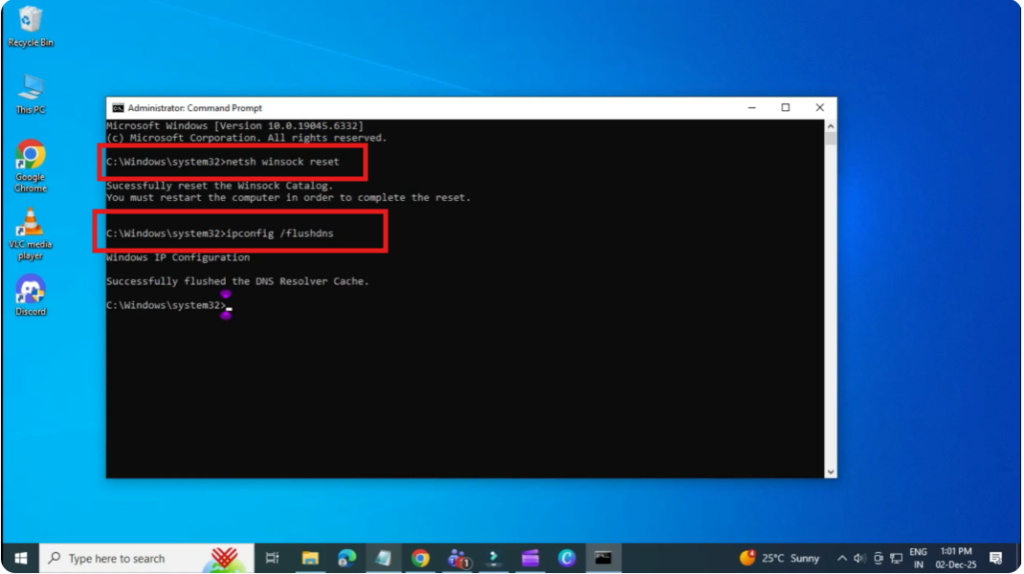
Step Two: Reset Windock and D
Search cmd from the start menu. Right click and choose run as administrator. Type the following commands one by one and press enter.
Netch winds sock reset
IP protocol configuration/flushdns.
Close the window once done.
Step Three: Update Windows and Reset Network
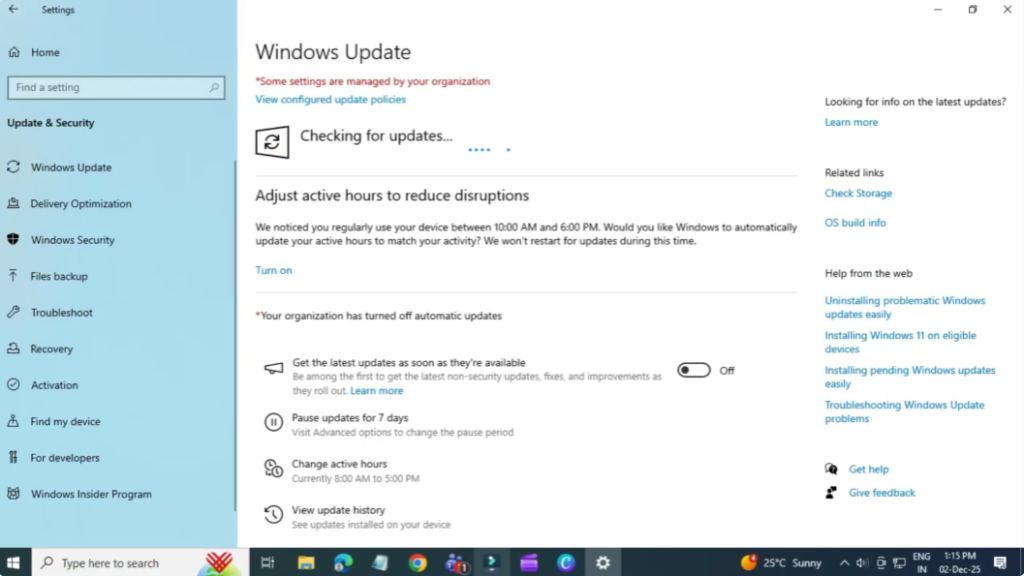
Open settings and scroll down to Windows update. Click check for updates and install everything available. Now go to network and internet advanced network settings and then network reset. Click reset now and restart your PC.
Step Four: Change Valerant Compatibility Settings
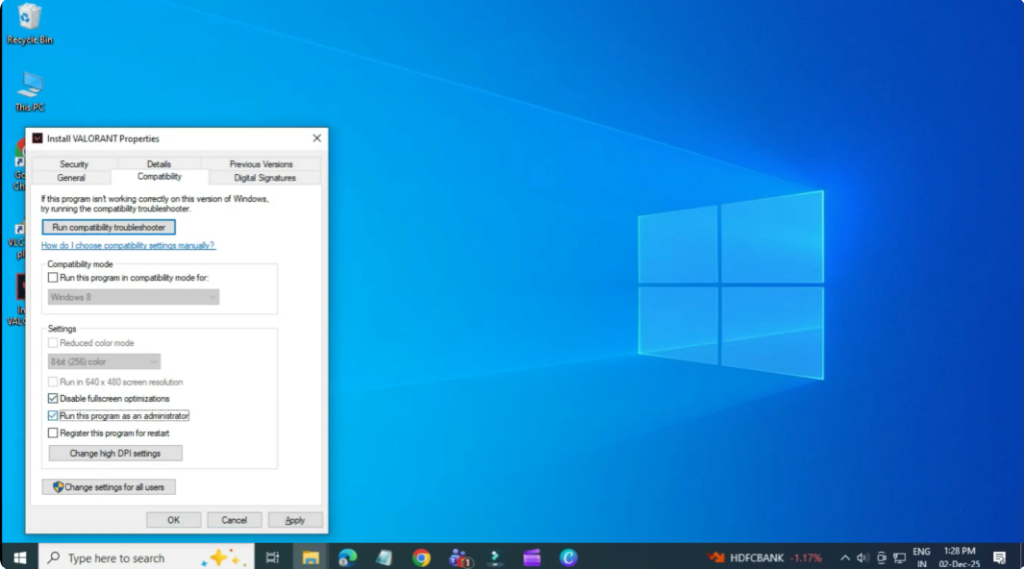
Rightclick the Valerant icon and select properties. Open the compatibility tab. Make sure these two options are checked.
Disable full screen optimizations.
Run this program as administrator.
Click apply and then okay.
Now try launching Valerant again. This should fix the van 79 error.






