

Counting working days in Excel is a smart way to keep track of deadlines, project schedules, or business tasks. Instead of manually checking each date, Excel can quickly calculate the number of weekdays between two dates, skipping weekends and even holidays if you want. This saves time and reduces mistakes, especially when dealing with large amounts of data. In this beginner-friendly blog, we’ll explain in simple language how to calculate working days in Excel step by step, so you can manage your time and tasks more efficiently.
📊 The Easy Method: Use NETWORKDAYS in Excel
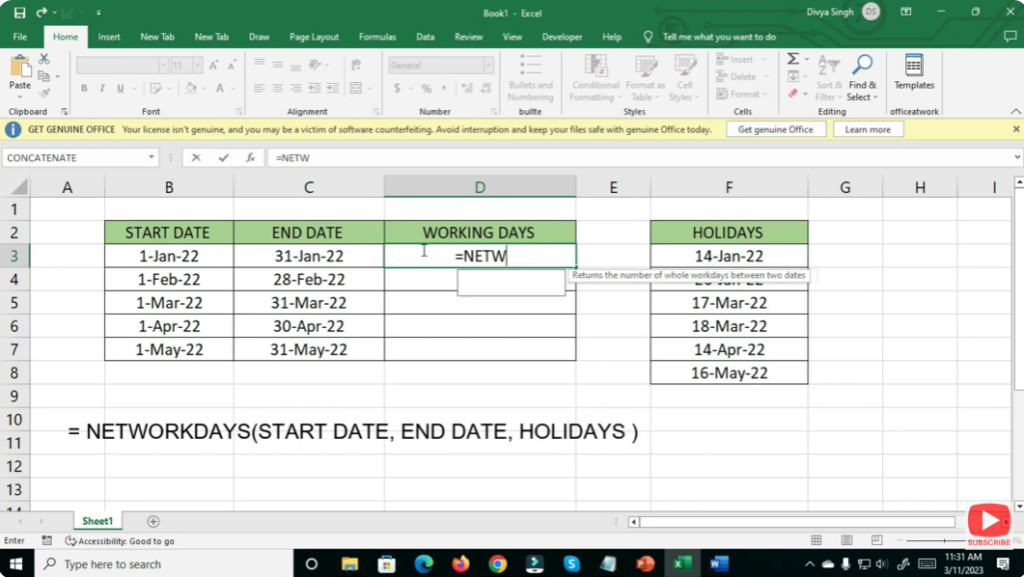
The simplest way is to use the built-in Excel function NETWORKDAYS.
✅ Formula syntax
=NETWORKDAYS(start_date, end_date, [holidays])
- start_date — the starting date of your period.
- end_date — the ending date of the period.
- holidays (optional) — a range of cells listing dates that should also be excluded (e.g. public holidays, company-wide holidays).
Excel will return the number of working days between the two dates, automatically excluding weekends (Saturday & Sunday by default) and — if provided — the listed holiday dates.
📝 Example
Suppose:
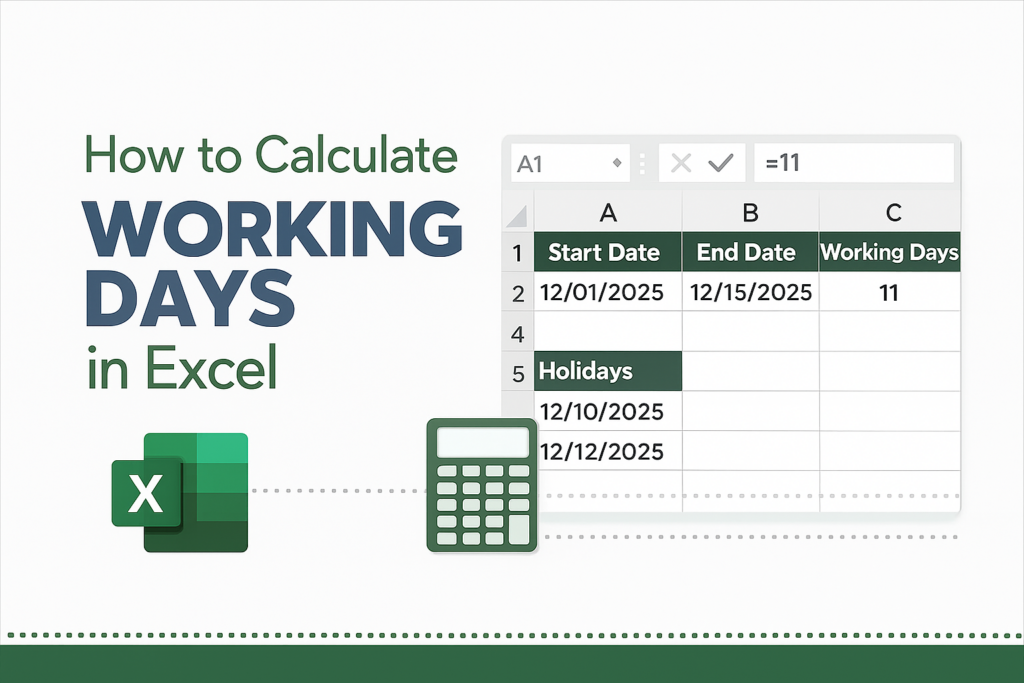
- Start date in cell A2:
2025-12-01 - End date in cell B2:
2025-12-15 - Holidays in range D2:D4 (say 2 holiday dates)
Then formula:
=NETWORKDAYS(A2, B2, D2:D4)
The result might be e.g. 11, meaning between Dec 1 and Dec 15 (inclusive), excluding weekends & those holidays, there are 11 working days.
⚙️ Optional — Custom Weekends or Work-Schedules: NETWORKDAYS.INTL
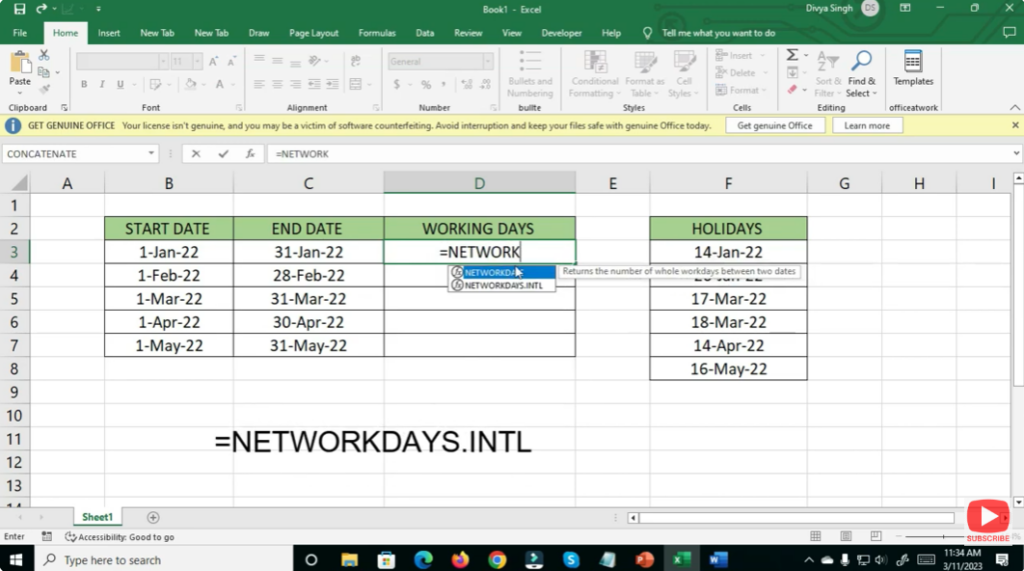
If your weekends are different (for example, Friday–Saturday, or only Sunday, or some custom off-days), you can use NETWORKDAYS.INTL. This function lets you specify which days count as weekends.
Syntax:
=NETWORKDAYS.INTL(start_date, end_date, [weekend], [holidays])
- weekend — an argument defining which days of the week are non-working days (there are codes for various combinations).
- holidays — optional list of dates to exclude.
This gives flexibility for companies or regions where weekend days differ from the default Saturday–Sunday.
✅ Quick Steps to Calculate Working Days in Excel
- Ensure you have a start date and an end date in two cells (e.g. A2, B2).
- If needed, prepare a list (column) of holiday dates (optional).
- In another cell, type:
=NETWORKDAYS(A2, B2) // basic — excludes weekends =NETWORKDAYS(A2, B2, holidays_range) // excludes weekends + holidays
- If you have custom weekends (not Sat-Sun), use NETWORKDAYS.INTL:
=NETWORKDAYS.INTL(A2, B2, weekend_code, holidays_range) - Hit Enter — Excel returns the count of working days between those dates.






