
Adding an extra email account to Outlook is helpful if you want to manage multiple emails in one place without switching apps. Whether it’s Gmail, Yahoo, or another Outlook account, Outlook makes it easy to see all your messages together. In this blog, you’ll learn simple step-by-step instructions to add and set up an additional email account in Outlook quickly, so you can stay organized and connected effortlessly.
✅ Step-by-Step: How to Add an Email Account in Outlook (Windows/Desktop)
Here’s how you can add another account in Outlook:
- Open Outlook, then click
File→ Add Account. - In the dialog that appears:
- Enter the email address of the account you want to add.
- Click Connect (or Next, depending on version).
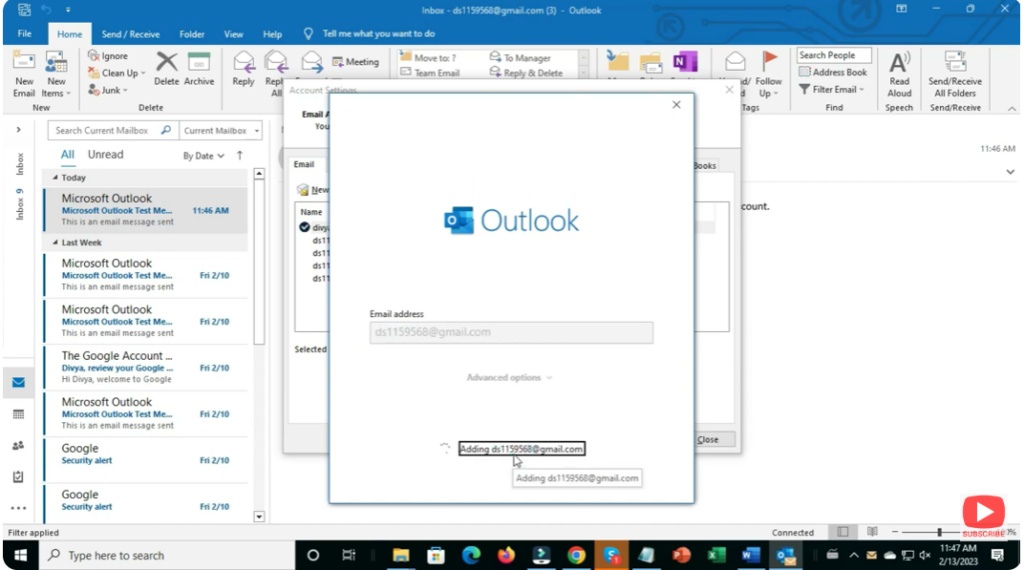
- If prompted — enter the password for that email account, then click OK / Finish.
- Outlook will automatically attempt to detect and configure server settings (for common providers like Gmail, Outlook.com, etc.). If detection succeeds, the account will be added, and you’ll see it listed in the left sidebar under your mail folders.
💡 For newer versions of Outlook (or if you’re using “New Outlook”), there is another way:
Go to Settings (gear icon) → Accounts → Add Account → enter email → Continue → password → Done.
✅ Final Thoughts
Adding an additional email account to Outlook is usually quick, straightforward, and extremely useful — once set up, you get a unified inbox for multiple addresses. Whether it’s a second personal account, office email, or custom-domain mail — Outlook can handle it.






