
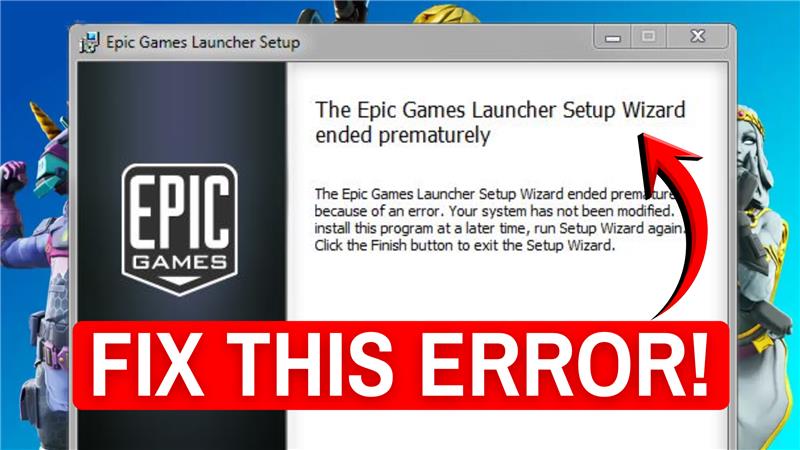
The Epic Games Launcher not installing is a common problem that many gamers run into, and it can be really annoying when you just want to play your favorite games. Instead of starting the installation smoothly, the setup may freeze, crash, or simply refuse to work. The good news is, this issue is usually caused by small glitches, missing files, or system settings—and it can be fixed with a few simple steps. In this beginner-friendly blog, we’ll explain in easy language how to fix the Epic Games Launcher installation error quickly and easily, so you can get back to gaming without delays.
Step 1: Close All Epic Games Processes
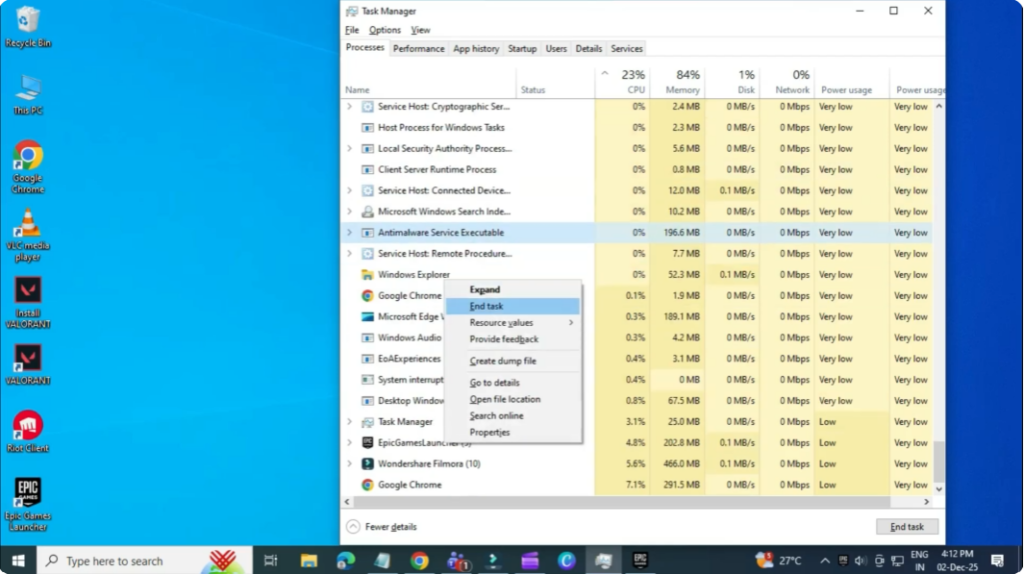
First, open your start menu and search for Task Manager. Inside Task Manager, look for anything related to Epic Games. If you see Epic Games Launcher or any background process, right-click it and select end task.
You can also use the search box at the top to quickly check for “Epic” and make sure nothing is running.
Step 2: Delete the Epic Games Folders
Once everything is closed, open File Explorer and go to your C drive.
Now follow this path: Program Files (x86).
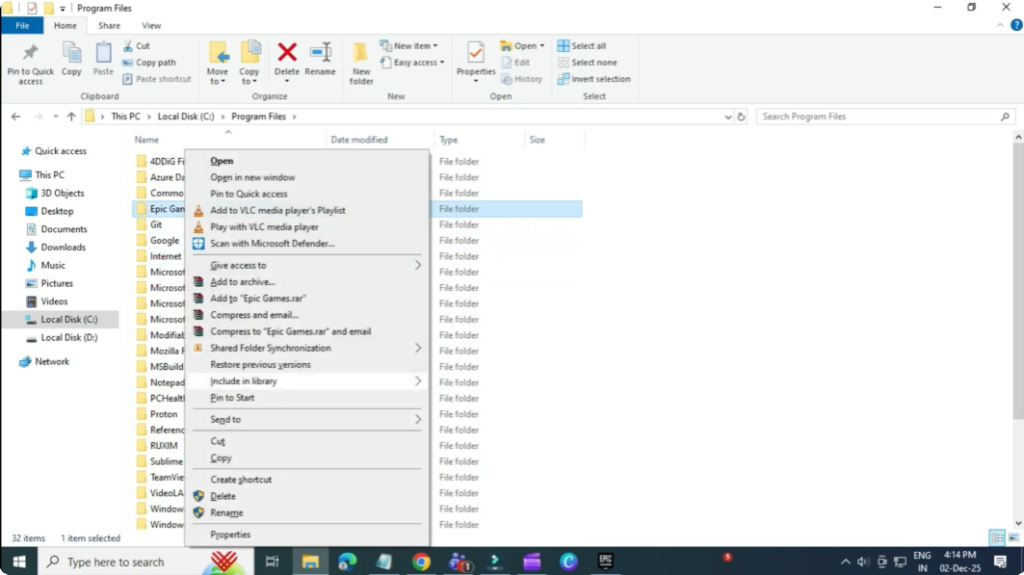
Inside this folder, find the Epic Games folder. Right-click it and delete it.
Next, go back one step and open the normal Program Files (without x86). If there’s another Epic Games folder there, delete it as well.
Step 3: Download the Epic Games Launcher Again
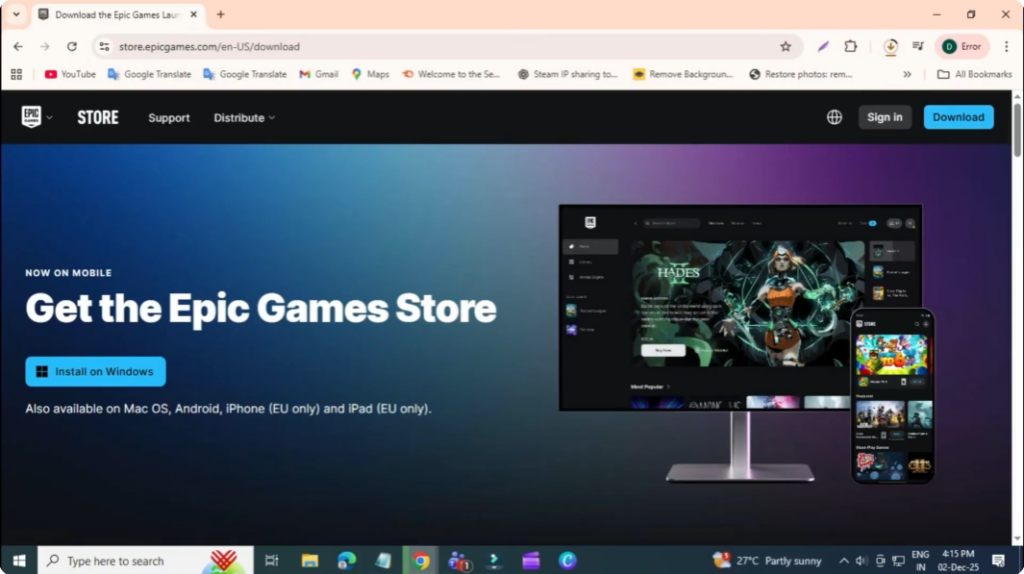
Once both folders are removed, open your internet browser and go to:
store.epicgames.com/download
Download the Epic Games Launcher installer again.
Step 4: Remove and Repair the Installer
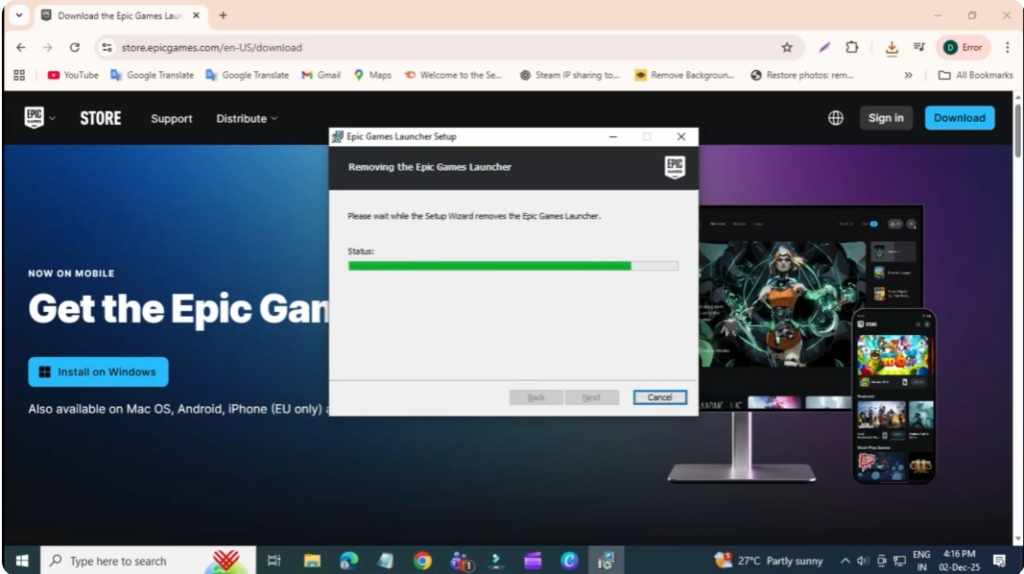
Run the file and you’ll see two options: remove and repair.
- First, select remove and let it finish.
- Once done, run the installer again.
- This time, select repair, then confirm.
Step 5: Launch Epic Games Launcher
After the repair is completed, launch the Epic Games Launcher again, and the error should now be fixed.






