
Recording your computer screen is a great way to create tutorials, share gameplay, or make presentations more engaging. With the right screen recording software, you can easily capture everything happening on your Windows PC—whether it’s a step-by-step guide, a meeting, or a live stream. The good news is, there are plenty of tools available that are simple to use and packed with helpful features. In this beginner-friendly blog, we’ll introduce the Top 5 computer screen recording software for Windows, so you can pick the one that best fits your needs and start recording like a pro.
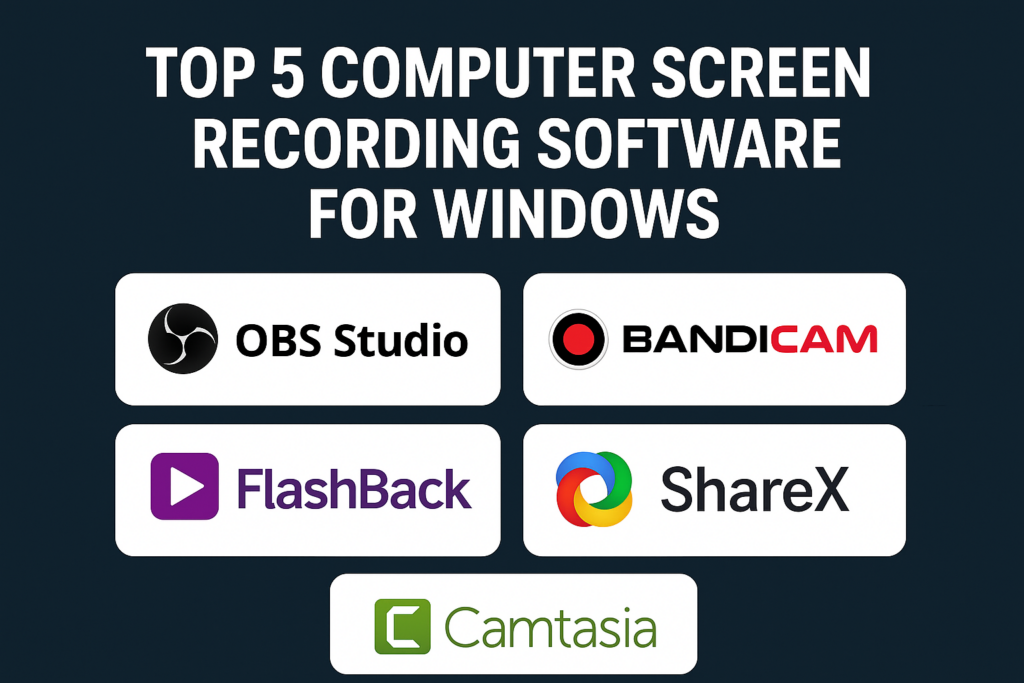
✅ Top 5 Screen Recording Software for Windows
OBS Studio
- Why it stands out: OBS is a free, open-source, cross-platform (Windows/macOS/Linux) screen recorder and streaming tool with advanced capture abilities: you can record screen, specific windows, webcam feed, and multiple audio sources.
- Best for: Gamers, streamers, power users, or anyone needing flexible capture + streaming + recording.
- Pros: Free; supports high-quality capture; highly customizable layouts/scenes; powerful audio and video mixing.
- Cons: Can seem complex for beginners; initial learning curve to configure scene/layout compared to click-and-record tools.
Bandicam
- Why it stands out: Bandicam is a lightweight screen recorder optimized for Windows; it’s especially popular among gamers and people recording high-FPS or resource-intensive tasks.
- Best for: Gaming, high-quality screen recording, situations where you want minimal CPU overhead.
- Pros: Good performance even while multitasking; supports 4K export; captures system audio, webcam + screen.
- Cons: The free version usually imposes time limits or watermark restrictions; full functionality requires paid license.
FlashBack Express
- Why it stands out: A simple, user-friendly screen recorder for Windows with no watermark in free version (in many versions), and a straightforward interface — ideal for beginners.
- Best for: Office tutorials, instructional videos, screen capture without frills or heavy editing needs.
- Pros: Easy to use; captures full screen or custom regions; supports capturing audio + webcam; no watermark in many cases.
- Cons: Free version lacks advanced editing features; limited editing/trimming capabilities; output formats may be basic.
ShareX
- Why it stands out: ShareX is a powerful, open-source tool — often described as a “hidden gem” — that supports screen capture, screen recording, GIF creation, quick uploads/sharing, and automation.
- Best for: Quick screen recordings, tutorials, GIFs, and users who want flexibility + light-weight capture without heavy editing.
- Pros: Free; no watermark; supports many export formats; customizable hotkeys; good for both screenshots and screen-recording.
- Cons: Does not come with built-in advanced video editing; not as full-featured as OBS or paid tools; might feel lean for professional video creation.
Camtasia
- Why it stands out: Camtasia is more than a recorder — it’s a full-featured editing suite + screen recorder. Great for those who want to capture, edit, annotate, and export polished videos without switching tools.
- Best for: Educators, tutorial makers, professionals who need clean finished videos — includes trimming, annotations, transitions, overlays.
- Pros: Integrated editing + recording; supports annotations, overlays, effects, and rich export options; good for high-quality content creation.
- Cons: Paid software (costly compared to free options); resource-heavy; overkill if you just need simple, quick recordings.
✅ Final Thoughts
There’s no one-size-fits-all “best” screen recorder — the right one depends on what you need: quick capture, full editing, gaming, tutorials, or lightweight snapshots. The five tools listed here — OBS Studio, Bandicam, FlashBack Express, ShareX, and Camtasia — cover most needs: from free open-source flexibility to fully-featured editing suites.






