
In Excel, formulas are meant to save time by doing calculations for you—but sometimes they don’t update automatically, which can be confusing. Instead of manually pressing keys or refreshing the sheet, you can set Excel to calculate formulas on its own whenever you change data. This makes working with numbers faster, easier, and error-free, especially for tasks like budgets, reports, or project tracking. In this beginner-friendly blog, we’ll explain in simple language how to make Excel formulas calculate automatically, so your spreadsheets always stay up to date.
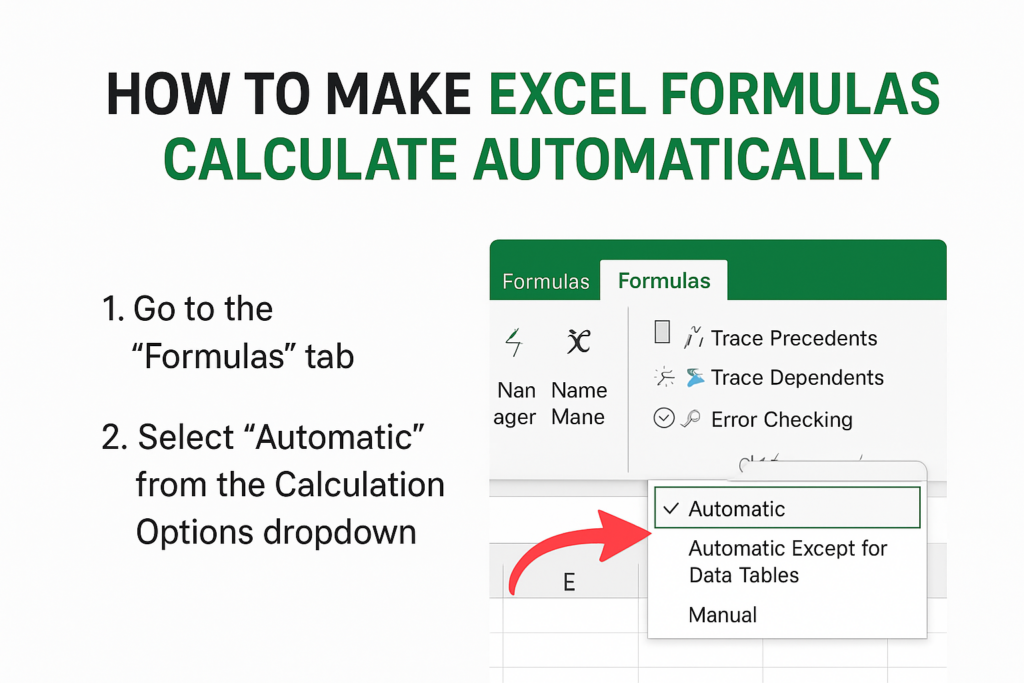
⚙️ How to Enable Auto-Calculation in Excel (Step-by-Step)
Here’s how to ensure Excel is set to automatically recalculate formulas:
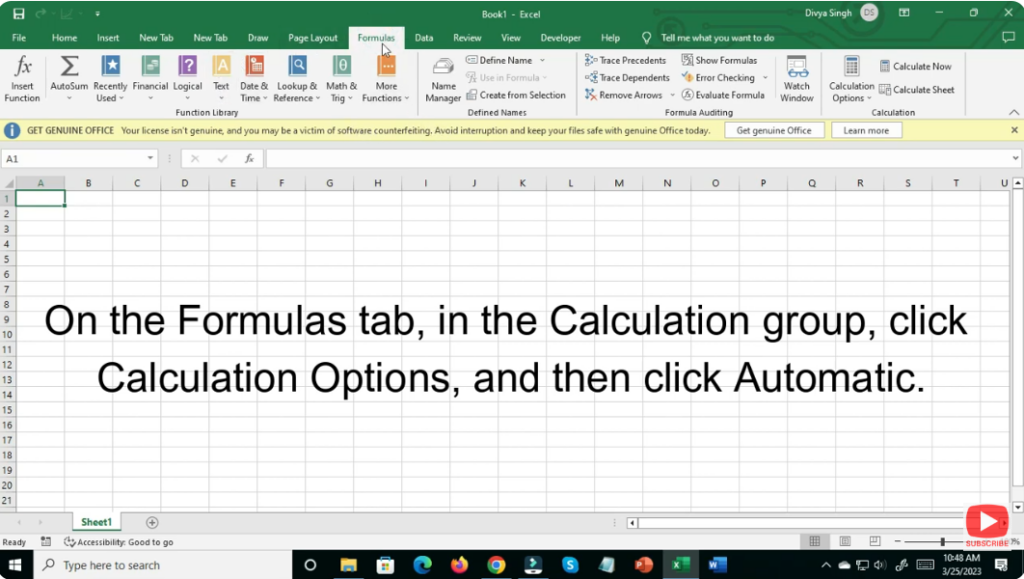
- Go to the “Formulas” tab on the Excel ribbon.
- Locate the “Calculation Options” dropdown (in the Calculation group).
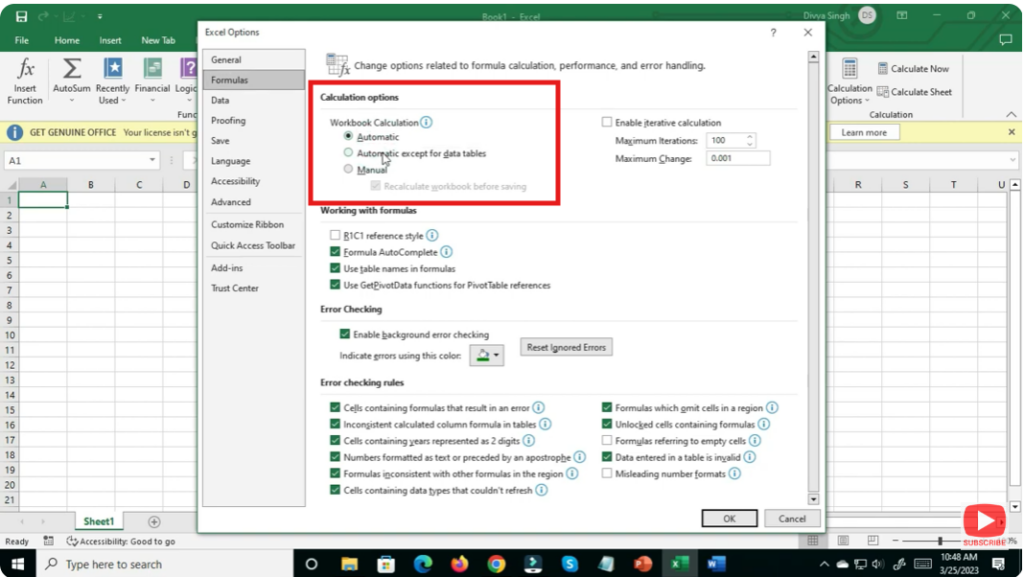
- From the dropdown, select “Automatic” — this ensures formulas recalculate whenever referenced cells change.
- There are two related options:
- Automatic — full auto-recalculation (default).
- Automatic Except for Data Tables — formulas recalc automatically, but data tables (if any) only recalc when manually triggered.
- There are two related options:
- Verify & test — change a value referenced by a formula; if the formula result updates immediately, auto-calculation is working correctly.
- If needed, revert from “Manual” or “Automatic Except Tables” back to “Automatic” to restore live updating.
🎯 Final Thoughts
Automatic calculation is one of Excel’s core strengths — ensuring that your data, formulas, reports stay live and accurate as you edit. But depending on workbook size and complexity, you might need to toggle between automatic and manual modes.






