
The Microsoft Photos app is an important tool in Windows 11 used to view, edit, and organize pictures easily. Sometimes, the app may stop opening or not work correctly after updates or system changes, causing frustration if you want to access your photos quickly. In this blog, you will learn simple and effective ways to fix the Microsoft Photos app not opening or not working issue on Windows 11, so you can enjoy seamless photo management again.
🛠️ Step-by-Step: How to Fix Microsoft Photos on Windows 11
Follow these steps in order — from simplest to more thorough — until the Photos app works correctly again:
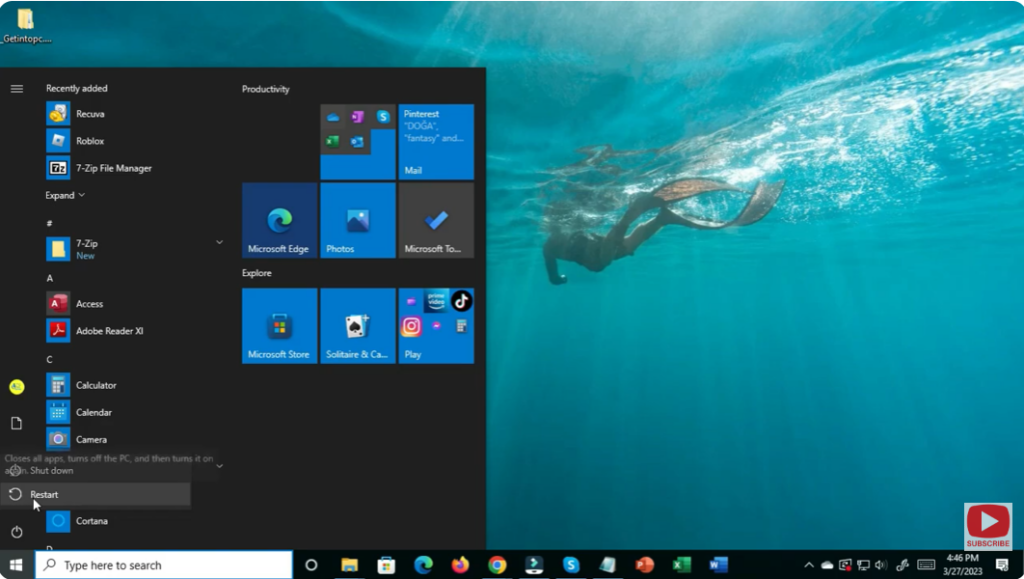
1. Restart Your PC & Try Again
Often, a simple restart resolves temporary glitches or locked system resources.
2. Run the Built-in Windows Store Apps Troubleshooter
- Go to Settings → System → Troubleshoot → Other troubleshooters.
- Run the “Windows Store Apps” troubleshooter — this can detect and fix issues specific to built-in or store apps like Photos.
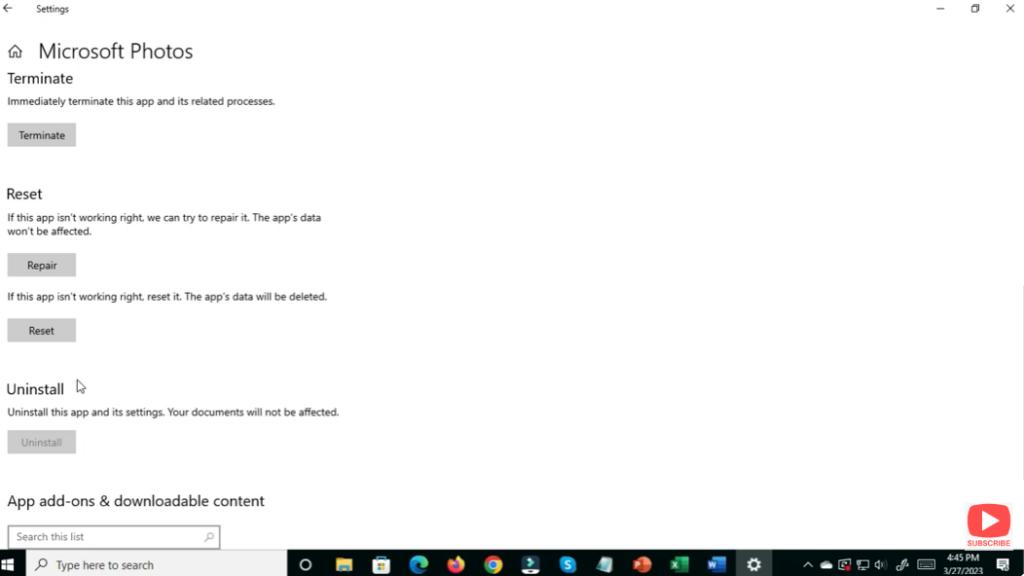
3. Repair or Reset the Photos App
- Navigate to Settings → Apps → Apps & features in Windows 11.
- Find Microsoft Photos, click on the three-dot menu (⋮) → Advanced options.
- First try Repair, then if that fails, use Reset — this clears cache and resets the app without affecting your personal image files.
4. Update the Photos App (and Windows Itself)
- Open Microsoft Store → go to Downloads & Updates → check for updates. Update Photos if available.
- Also go to Settings → Windows Update → Check for updates — installing the latest system patches may fix compatibility issues.
5. Clear Cache / Temporary Files Related to Photos App
Corrupted cache or thumbnail files can cause crashes or freezes:
- Use Disk Cleanup or manually clear cache at path like
%LocalAppData%\Packages\Microsoft.Windows.Photos_8wekyb3d8bbwe\LocalState(or similar) — deleting cache can force Photos to rebuild fresh thumbnails.
6. Reinstall Photos via PowerShell (As Last Resort)
If reset/repair doesn’t help:
- Open Windows PowerShell as administrator.
- Run:
Get-AppxPackage *Microsoft.Windows.Photos* | Remove-AppxPackage - Then reinstall:
Get-AppxPackage -allusers Microsoft.Windows.Photos | ForEach { Add-AppxPackage -DisableDevelopmentMode -Register "$($_.InstallLocation)\AppXManifest.xml" } - Restart your PC, then open Microsoft Store → reinstall Microsoft Photos if needed.
This effectively gives you a “clean slate” installation of the Photos app — often resolving deeper problems with corrupt files or broken registration.
✅ Final Thoughts
The built-in Photos app in Windows 11 is convenient and usually reliable — but when it fails, it often points to corrupt cache, app-data conflicts, or glitches after updates.
By following the steps above (restart → troubleshooter → repair/reset → update → reinstall), you can fix nearly all common issues without losing photos or reinstalling Windows.






