
The Microsoft Store Error 0x87af0813 is a common issue that stops apps from downloading or updating properly. Instead of installing smoothly, you may see this error message pop up, leaving you stuck and unable to use the Store as expected. While it looks complicated, the good news is that this problem is usually caused by small glitches, corrupted files, or connection issues—and it can be fixed with simple steps. In this beginner-friendly blog, we’ll explain in easy language how to fix Microsoft Store Error 0x87af0813 step by step, so you can get your apps running again without hassle.
✅ Step-by-Step Fixes for Error 0x87AF0813
1. Check Internet & Basic Conditions
Before advanced fixes:
- Ensure your internet connection is stable and fast enough.
- Ensure you have enough free storage on your drive — low disk space can stop downloads/installs.
- If you use third-party antivirus or firewall — temporarily disable it, as it may block Store’s download process.
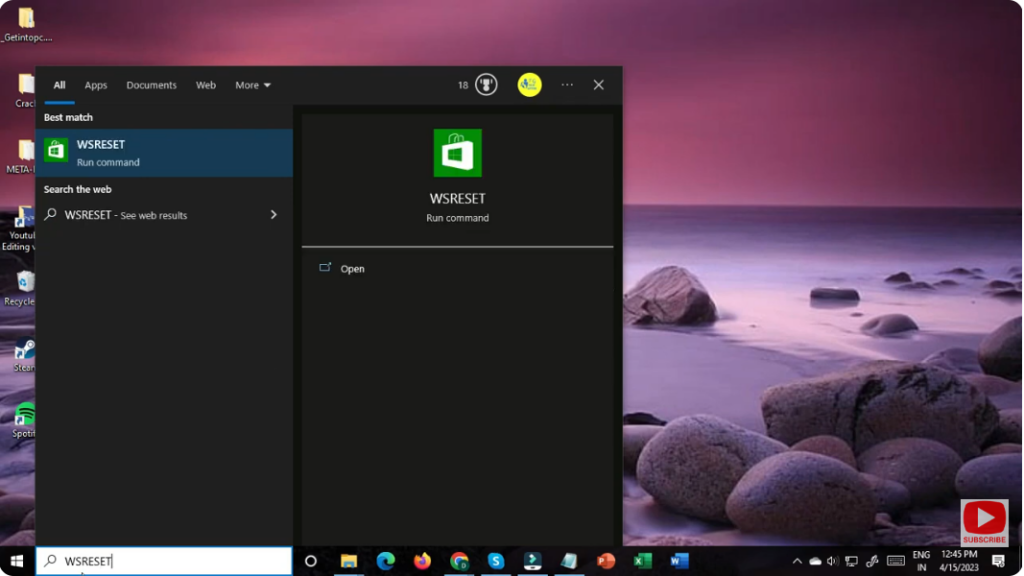
2. Reset Microsoft Store Cache
Corrupt cache is a frequent culprit. To reset:
- Press
Win + R, typewsreset.exe, and press Enter. This clears the Store cache and restarts the Store. - After reset, try installing/updating the app again.
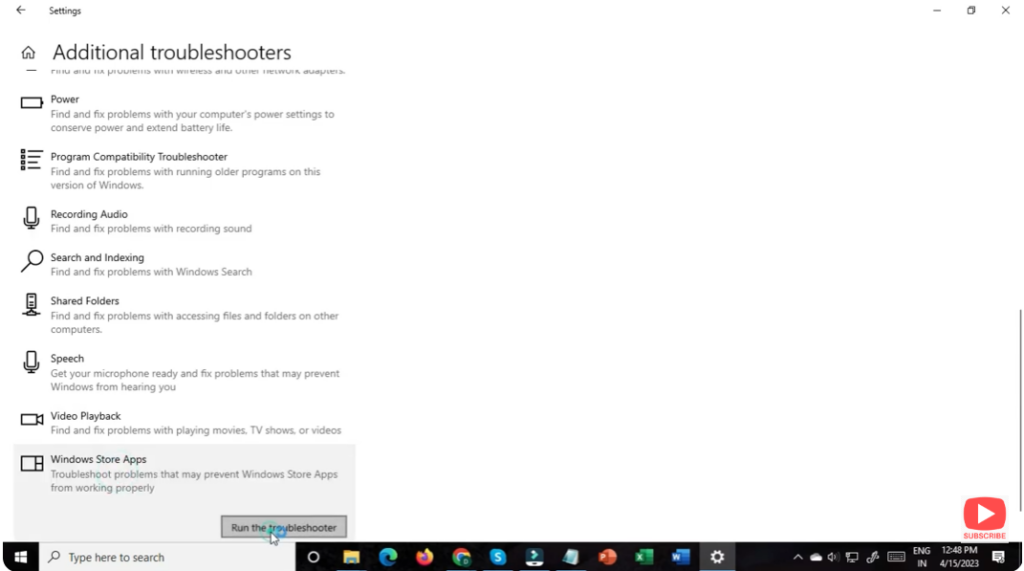
3. Run Built-in Windows Store Apps Troubleshooter
Windows includes a troubleshooter for Store apps that can fix common issues automatically:
- Go to Settings → System → Troubleshoot → Other troubleshooters
- Find “Windows Store Apps”, click Run and follow on-screen prompts
- Once done, restart the PC and check if error persists.
4. Run System Integrity Checks (DISM + SFC)
If system files are corrupt or missing, it may cause Store faults. Use these commands:
- Open Command Prompt as administrator.
- Run:
DISM /Online /Cleanup-Image /RestoreHealth sfc /scannowThis will check and repair system corruption. - Restart PC and try again.
5. Re-register / Reinstall Microsoft Store
Sometimes Store itself needs re-registration. To re-register:
- Open PowerShell as admin and run:
Get-AppxPackage -AllUsers | ForEach {Add-AppxPackage -DisableDevelopmentMode -Register "$($_.InstallLocation)\AppXManifest.xml"}
This re-registers all built-in UWP apps including the Store. After a restart, check if the issue is gone.
6. Change Region (If Region-Related Glitches)
Some users report that switching Windows region temporarily helps (e.g. to United States) — after that, the Store error disappears. You can try this via Settings → Time & language → Region.
7. Update Windows & Microsoft Store
Make sure your Windows is up to date, and check for updates in Microsoft Store (from its menu → Downloads & updates). Sometimes missing updates cause compatibility issues.
✅ Final Thoughts
Error code 0x87AF0813 in Microsoft Store can be frustrating — but is usually resolvable without drastic measures. Most of the time, cache reset + Store troubleshooter + checking storage/connection solves it. For deeper issues, system repair (DISM/SFC) and re-registration of Store have high success rates.






