
Sometimes in Excel, sheets get hidden to keep your workbook clean or protect sensitive data. If you want to see or edit those hidden sheets again, you can easily unhide them with just a few clicks. In this blog, you’ll learn simple step-by-step methods to unhide one or multiple sheets in Excel, including using the right-click menu and keyboard shortcuts, so you can access all your data whenever you need it.
✔ Method 1: Unhide a Single Sheet in Excel
Follow these simple steps:
Step 1: Right-click any sheet tab
At the bottom of Excel, right-click on any visible sheet.
Step 2: Select “Unhide…”
A dialog box appears showing a list of all hidden sheets.
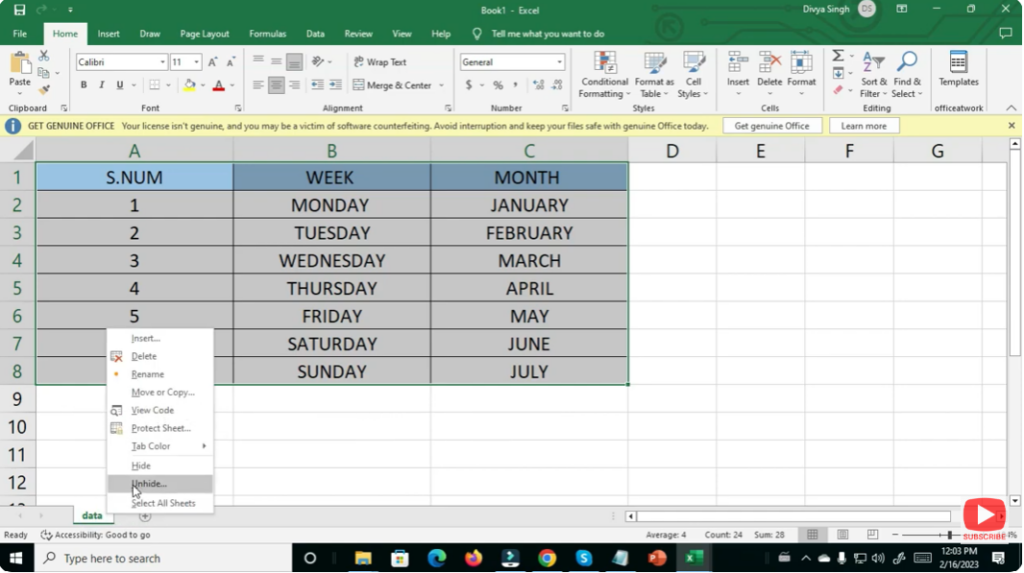
Step 3: Choose the sheet you want to unhide
Select one sheet from the list.
Step 4: Click “OK”
Your selected sheet becomes visible immediately.
Note: Excel only allows unhiding one sheet at a time using this method.
Conclusion
Unhiding sheets in Excel is simple once you know the right steps. Whether it’s a single sheet or all sheets at once, Excel provides multiple options to help you restore hidden worksheets quickly and efficiently.






