

Fragmenting images with shapes in PowerPoint is a creative trick that lets you break a picture into different parts and design unique layouts. Instead of using plain images, you can cut them into shapes like circles, triangles, or custom designs to make your slides stand out. This technique is perfect for presentations, infographics, or any project where you want visuals to look more professional and engaging. The good news is, PowerPoint has built-in tools that make this process simple. In this beginner-friendly blog, we’ll explain in easy language how to fragment images with shapes in PowerPoint step by step, so you can add a stylish touch to your slides.

Step-by-Step: Fragment Images with Shapes in PowerPoint
Step 1: Insert Your Image
- Open PowerPoint and go to the slide where you want to add the image.
- Click Insert > Pictures.
- Choose the picture you want to use.
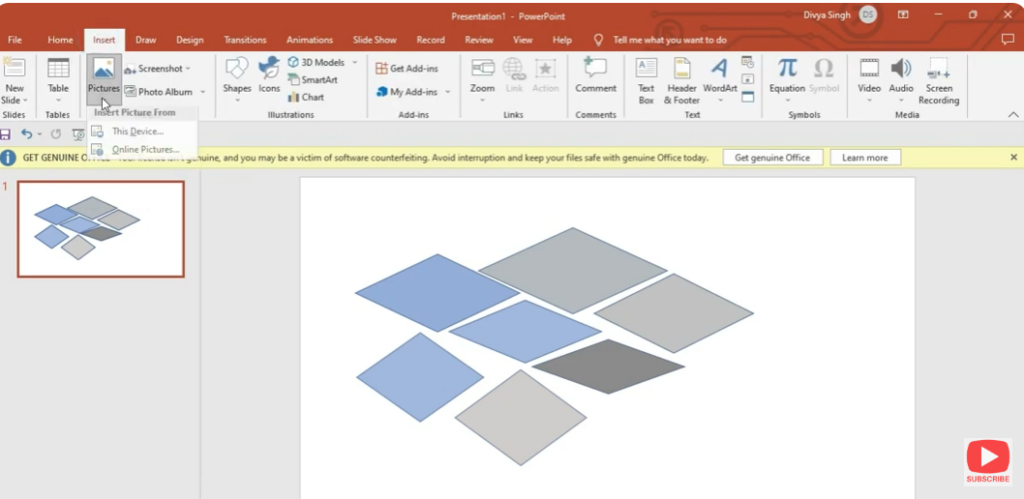
Your selected image will now appear on the slide.
Step 2: Insert the Shape You Want to Use
- Go to Insert > Shapes.
- Select a shape—such as circle, triangle, hexagon, etc.
- Draw the shape over the part of the image you want to highlight or fragment.
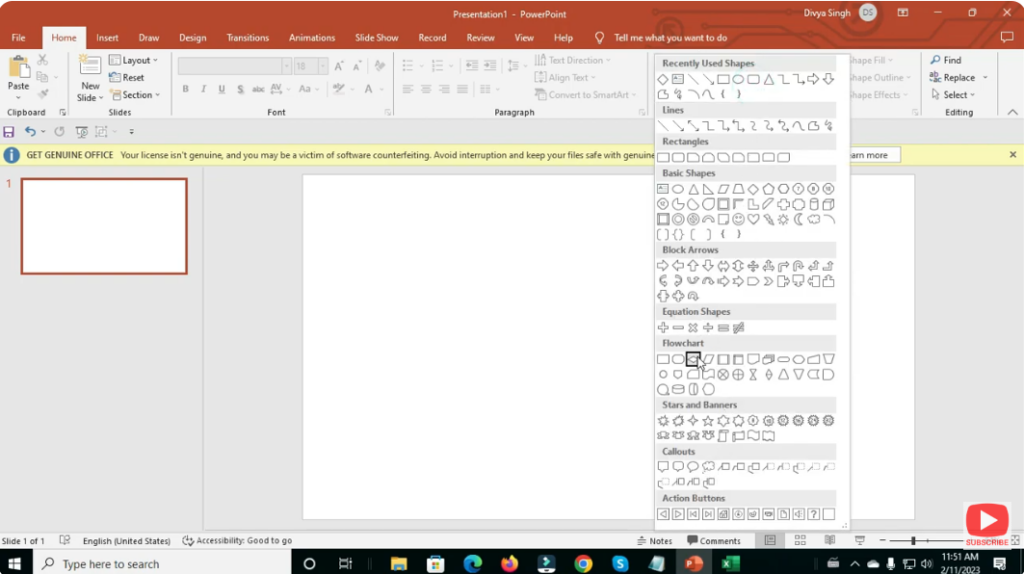
Adjust the shape’s size and position to fit your design.
Step 3: Duplicate the Image
To create a fragmented effect, you’ll need copies of the same image.
- Select the image.
- Press Ctrl + D to duplicate it.
- Move the duplicate image aside for later use.
Step 4: Use “Merge Shapes” to Fragment
- Select the shape first, then hold Shift and select the image.
- Go to Picture Format > Merge Shapes (or Shape Format depending on version).
- Click Intersect.
Now the image is cut into your chosen shape!
Step 5: Repeat for Multiple Fragments
To create a full fragmented look:
- Place the original image on the slide.
- Draw multiple shapes over different areas.
- For each shape, use the Intersect merge option with the duplicated image.
Arrange the fragments as desired—separated, scattered, or overlapping.
Step 6: Add Creative Effects (Optional)
You can enhance your design using:
- Shadow effects
- Glow
- Soft edges
- Borders
- Rotation effects
This makes the fragmented image look more dynamic and professional.
Conclusion
Fragmenting images with shapes in PowerPoint is a simple yet powerful way to enhance slide design. With just a few clicks using the Merge Shapes tool, you can transform ordinary pictures into engaging visual elements. Try experimenting with different shapes, layouts, and effects to create unique slide designs that stand out.






