

Windows 10 shortcut keys help you work faster by performing common tasks with simple keyboard combinations instead of using the mouse. From copying and pasting to switching windows and taking screenshots, mastering these shortcuts boosts your productivity instantly. In this blog, you’ll discover the top Windows 10 shortcut keys everyone should know, organized by category for easy learning and daily use.
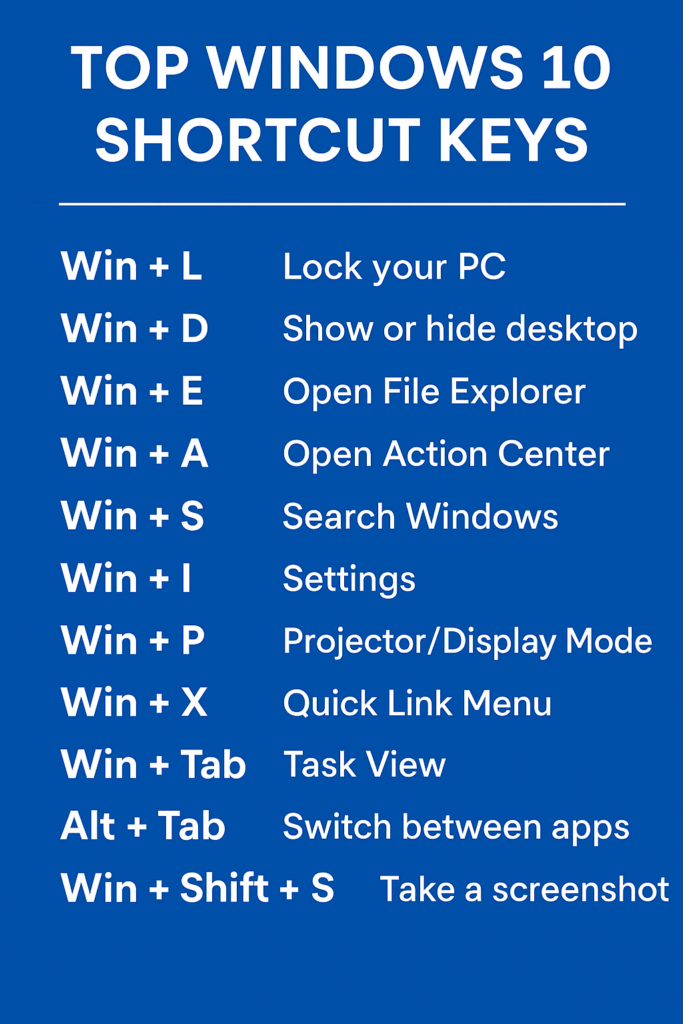
1. Win + L – Lock Your PC
If you’re stepping away from your desk for a moment, this shortcut instantly locks your screen. It’s quick, secure, and prevents unauthorized access.
2. Win + D – Show or Hide Desktop
This is perfect when multiple windows are open. Pressing this shortcut minimizes everything and takes you directly to the desktop. Press again to restore all windows.
3. Win + E – Open File Explorer
Need to access files quickly? This shortcut opens File Explorer instantly, saving you the time of clicking icons.
4. Win + A – Open Action Center
Action Center shows notifications, quick settings (Wi-Fi, Bluetooth, brightness, etc.). This shortcut helps you open it instantly.
5. Win + S – Search Windows
Instead of navigating menus, press Win + S to search for apps, files, or settings instantly using the search bar.
6. Win + I – Open Settings
Want to change system settings, network, personalization, or updates? This shortcut opens the Settings app right away.
7. Win + P – Change Projector/Display Mode
Useful when using a second monitor or projector. Choose between:
- Duplicate
- Extend
- Second screen only
Great for presentations and multitasking.
8. Win + X – Open Quick Link Menu
This shortcut opens a hidden power-user menu that includes:
- Device Manager
- Disk Management
- Task Manager
- Power Options
- Command Prompt / Terminal
Very useful for advanced settings.
9. Win + Tab – Task View
See all your open windows at once. You can also access your virtual desktops from here.
10. Alt + Tab – Switch Between Apps
The fastest way to jump between open applications. Keep pressing Tab while holding Alt to cycle through apps.
11. Win + Shift + S – Take a Screenshot
This opens the Snipping Tool overlay. Select an area to capture and save your screenshot instantly.
12. Win + Arrow Keys – Snap Windows
Snap windows left, right, or maximize/minimize them using:
- Win + Left Arrow
- Win + Right Arrow
- Win + Up Arrow
- Win + Down Arrow
Perfect for multitasking and screen organization.
Final Thoughts
Learning Windows 10 shortcut keys is one of the easiest ways to improve your productivity. With just a few combinations, you can control windows, switch apps, manage files, and access settings—it’s much faster than using a mouse. Try using these shortcuts daily, and soon they’ll become second nature.






