
Blocking someone on Facebook can be useful when you want privacy or a break from unwanted interactions—but what if you change your mind later? Whether you blocked a friend by mistake or simply want to reconnect, Facebook makes it easy to reverse the action. The good news is, unblocking someone only takes a few clicks, and once done, you can view their profile, message them, or add them back as a friend if you choose. In this beginner-friendly blog, we’ll explain in simple steps how to unblock someone on Facebook, so you can restore connections quickly and hassle-free.
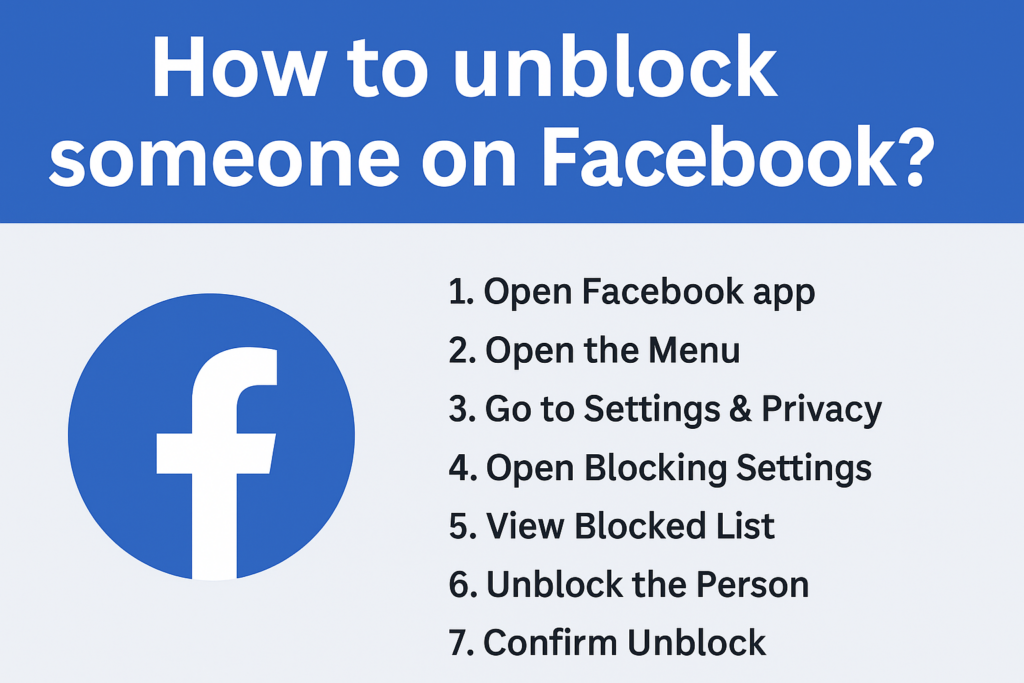
How to Unblock Someone on Facebook – Step-by-Step
Follow these simple steps to remove someone from your block list:
Step 1: Open Facebook App
Launch the Facebook app on your phone and make sure you are logged in to your account.
Step 2: Open the Menu
Tap the three horizontal lines (Menu icon) located at the top-right (Android) or bottom-right (iPhone) of the screen.
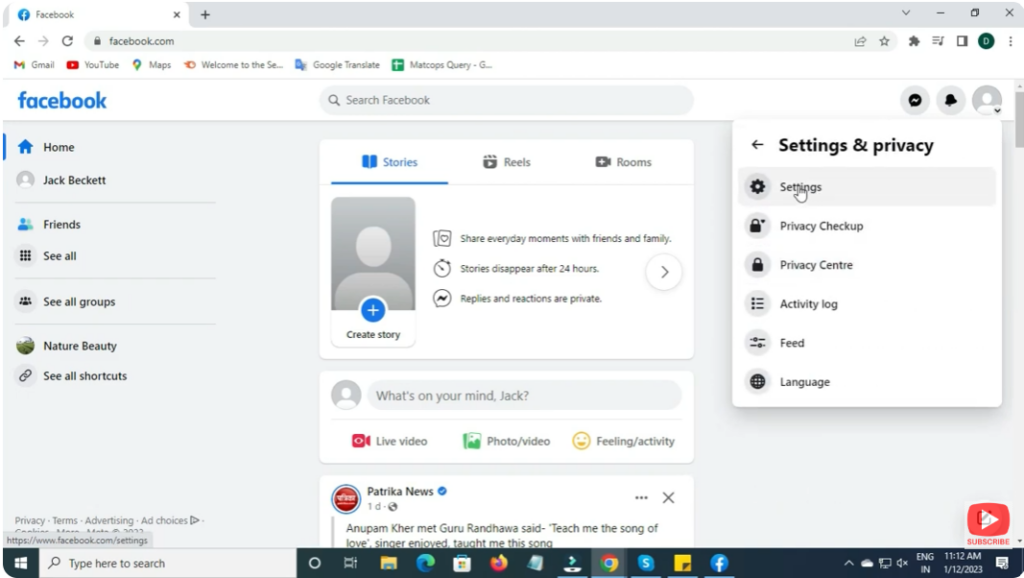
Step 3: Go to Settings & Privacy
Scroll down and select Settings & Privacy, then tap on Settings.
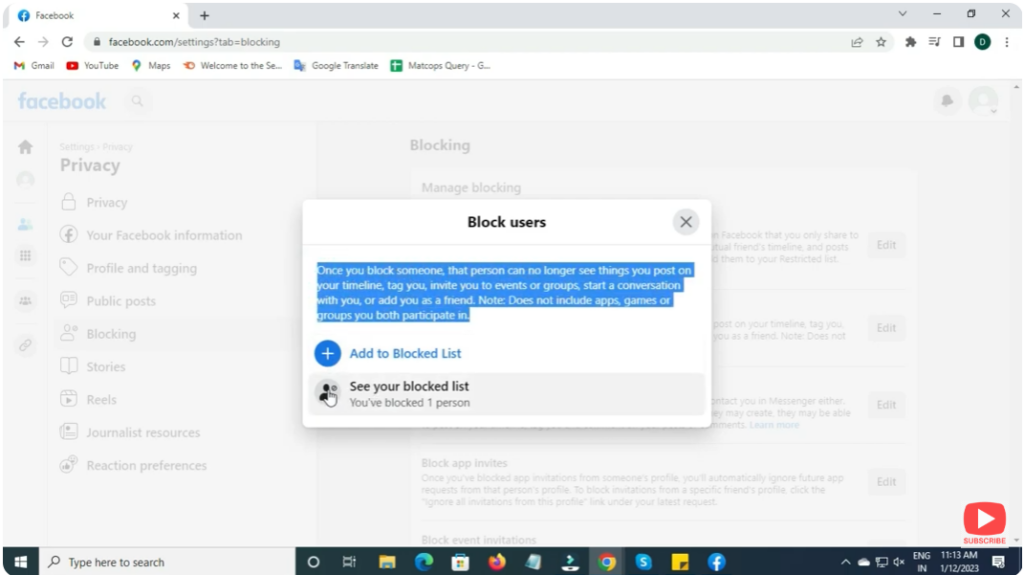
Step 4: Open Blocking Settings
Scroll through the list and tap Blocking under the Audience and Visibility section.
Step 5: View Blocked List
You will now see a list of people you have blocked on Facebook.
Step 6: Unblock the Person
Find the person you want to unblock and tap Unblock next to their name.
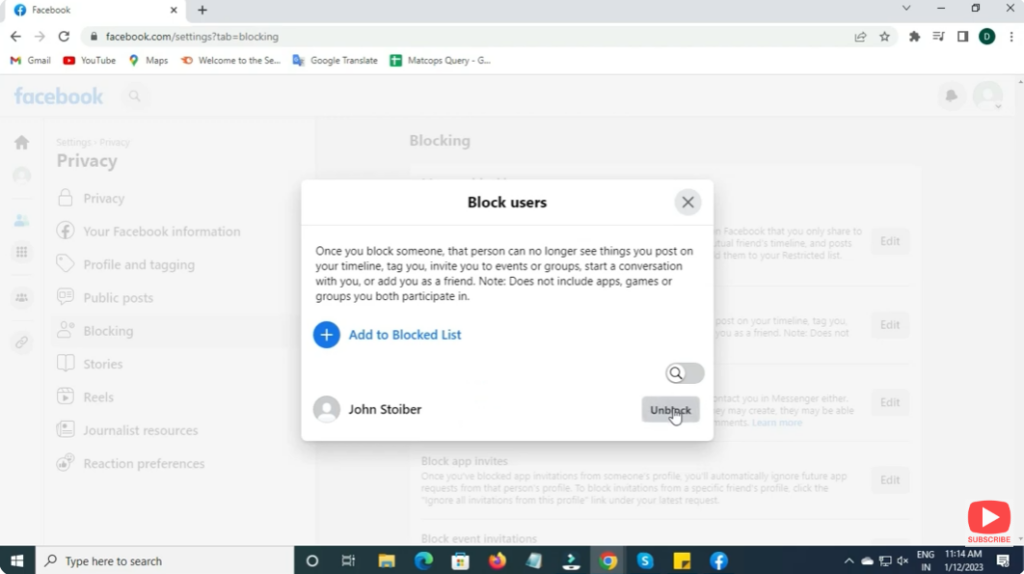
Step 7: Confirm Unblock
A pop-up will appear. Tap Unblock again to confirm your action.
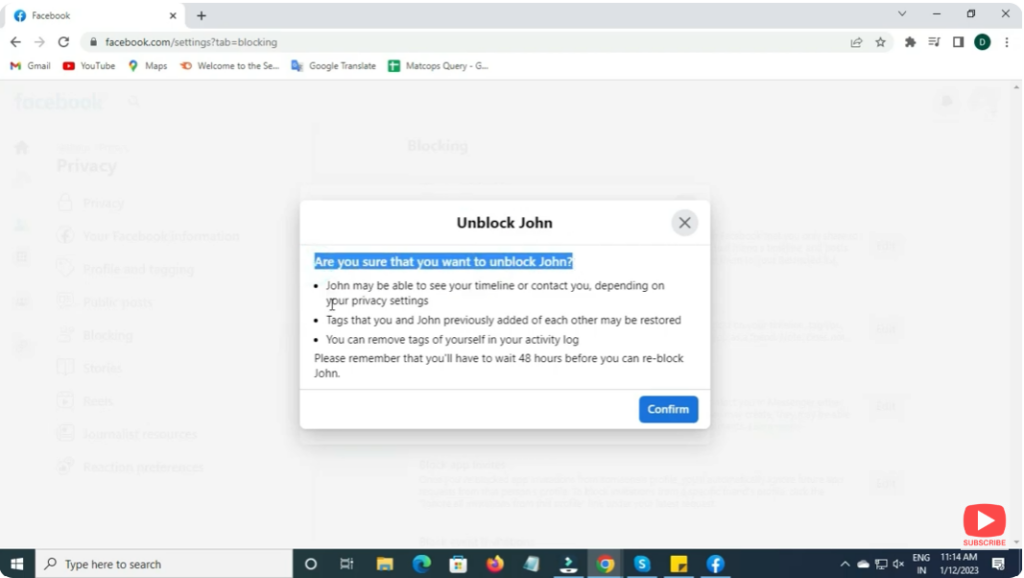
Done!
The person is now unblocked. Remember, if you want to add them back as a friend, you’ll have to send a new friend request.
Final Words
Unblocking someone on Facebook is quick and easy once you know where to find the settings. Whether you want to reconnect or simply remove old restrictions, these steps will help you manage your block list effortlessly.






