

Clearing formatting in Excel quickly removes all colors, fonts, borders, and styles from selected cells, giving you a clean, uniform look without deleting your data. This is perfect when copying information from other sources or starting fresh with standard formatting. In this blog, you’ll learn easy step-by-step methods using Clear Formats button, keyboard shortcuts, and Paste Special to remove cell formatting instantly while keeping your values safe.
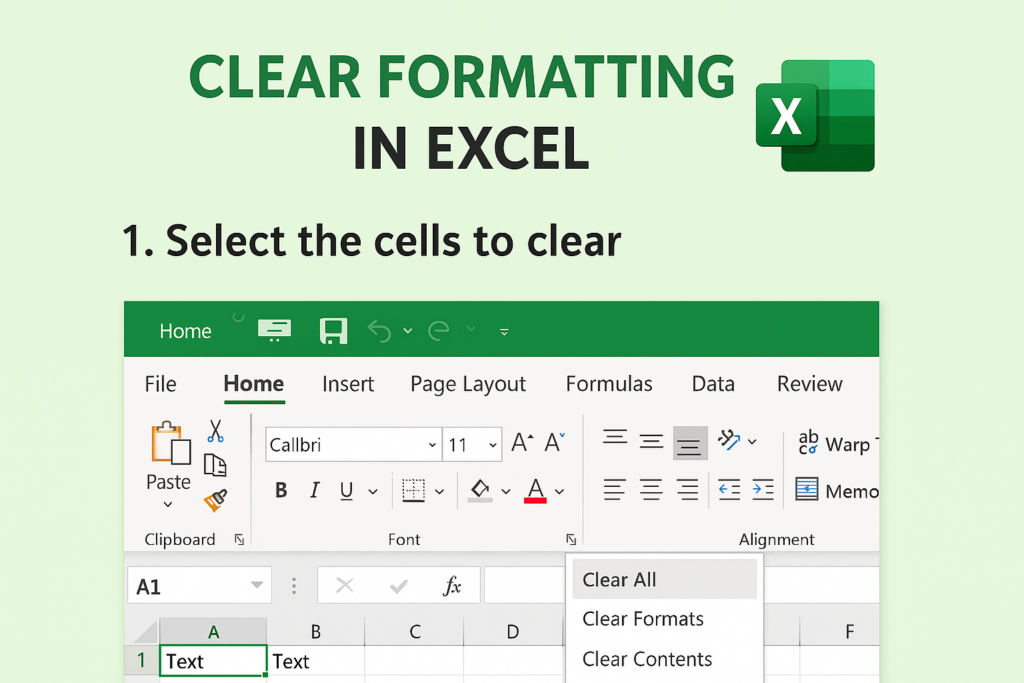
How to Clear Formatting in Excel (Simple Methods)
Below are the easiest ways to remove cell formatting in Excel:
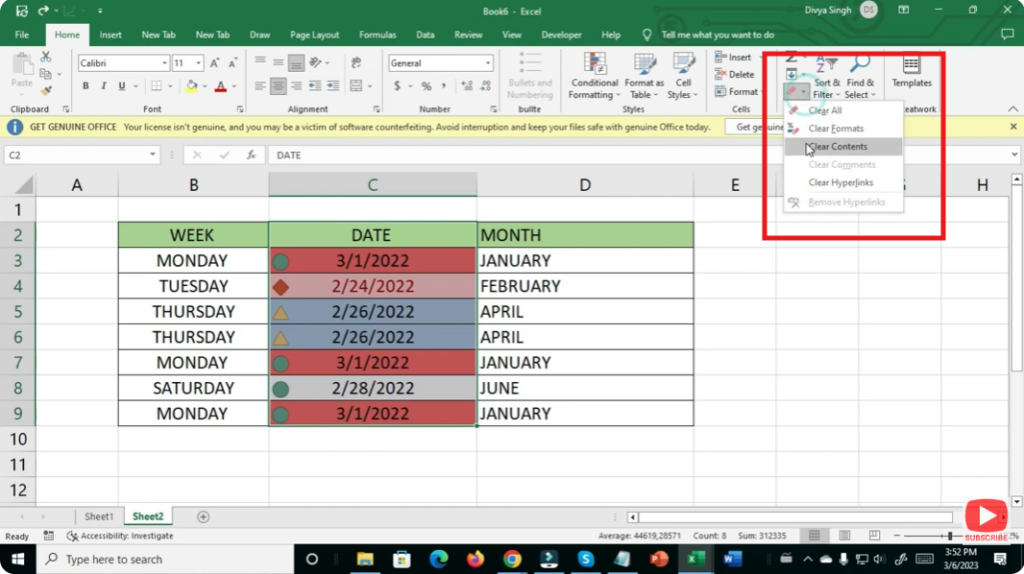
✅ Method 1: Clear Formatting from the Home Tab
This is the most commonly used and quickest method.
Steps:
- Select the cells where you want to remove formatting.
- Go to the Home tab in Excel.
- Click the Clear button in the Editing group (right side).
- Choose Clear Formats from the dropdown.
👉 Your selected cells will instantly return to their default look.
✅ Method 2: Use the Right-Click Menu
A handy shortcut when working quickly.
Steps:
- Highlight the cell or range.
- Right-click.
- Click Clear Contents for removing text (optional).
- Click Clear Formats to remove only formatting.
Final Thoughts
Clearing formatting in Excel is a useful skill that helps keep your worksheets clean and professional. Whether you want to reset your entire sheet or remove styling from a few cells, Excel provides several quick and easy tools to do it.






