
Comparing two columns in Excel is a powerful way to quickly spot differences or similarities in your data. Whether you’re working with lists of names, product IDs, or numbers, manually checking each entry can be time-consuming and prone to errors. Luckily, Excel provides built-in tools and formulas that make this process simple and efficient. In this beginner-friendly blog, we’ll explain in clear, step-by-step language how to compare two columns in Excel to find differences or similarities, so you can keep your spreadsheets accurate and organized.
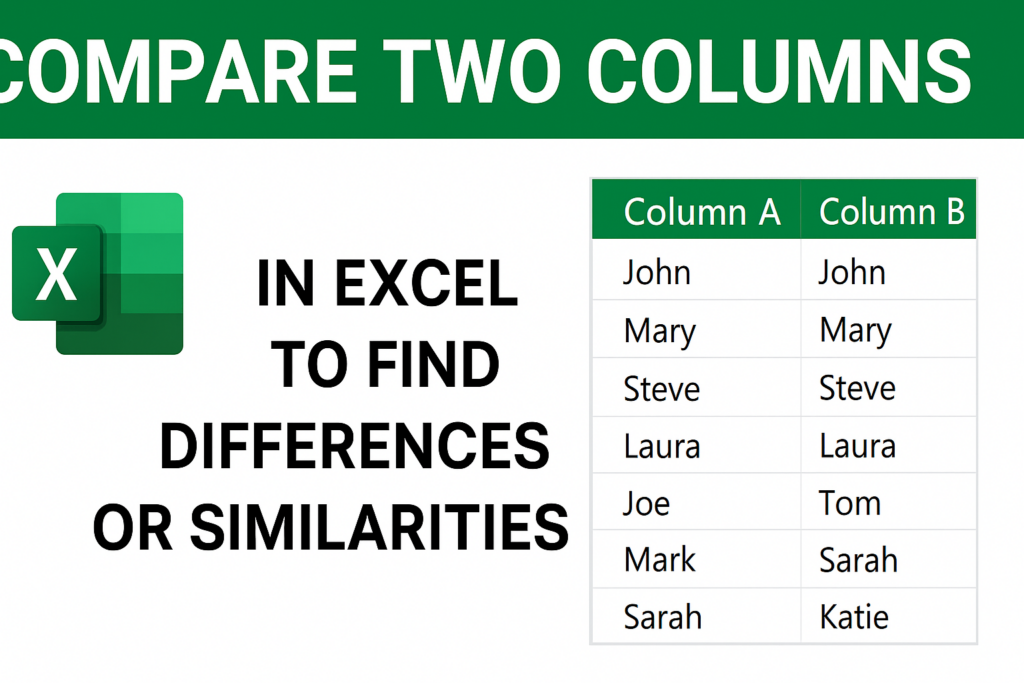
1. Compare Two Columns Using Conditional Formatting (Highlight Differences)
This method instantly highlights differences between Column A and Column B.
Steps:
- Select the data in Column A.
- Go to Home > Conditional Formatting > New Rule.
- Choose “Use a formula to determine which cells to format.”
- Enter the formula:
=A1<>B1 - Click Format, choose a highlight color, and press OK.
All values that do not match between the two columns will be highlighted.
2. Highlight Matching Values Between Two Columns
If you want to see which values are the same:
Steps:
- Select Column A.
- Go to Conditional Formatting > New Rule.
- Use this formula:
=A1=B1 - Choose a highlight style and click OK.
Matching items will now be highlighted.
3. Compare Columns Using the IF Function
The IF formula helps you display whether values match or not.
Steps:
- In a new column (Column C), enter:
=IF(A1=B1, "Match", "Different") - Press Enter and drag the formula down.
Column C will clearly show “Match” or “Different” for each row.
4. Find Items in Column A That Are Not in Column B
Use the COUNTIF function to identify missing values.
Steps:
- In Column C, enter:
=IF(COUNTIF(B:B, A1)=0, "Not Found", "Found") - Copy the formula down.
This helps you find unique values in Column A that don’t exist in Column B.
5. Find Exact Differences Using the “Go To Special” Tool
This method highlights only the differences in selected ranges.
Steps:
- Select Column A and Column B together.
- Go to Home > Find & Select > Go To Special.
- Choose Row differences.
- Excel will highlight the mismatched cells.
6. Compare Tables Using VLOOKUP (For Larger Data Sets)
If the lists are in different locations or sheets:
Steps:
- Use the formula:
=IF(ISNA(VLOOKUP(A1, B:B, 1, FALSE)), "Not in B", "Match") - Drag it down.
This is helpful when comparing long lists.
Final Thoughts
Excel provides many ways to compare two columns — highlighted differences, formulas, and lookup functions. Choose the method that best fits your data. Using these steps, you can easily find similarities, mismatches, or missing items across any two columns.






