

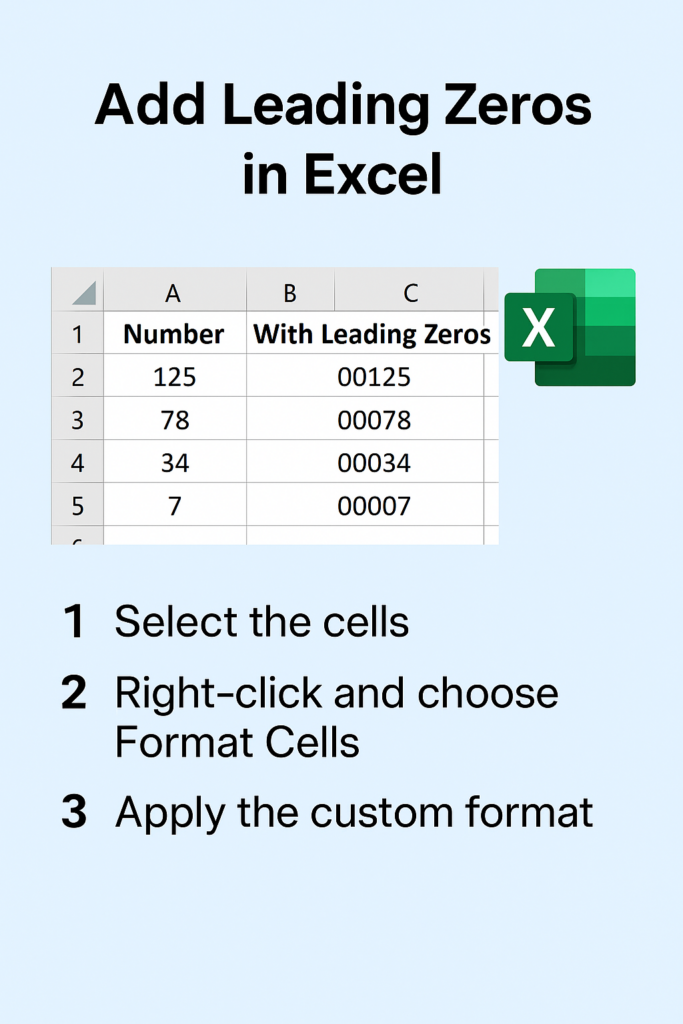
Adding leading zeros in Excel makes numbers like codes or IDs display correctly, such as turning 123 into 00123 without changing the actual value. Excel treats numbers as values by default, so zeros disappear unless formatted properly. In this blog, you’ll learn easy step-by-step methods using custom number formatting, TEXT function, and CONCATENATE to add leading zeros quickly for professional-looking spreadsheets.
⭐ Method 1: Using Custom Number Formatting
This method only changes the appearance, not the underlying value. Perfect for display-only formats.
Steps:
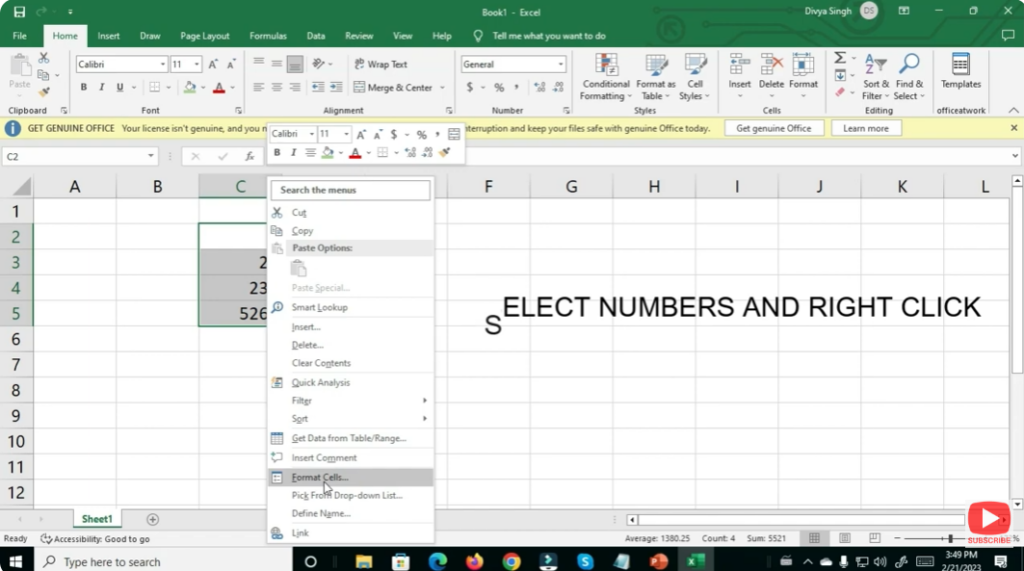
- Select the cells where you want leading zeros.
- Right-click and choose Format Cells.
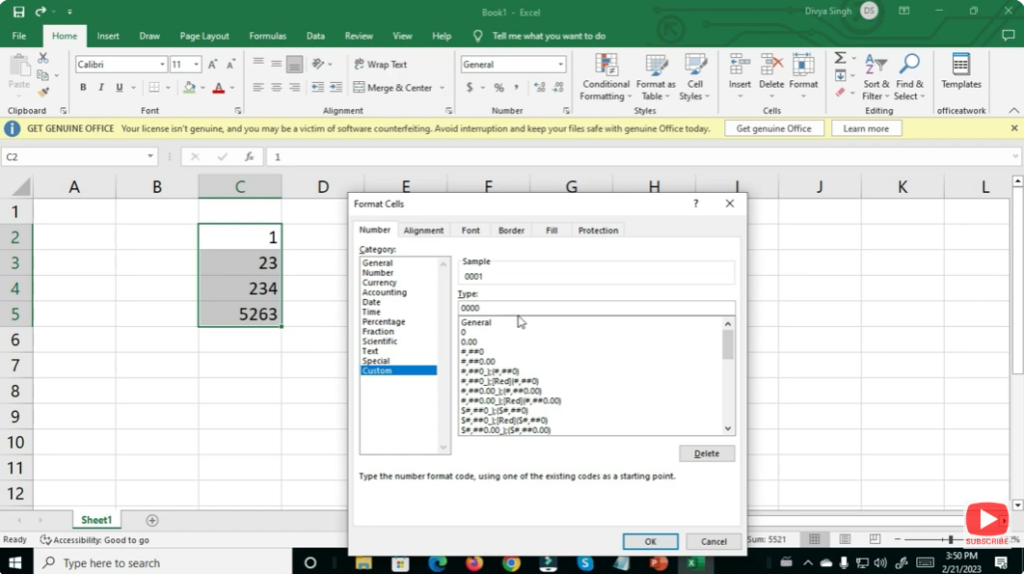
- Go to the Number tab.
- Select Custom.
- In the Type field, enter the number format — for example:
00000(This ensures all numbers appear in 5 digits.) - Click OK.
Your numbers will now appear with leading zeros:
125 → 00125
78 → 00078
✔️ Conclusion
Adding leading zeros in Excel is simple once you know the right techniques. Whether you use Custom Formatting, TEXT formulas, apostrophes, or Power Query, each method serves different scenarios. Choose the one that fits your project best and keep your data structured professionally.






