

The COUNTIF function in Excel is a powerful tool that helps you quickly count cells based on specific criteria. Whether you want to know how many times a particular word appears in a list, track the number of sales above a certain value, or check how many tasks are marked “completed,” COUNTIF makes it simple. Instead of manually scanning through rows, this formula does the work for you in seconds. In this beginner-friendly blog, we’ll explain in clear, step-by-step language how to use the COUNTIF function in Excel, so you can save time and make your data analysis more efficient.
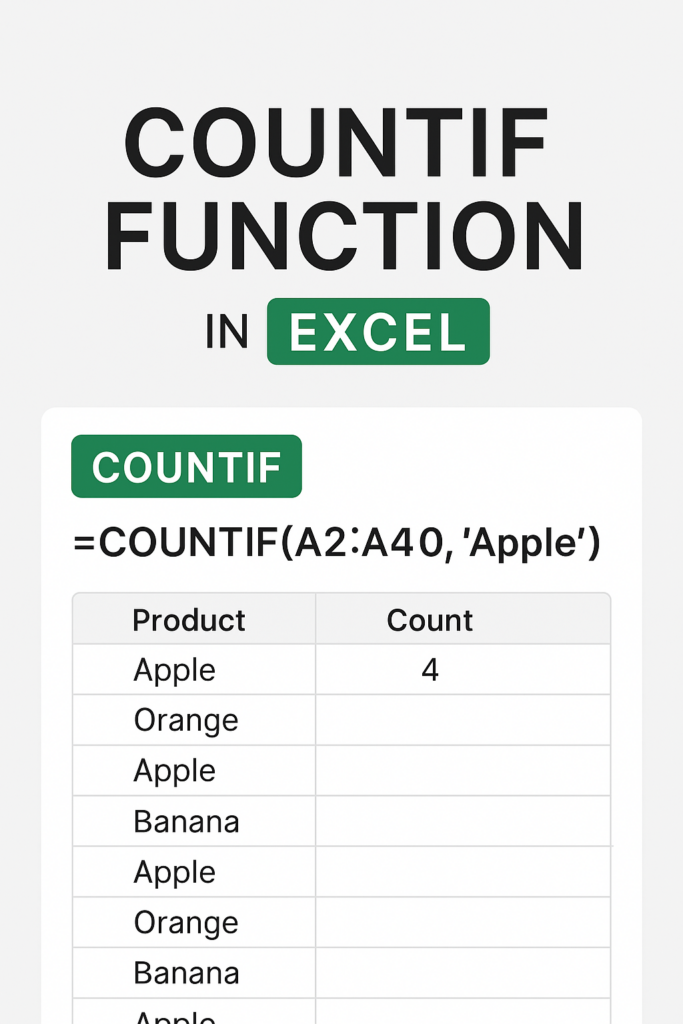
⭐ How to Use the COUNTIF Function in Excel (Step-by-Step)
1. Select a Cell to Enter the Formula
Choose an empty cell where you want the result to appear.
2. Type the COUNTIF Formula
Example:
=COUNTIF(A2:A10, "Apple")
This counts how many times the word Apple appears in the range.
3. Press Enter
Excel immediately shows the total count based on your criteria.
📌 Common Examples of COUNTIF Usage
✔ Count Text Values
=COUNTIF(B2:B20, "Pending")
✔ Count Numbers Greater Than a Value
=COUNTIF(C2:C15, ">50")
✔ Count Cells Less Than or Equal To a Value
=COUNTIF(D2:D30, "<=100")
✔ Count Blank Cells
=COUNTIF(A2:A50, "")
✔ Count Non-Blank Cells
=COUNTIF(A2:A50, "<>")
✔ Count Partial Matches Using Wildcards
Count names starting with “A”:
=COUNTIF(A2:A20, "A*")
Count results that contain the word “Total”:
=COUNTIF(A2:A20, "*Total*")✔ Final Thoughts
The COUNTIF function is essential for anyone who works with Excel regularly. It helps you analyze data quickly by counting values based on specific criteria. Whether you’re managing reports, tracking entries, or filtering important information, COUNTIF can save time and improve accuracy.






