
ChatGPT not opening or getting stuck can be frustrating when you need quick AI help for work or questions. This issue often happens due to browser cache problems, outdated extensions, VPN conflicts, or temporary server overloads on OpenAI’s side. In this blog, you’ll learn simple troubleshooting steps like clearing browser cache, disabling extensions, switching networks, and using incognito mode to get ChatGPT working smoothly again fast.
Let’s get started.
1. Clear Your Browser Cache
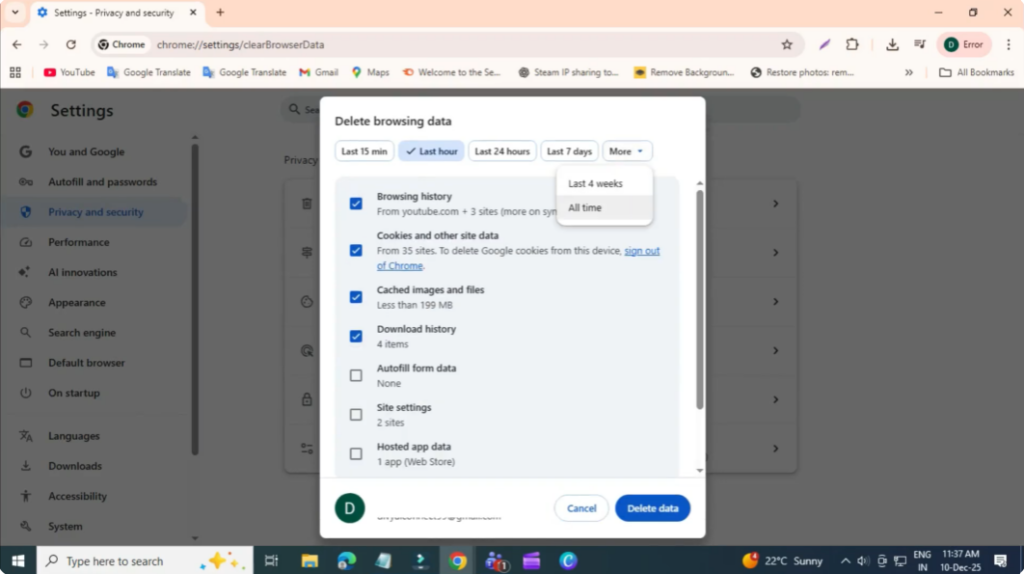
The first step is to clear your browser’s stored data, which often causes loading issues.
- Click the three dots in the top-right corner of your browser.
- Select Settings.
- Go to Privacy and Security from the left panel.
- Click Clear browsing data.
- Check these two options:
- Cookies and other site data
- Cached images and files
- Set Time range to All time.
- Click Delete data.
Once done, refresh ChatGPT and check if it works.
2. Disable All Browser Extensions
Extensions can sometimes interrupt scripts and block ChatGPT from loading properly.
- Click the three dots again.
- Select Extensions.
- Click Manage extensions.
- Turn off or disable all extensions temporarily.
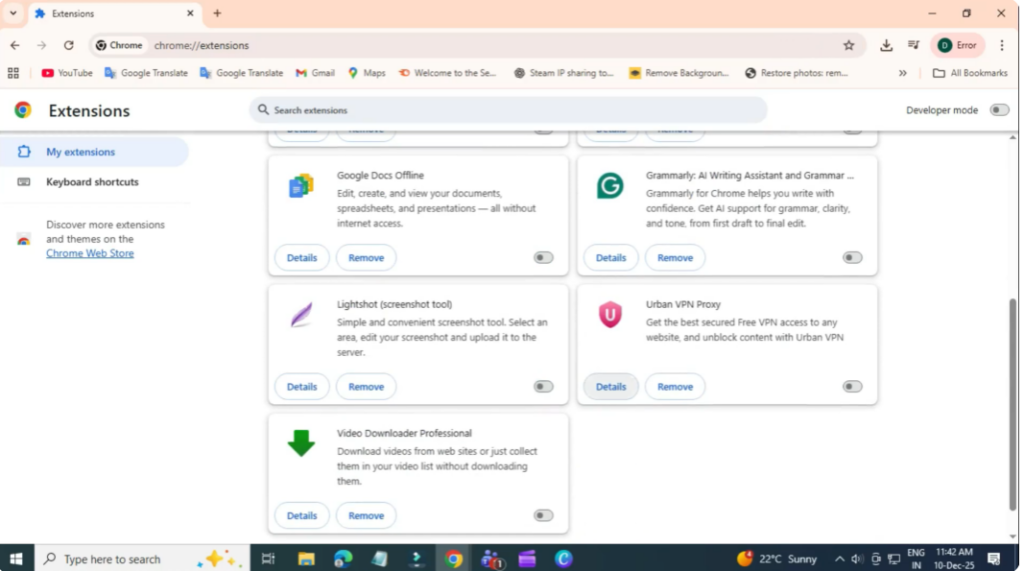
Now reload the ChatGPT page. If it works, one of your extensions was causing the issue.
3. Try Incognito Mode
Incognito mode loads your browser without cache, cookies, or extensions.
- Click the three dots in your browser.
- Select New Incognito Window.
- Open the ChatGPT website inside this window.
- Log in and check if it loads correctly.
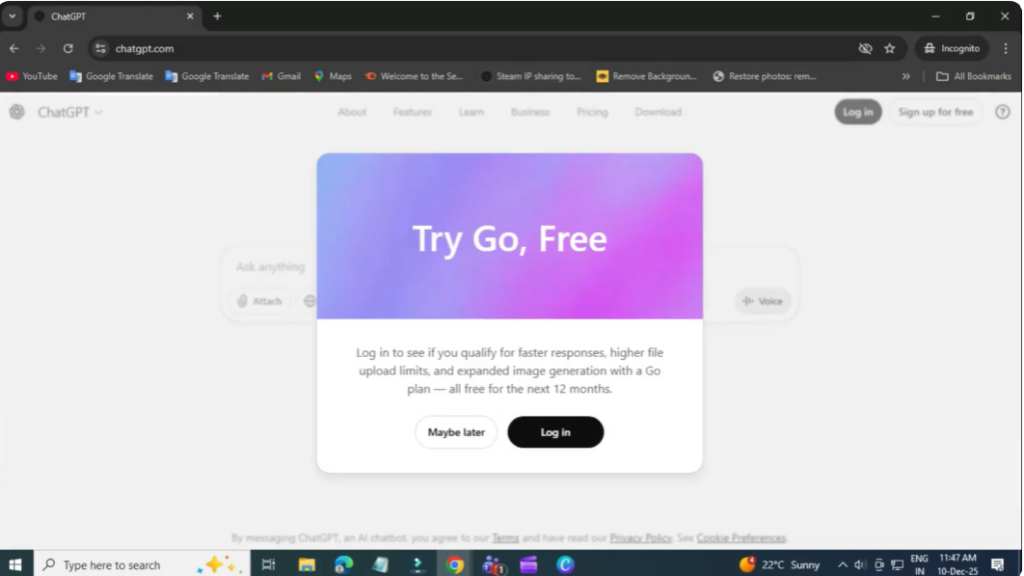
If ChatGPT works in incognito, the issue is likely related to your regular browser settings or extensions.
4. Turn Off Your VPN
If you’re using a VPN, it may block or slow down ChatGPT due to network restrictions or security checks.
- Disconnect your VPN if it is enabled.
- Refresh the ChatGPT page and try again.
This often fixes connection-related issues instantly.
Final Words
That’s it! By following these steps — clearing cache, disabling extensions, using incognito mode, and turning off the VPN — you should be able to fix ChatGPT not loading or not working.






