
A keyboard locked on Windows 10 can be a real headache, especially when you suddenly can’t type or use shortcuts. This issue often happens due to accidental key presses, driver glitches, or system settings that disable input. Instead of panicking or thinking your keyboard is broken, there are quick fixes you can try to get it working again. In this beginner-friendly blog, we’ll explain step by step how to unlock a keyboard on Windows 10, so you can get back to typing smoothly without any hassle.
To lock the keyboard, follow these steps carefully. Firstly, go to your physical keyboard. Now, press and hold the right Shift key. Make sure you are holding the right-side Shift key because this trick works only with that. Keep holding the Shift key for 8 seconds or more.
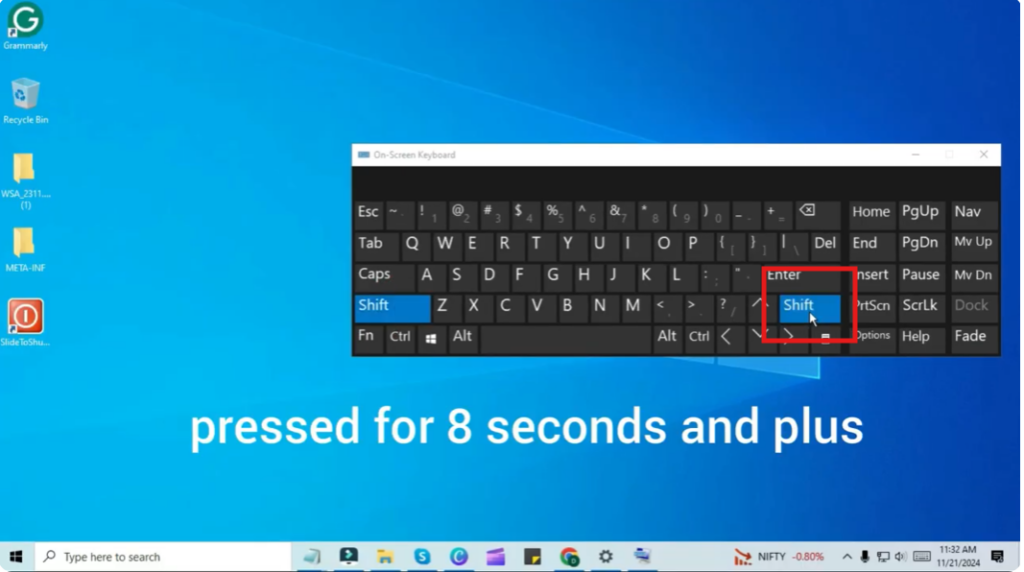
After a few seconds, you will hear a long beep sound. Right after that, a message will appear on your screen saying, “Disable this keyboard shortcut in ease of access keyboard settings.” This means your keyboard shortcut to lock the keyboard is activated. Click Yes, and your keyboard will be locked.

To test it, try typing something. Nothing will appear. No key presses will work because the keyboard is now completely locked. This is useful when you want to prevent accidental key presses.
Now let’s see how to unlock the keyboard again. Go back to your keyboard and press and hold the right Shift key once more. Hold it again for 8 seconds. You will hear the same long beep sound. After the beep, your keyboard will be unlocked.
Now open Notepad or any text editor and try typing. You can see that the keys are working again, which means your keyboard is successfully unlocked.
That’s it. You have now learned how to easily lock and unlock your keyboard on Windows 10.






