
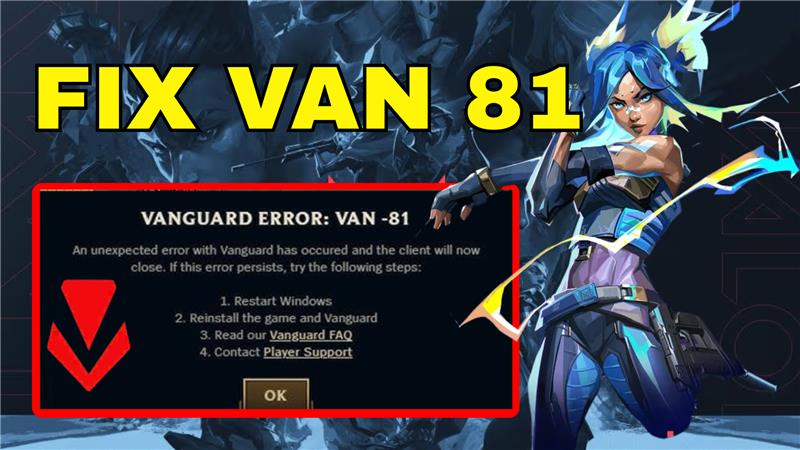
The VAN 81 error in Riot Vanguard is a frustrating issue that often prevents players from launching or playing League of Legends smoothly. This error usually appears when Riot’s anti-cheat system, Vanguard, runs into conflicts with Windows settings, outdated drivers, or corrupted files. Instead of enjoying your game, you’re stuck with an error message that won’t go away. The good news is, there are simple fixes you can try to resolve it quickly. In this beginner-friendly blog, we’ll explain step by step how to fix the VAN 81 error in Riot Vanguard, so you can get back to gaming without interruptions.
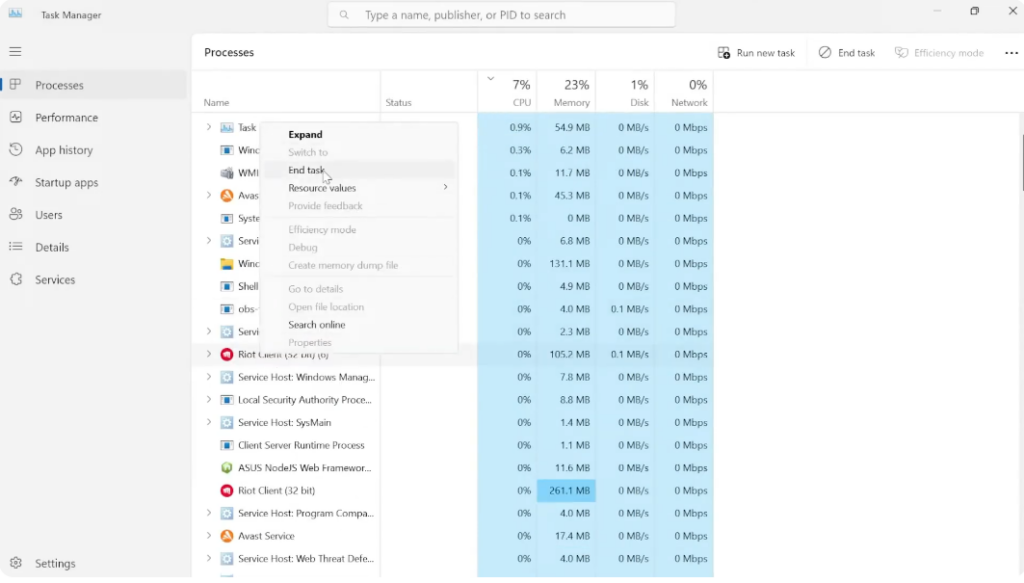
First, open the Start menu and search for Task Manager. Make sure that League of Legends, Riot Client, or Vanguard are not running. If you find any of them, right click and select End Task. You can also use the search bar inside Task Manager to quickly find Riot, League of Legends, or Vanguard and close anything related.
Next, go to the Startup Apps tab and look for VGtree.exe. If it’s disabled, right click and select Enable.
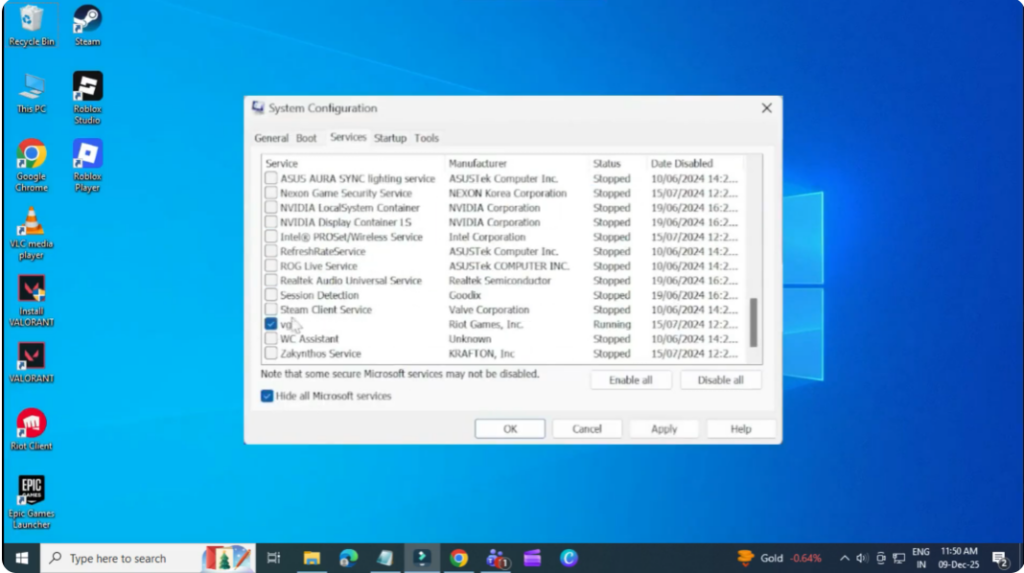
Now, open the Run box by searching for it. Type config and press Enter. Go to the Services tab and scroll down until you find VGC. Make sure it’s checked. Then click Apply and OK. Restart your PC when prompted. For most users, this fixes the problem.
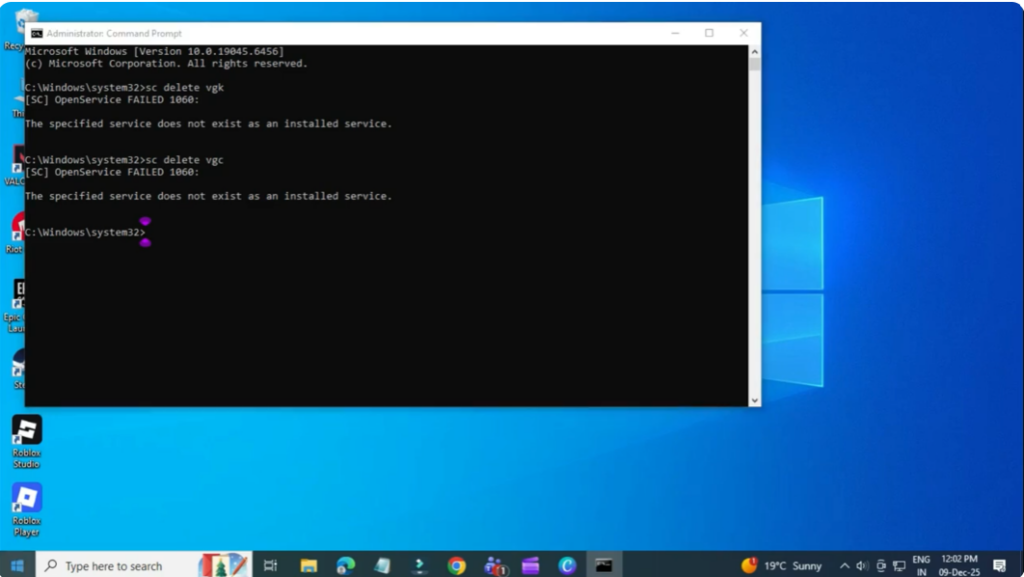
But if it doesn’t, here’s the second method. Search for CMD, right click it, and run as administrator. Type the following two commands one by one: SC delete VGK and SC delete VGC. You should see success messages for both. After that, restart your PC.
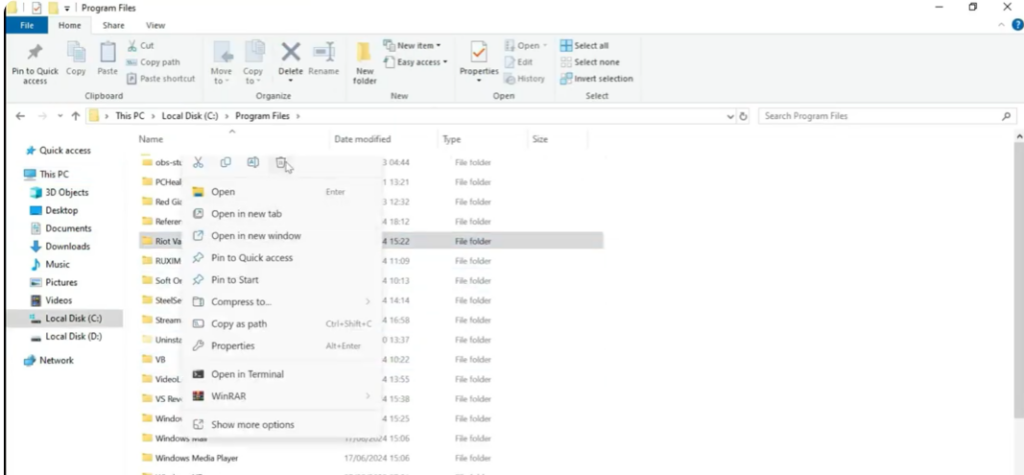
Once your PC restarts, open File Explorer, go to Local Disk C, and then go to Program Files. Find the folder named Riot Vanguard, right click it, and delete. If you get an error, make sure Vanguard is fully closed.
Now open the Riot Client, log in, and instead of the Play button, you’ll see Update under League of Legends. Click it to reinstall Vanguard. Once the installation is complete, restart your PC one more time, and the VAN 81 error should now be fixed.






