
Alt + F4 not working on Windows 10 or 11 can be frustrating when you can’t quickly close apps or windows. This common shortcut issue happens due to keyboard driver problems, third-party software conflicts, or corrupted system settings. In this blog, you’ll learn easy fixes like restarting Windows Explorer, updating keyboard drivers, running the System File Checker, and using alternative close methods to restore Alt + F4 functionality instantly.
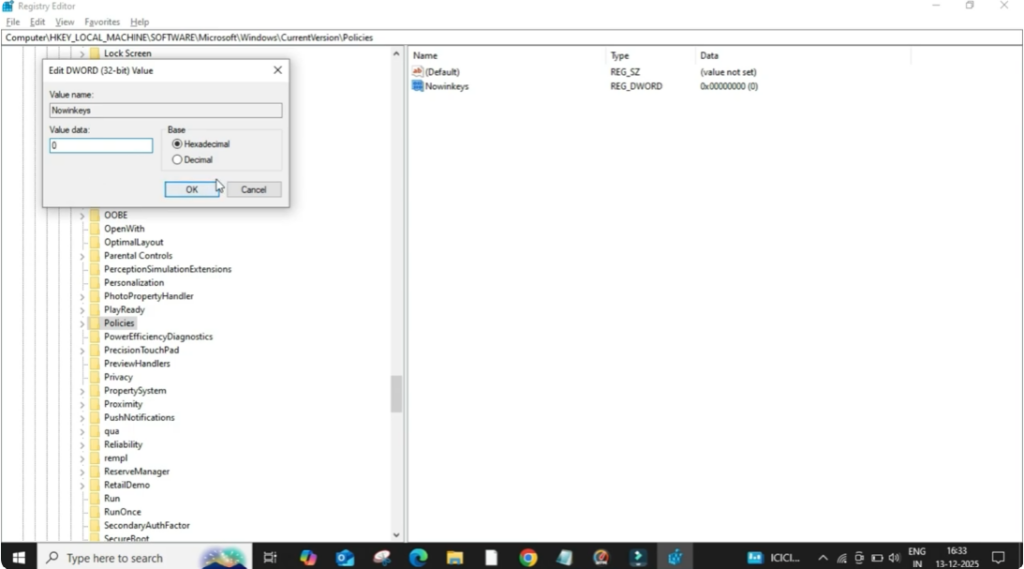
First, open the Windows search menu, type Registry Editor, and open it from the search results. When a permission window appears, click Yes to continue. Inside the Registry Editor, navigate carefully through the following path: HKEY_CURRENT_USER → Software → Microsoft → Windows → Current Version → Policies.
Once you reach the Policies folder, look at the right-side panel. Right-click on an empty space, select New, and then choose DWORD (32-bit) Value. A new file will appear. Rename this file as NoWinKeys and press Enter. Now right-click on the NoWinKeys file and select Modify. In the Value Data field, change the value to 0. This step ensures that Windows shortcut keys are enabled and not blocked. Click OK to save the changes.
After completing these steps, close all open windows and restart your PC. Restarting is important so the registry changes can take effect properly. Once your system starts again, try pressing Alt + F4 and check if it works.
That’s it. By following this guide, you should be able to fix the Alt + F4 not working issue on your Windows computer.






