
Experiencing Valorant crashing mid-game can be one of the most frustrating problems for players. Just when you’re focused on winning a round, the game suddenly shuts down or freezes, disrupting your match and progress. These crashes often happen due to outdated drivers, background conflicts, or corrupted game files—but the good news is, they can usually be fixed with a few simple steps. In this beginner-friendly blog, we’ll walk you through easy solutions to stop Valorant from crashing mid-game, so you can enjoy smooth, uninterrupted gameplay.
1. Disable Full-Screen Optimizations
One of the most common reasons for Valorant crashes is full-screen optimization conflicts.
Steps to follow:
- Right-click on the Valorant shortcut and select Properties
- Go to the Compatibility tab
- Check Disable full-screen optimizations
- Also enable Run this program as an administrator
- Click Apply and then OK
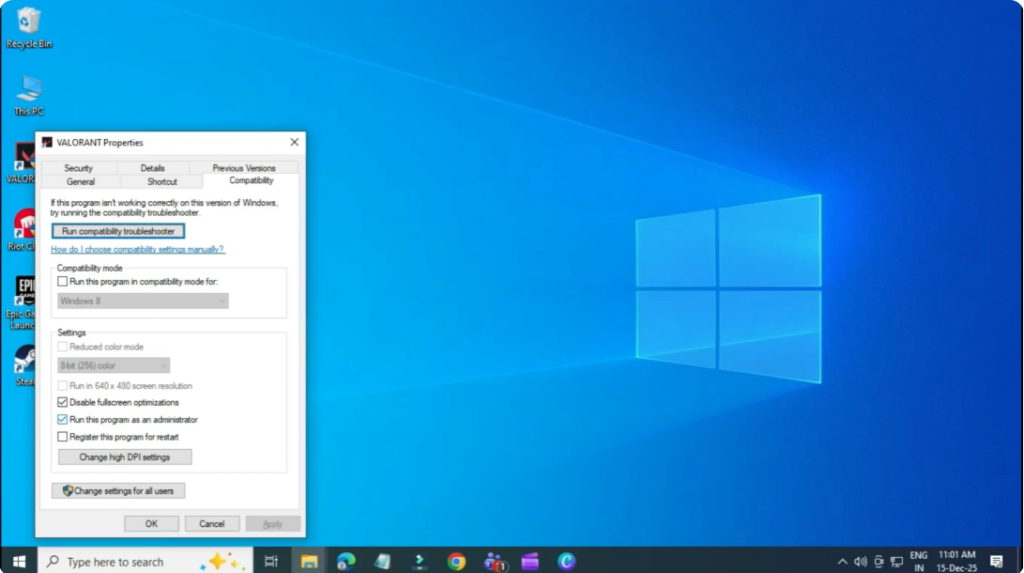
This helps reduce compatibility issues between Windows and the game.
2. Close Unnecessary Background Apps (Free Up RAM)
Valorant may crash if your system runs out of available memory due to background applications.
How to fix it:
- Press the Windows key, search for Task Manager, and open it
- Click on the Memory column to sort apps by RAM usage
- Right-click unnecessary apps and select End Task
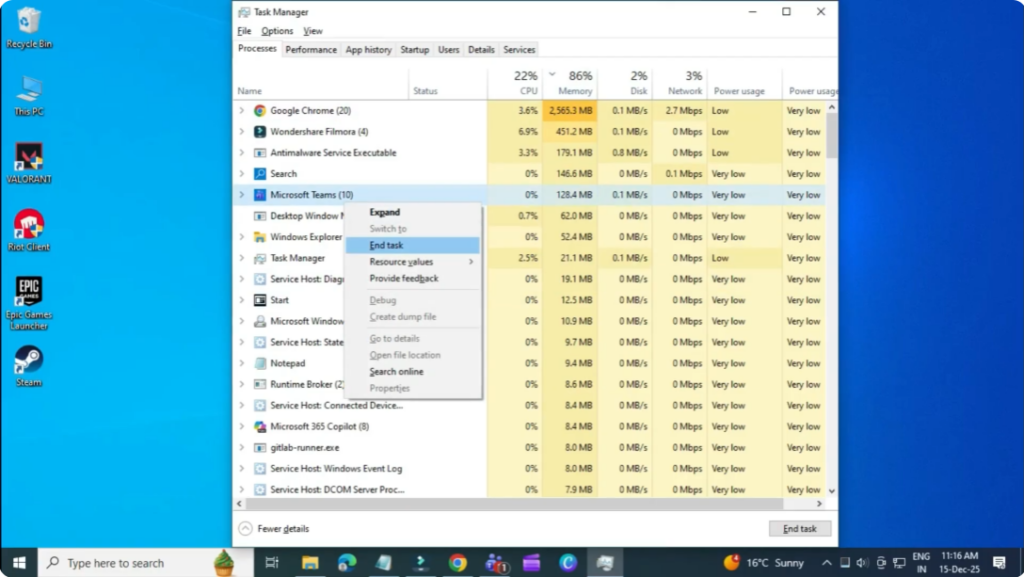
This frees up RAM and improves game stability.
3. Update Windows to the Latest Version
Outdated Windows files can cause compatibility issues with modern games like Valorant.
Steps:
- Press the Windows key and open Settings
- Go to Windows Update
- Download and install any available updates
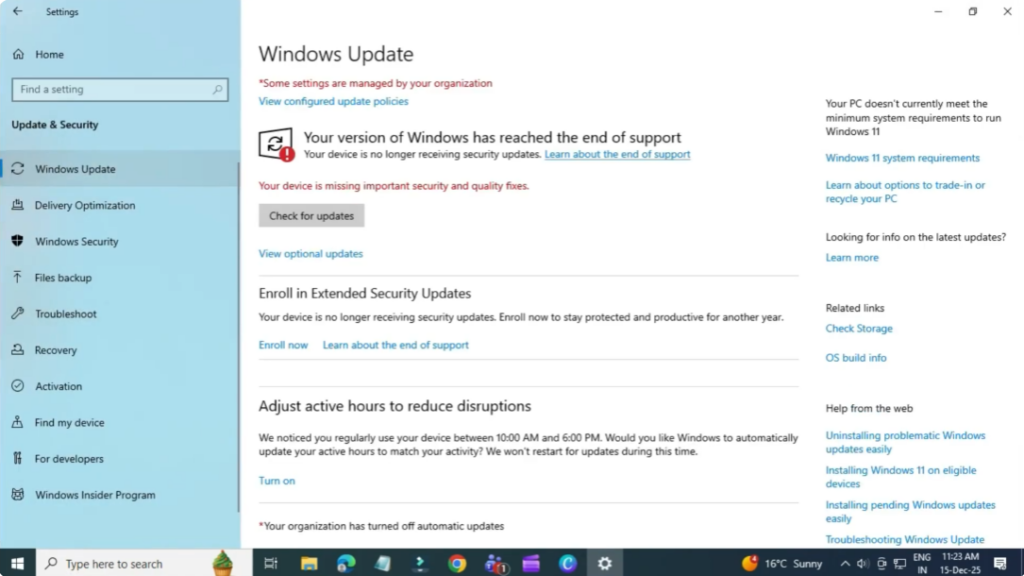
Restart your PC after updating to apply changes.
4. Update Graphics Drivers
Outdated or corrupted graphics drivers are a major cause of game crashes.
Easy method:
- Open your browser and visit drivereasy.com
- Download and install the software
- Open it and click Scan Now
- If an outdated graphics driver is found, click Update and follow the on-screen instructions
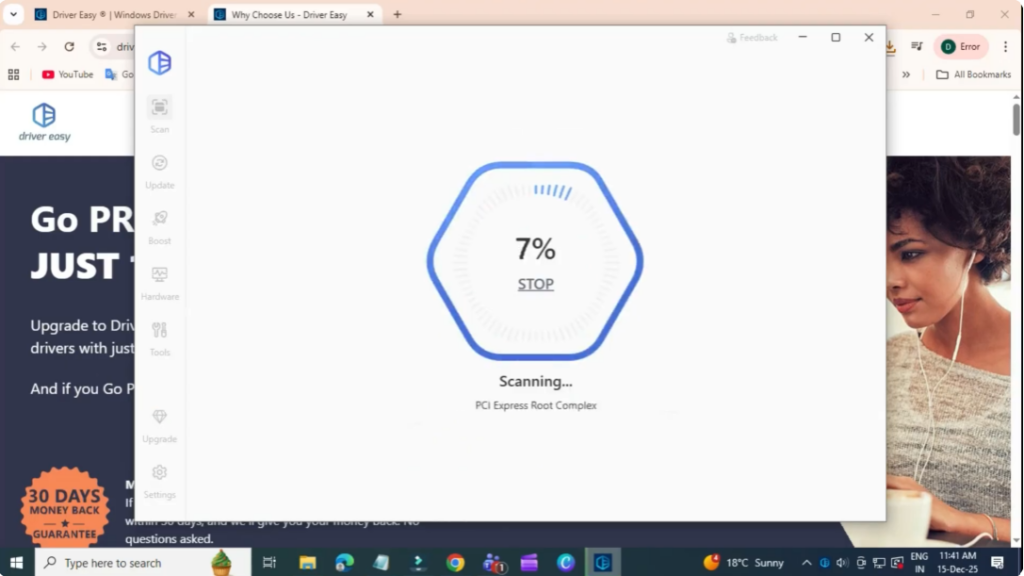
Updated drivers ensure better performance and fewer crashes.
5. Lower In-Game Graphics Settings
High graphics settings can overload your system, especially on low or mid-range PCs.
Adjust settings:
- Launch Valorant
- Press Esc and go to Settings
- Open Video → Graphics Quality
- Set all options to Low
- Close settings to save changes
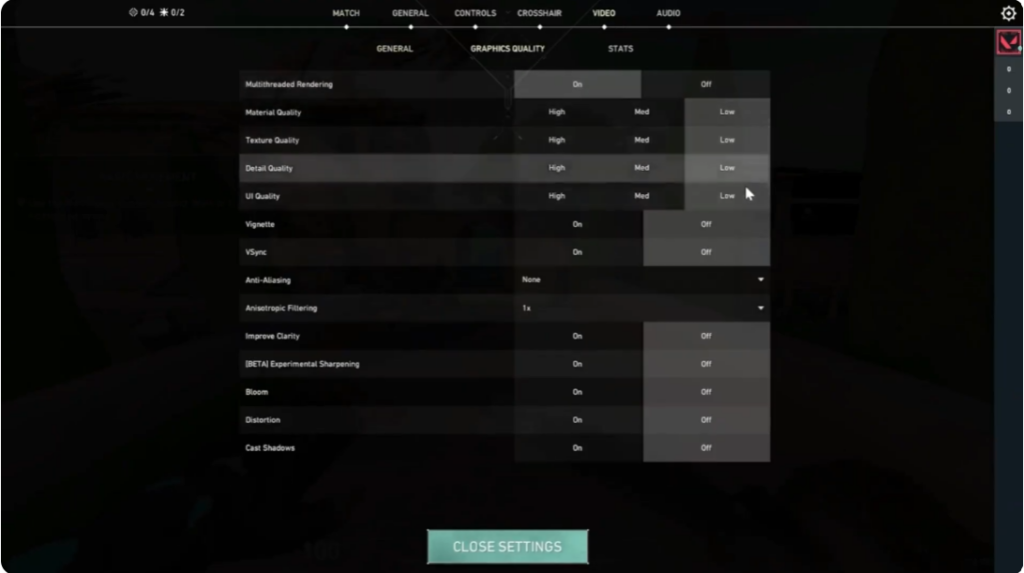
Lower settings reduce system load and improve stability.
6. Repair Valorant Game Files Using Riot Client
Corrupted game files can also lead to frequent crashes.
Steps to repair:
- Close Valorant
- Open the Riot Client
- Click your profile icon (top-right corner)
- Go to Settings → Valorant
- Click Repair
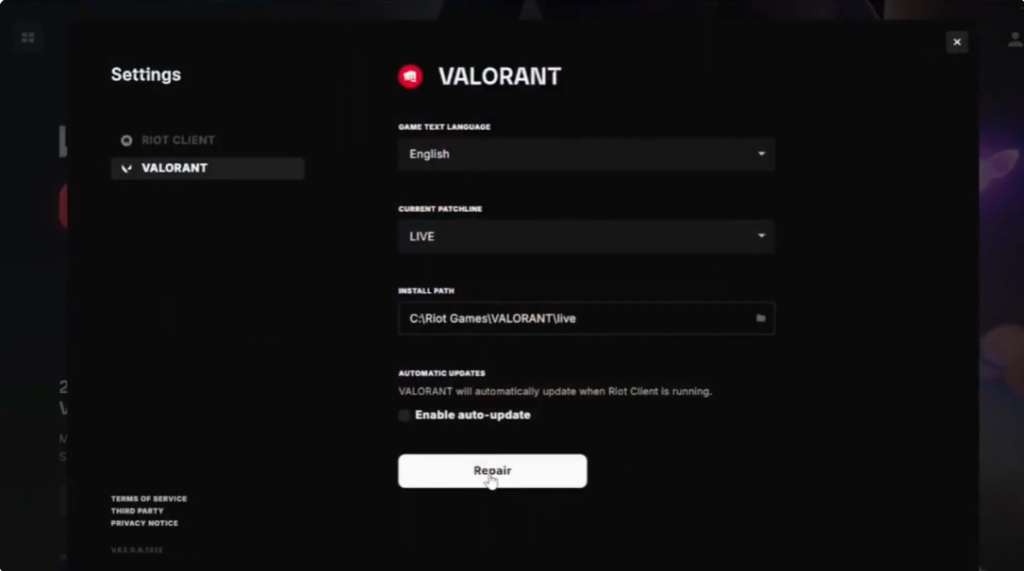
The Riot Client will automatically fix any detected issues.
Final Thoughts
After following all these steps, your Valorant crashing issue should be resolved. These fixes cover the most common causes, including system settings, drivers, background apps, and corrupted game files.






