
The Windows 11 25H2 update brings a host of new features and improvements designed to make your PC faster, safer, and more efficient. But here’s the catch—many of these upgrades aren’t automatically enabled, meaning you could miss out on powerful tools that enhance performance and security. By tweaking just a few settings, you can unlock the full potential of this update and enjoy a smoother Windows experience. In this beginner-friendly blog, we’ll walk you through 5 essential settings to enable right now in the 25H2 update, so you can get the most out of your system.
Enable System Restore for Safety
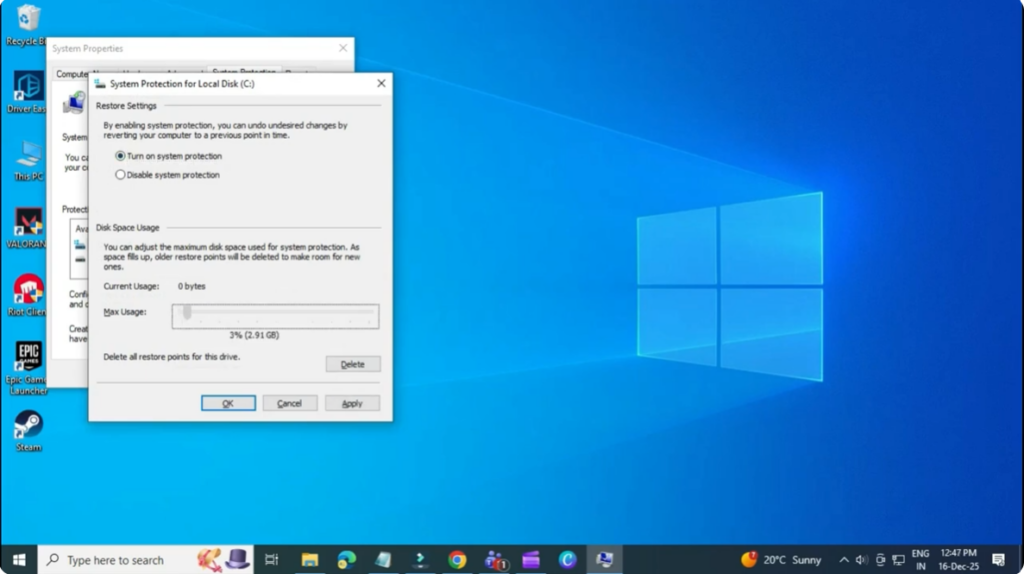
System Restore is one of the most important features to protect your PC from unexpected problems. To enable it, open the Start menu, search for Create a restore point, and open it. Select your C drive, click Configure, choose Turn on system protection, and set disk space usage between 3% to 5%. Click OK, then select Create to generate a restore point. This allows you to roll back your system if something goes wrong.
Turn On Quick Machine Recovery
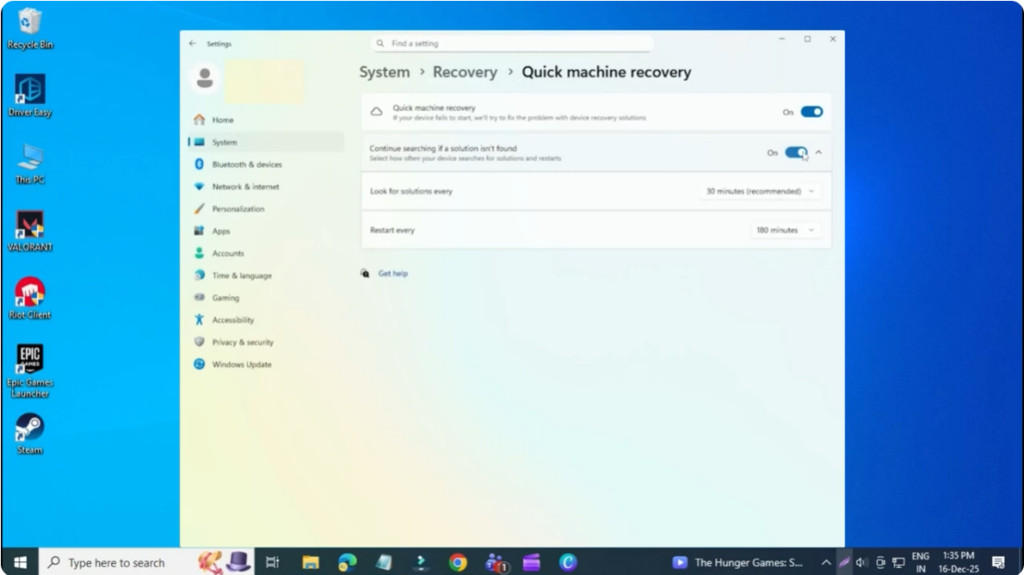
Quick Machine Recovery helps Windows fix boot-related problems automatically. Open Settings, go to System, and select Recovery. Enable Quick machine recovery and also turn on the option to continue searching if a solution isn’t found. This ensures Windows keeps checking for fixes if your system fails to boot properly.
Clean and Customize the Start Menu
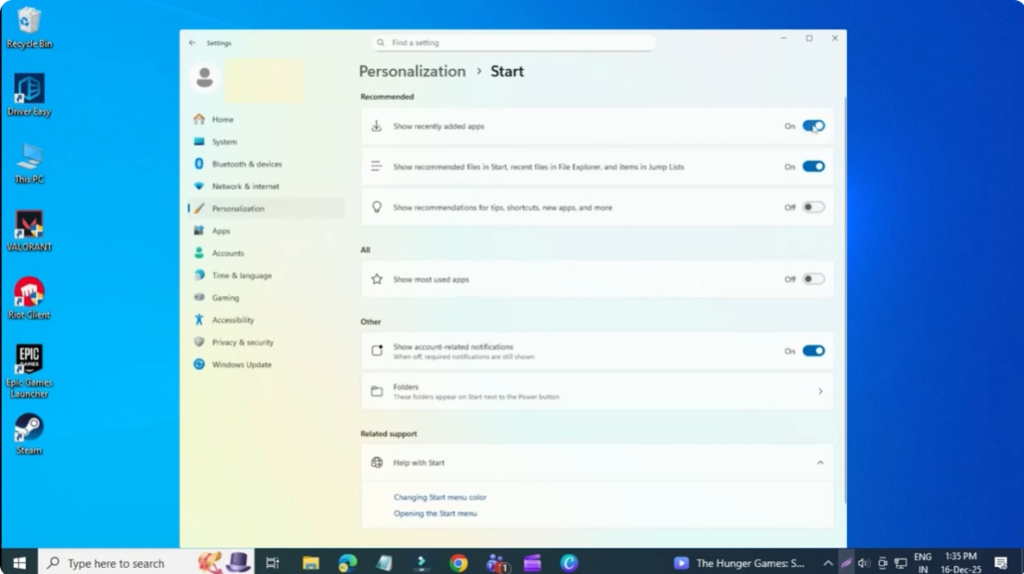
To make your Start menu cleaner and faster, open Settings, go to Personalization, and click Start. Turn off options like recently added apps, recommended files, and tips or suggestions. Then click on Folders and enable Settings and File Explorer so they appear directly in the Start menu. Next, right-click the taskbar, open Taskbar settings, turn off Widgets and Task View, and set Search to Hide.
Enable Compact Mode in File Explorer
Compact mode reduces spacing in File Explorer, allowing you to see more files at once. Press Windows + R, type regedit, and press Enter. Navigate to HKA User > Software > Microsoft > Windows > Current Version > Explorer > Advanced. In the right panel, right-click, select New, choose DWORD (32-bit) Value, and name it UseCompactMode. Open it, set the value data to 1, and click OK. Restart Windows Explorer from Task Manager to apply the changes.

Enable Administrator Protection
If available on your system, administrator protection adds an extra security layer. Open Windows Security, go to Account Protection, and enable Administrator protection. Approve the prompt using your PIN or biometric authentication for better security.
Final Thoughts
By enabling these Windows 11 25H2 settings, you can significantly improve system stability, performance, and security. These small changes help prevent crashes, speed up daily usage, and keep your PC protected.






