
Running into the Riot Client uninstall error where it says the program is still running in the background can be really frustrating. Instead of removing the client smoothly, you’re stuck with a message that blocks the process, often caused by lingering background tasks or system conflicts. The good news is, this issue can be fixed with a few simple steps, allowing you to fully uninstall Riot Client without hassle. In this beginner-friendly blog, we’ll explain step by step how to fix the Riot Client uninstall error, so you can clear it from your system and move forward easily.
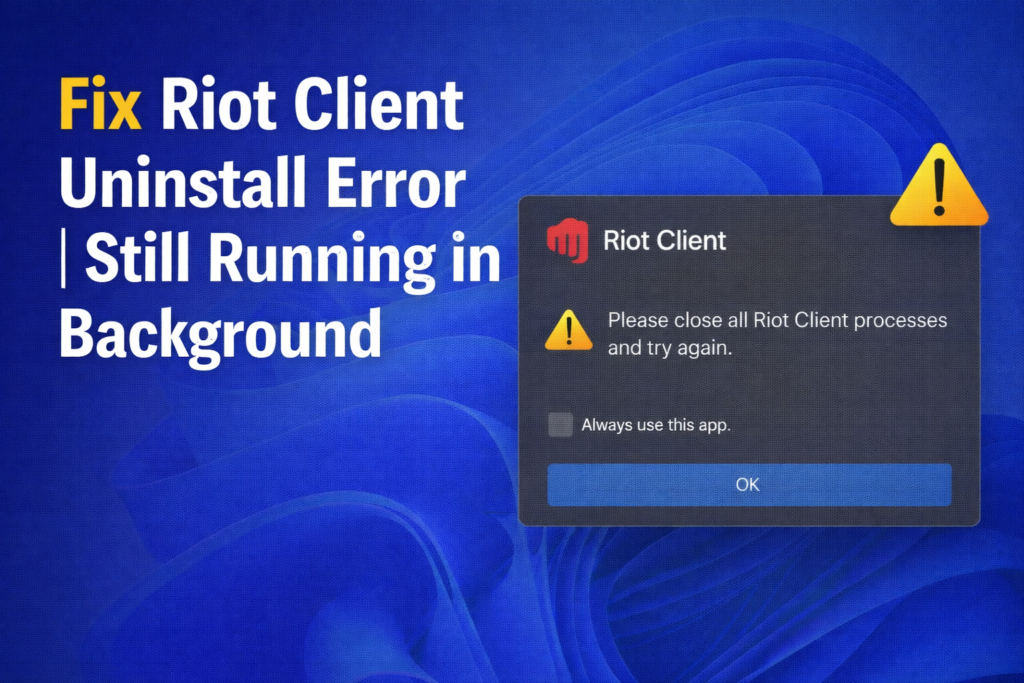
This problem usually happens when Riot-related services are still active even though the apps look closed. To fix this, the first thing you need to do is make sure all Riot-related applications are completely closed. Check the taskbar in the bottom-right corner of your screen, and if you see the Riot Client icon, right-click on it and select Exit. Also make sure that games like League of Legends, Valorant, and Riot Vanguard are not running.
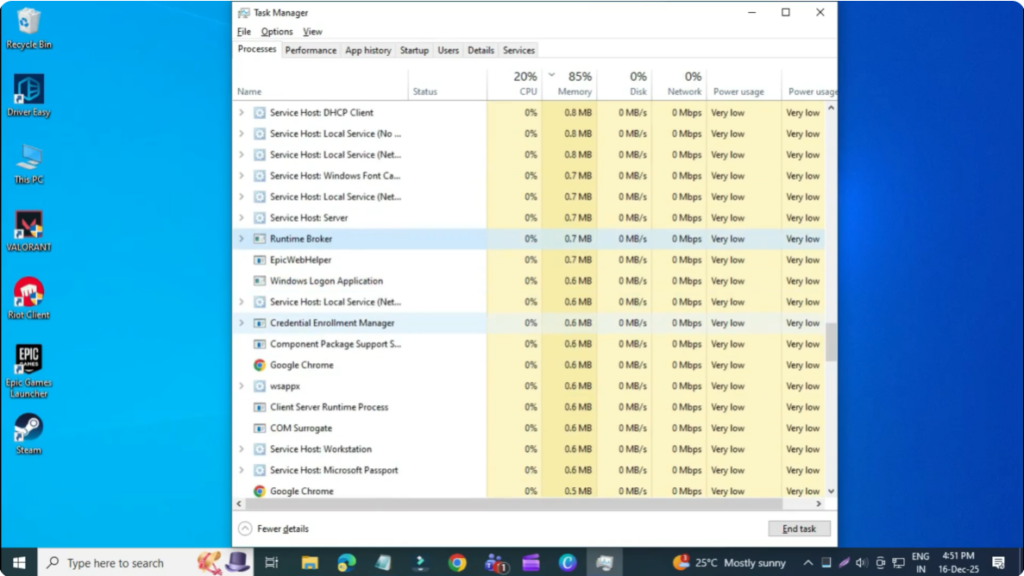
Next, open the Start menu, search for Task Manager, and open it. Inside Task Manager, use the search box at the top and type Riot. If you see any Riot-related processes running, right-click on them and select End Task. Do the same by searching for Vanguard and ensure nothing related to it is running in the background. Once all Riot and Vanguard processes are closed, you can close Task Manager.
Now open the Start menu again, search for Settings, and open it. From the left-side menu, go to Apps, then click on Installed apps. Before uninstalling the Riot Client, it’s important to uninstall the Riot games first. For example, if you have Valorant installed, click on the three dots next to it, select Uninstall, and confirm the action. Once the game is removed successfully, click Done and repeat the same steps for any other Riot games installed on your system.
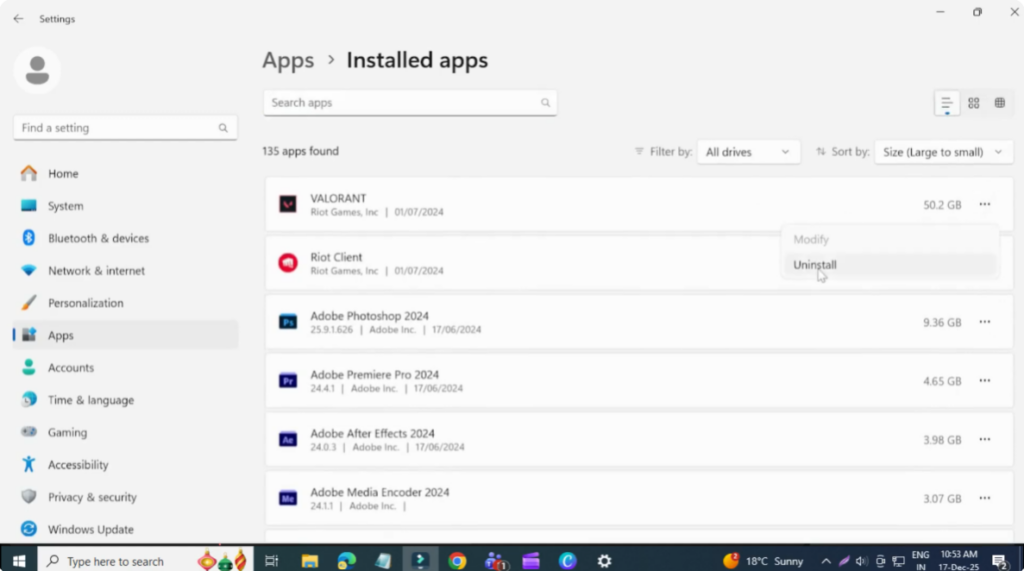
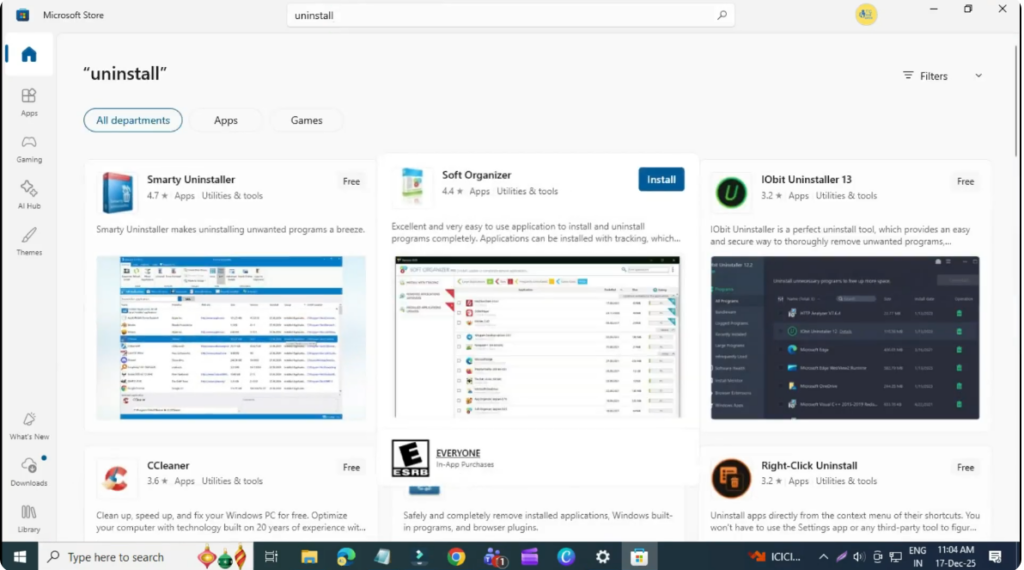
After uninstalling all Riot games, try uninstalling the Riot Client itself using the same method. If you still see the error message saying the application is running in the background, there is one final and reliable solution. Open the Start menu, search for Microsoft Store, and open it. In the search box, type uninstall tool and press Enter. From the search results, install an application called Soft Organizer.
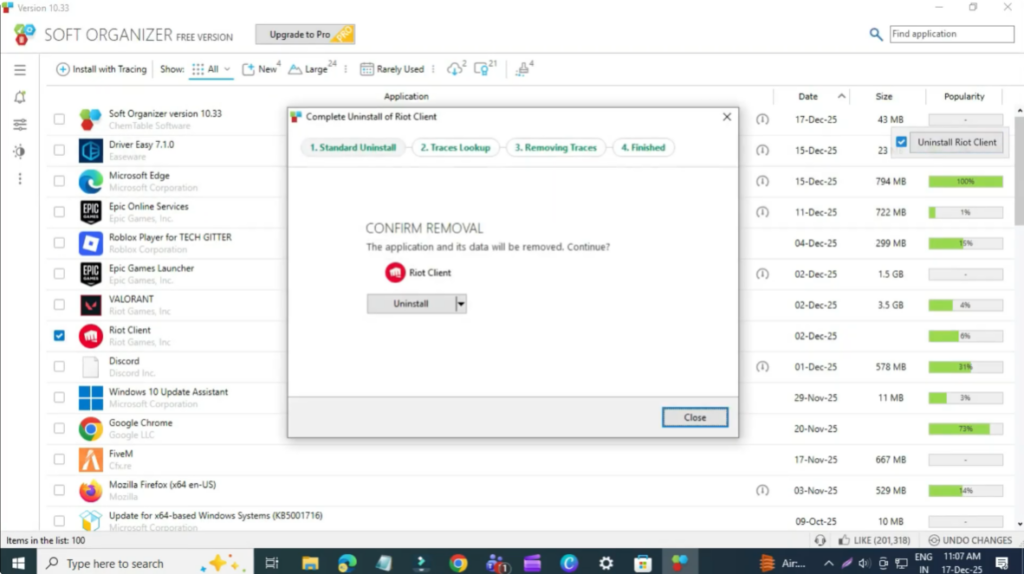
Once Soft Organizer is installed, open it and look for Riot Client in the list of installed programs. Select Riot Client, click on Uninstall, and confirm the removal. This tool will completely remove the Riot Client along with any leftover files or background components that Windows usually fails to delete.
That’s it. This is how you can fully uninstall the Riot Client and all of its games from your Windows PC without facing the “still running in background” error.






