
Seeing your Steam download stuck at 0 bytes can be incredibly frustrating, especially when you’re eager to install or update a game. Instead of progressing smoothly, the download bar just sits idle, leaving you stuck with no progress at all. This issue often happens due to network problems, cache glitches, or conflicts with Steam’s settings—but the good news is, it’s usually easy to fix. In this beginner-friendly blog, we’ll walk you through simple solutions to fix Steam downloads stuck at 0 bytes, so you can get back to gaming without delays.
Check Steam Download Region
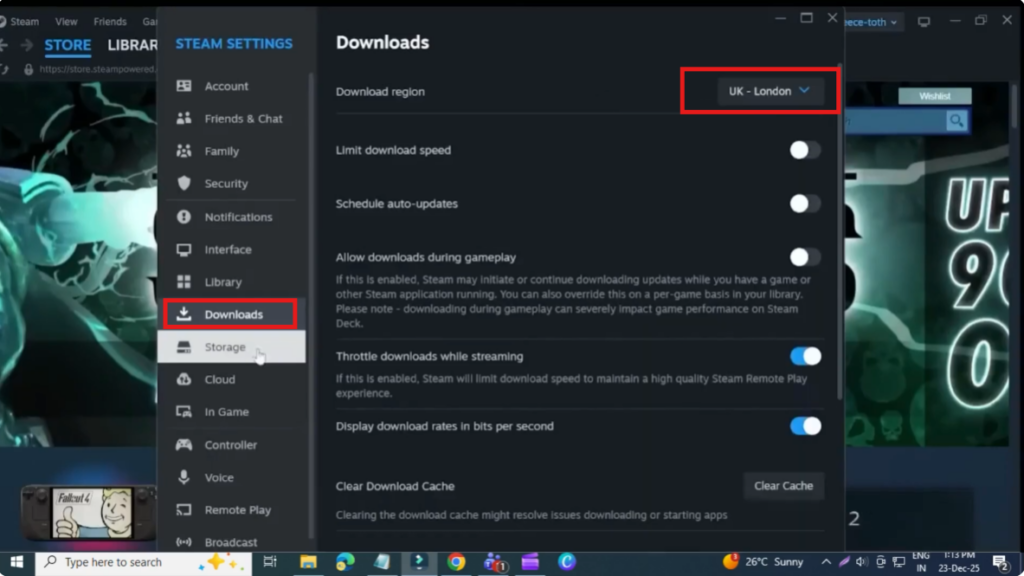
First of all, open the Steam application. From the top left corner, click on Steam. Then go to Settings. Now, open the Downloads tab.
The first thing we’re going to check is the Download Region. Make sure the download region is set to the location closest to where you’re currently based. For example, I’m using UK, London, but you should select a server near your location for the best results.
Repair Steam Library
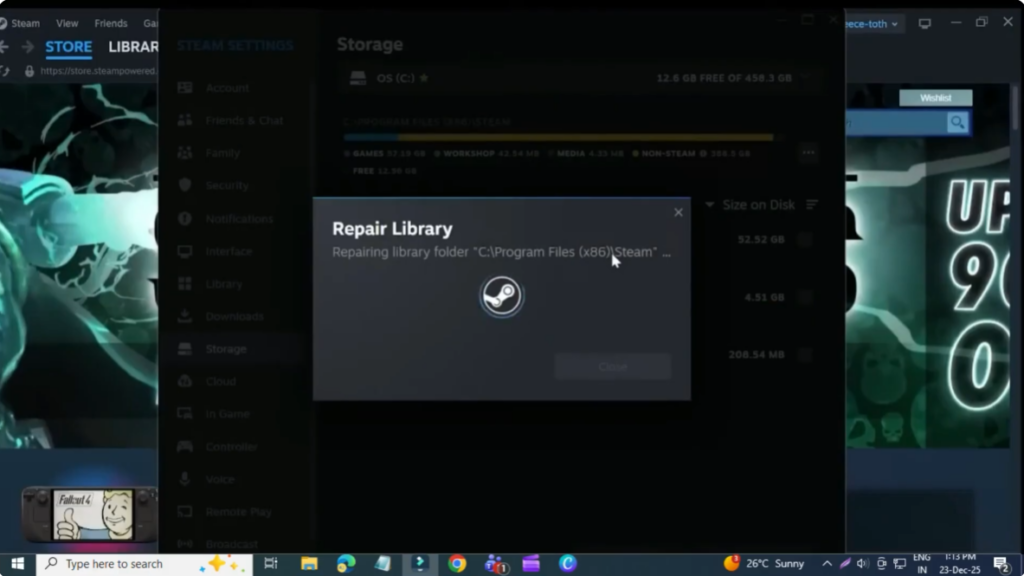
Next, click on the Storage tab from the left side here. Click on the three dots, then select Repair Library. This will scan your Steam library for any issues and automatically fix them if something is wrong. Once the scan is complete, close this window.
Disable Download Throttling
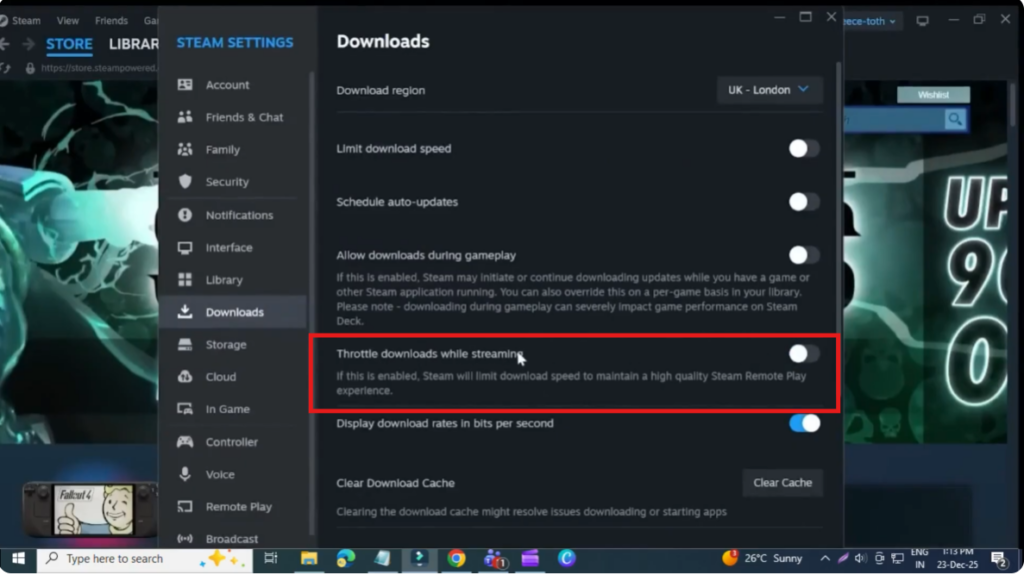
Now come back to the Downloads section here. Look for the option Throttle downloads while streaming and make sure this option is turned off, as this can stop or slow down Steam downloads.
Clear Steam Download Cache
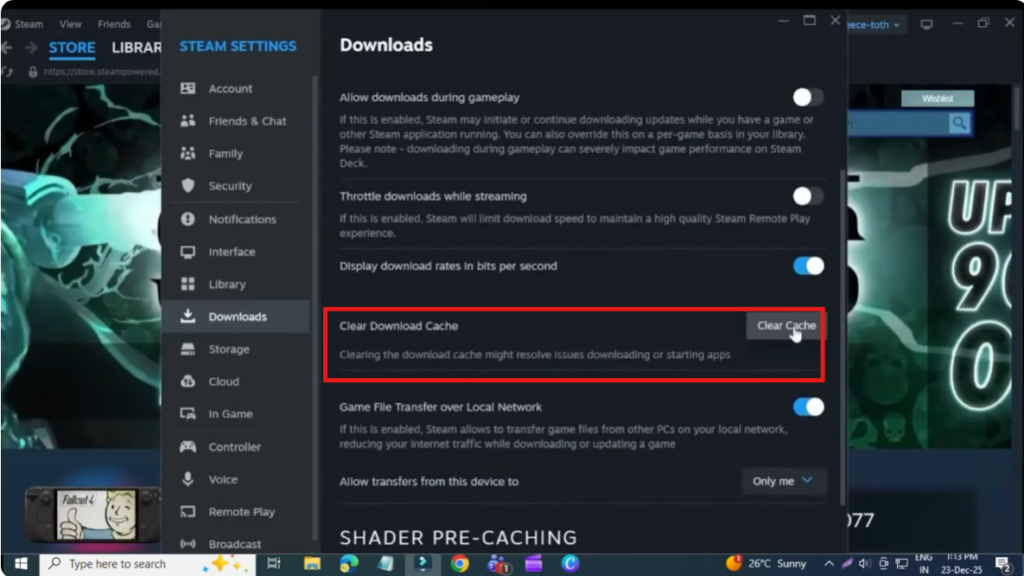
After that, click on Clear Download Cache. Press Confirm, and Steam will ask you to log in again. Simply log back into your Steam account and check if the issue is fixed.
Allow Steam Through Windows Firewall
If Steam is still not downloading games, the next step is to check your firewall settings. Open the Start menu, search for Windows Defender Firewall, and open it.
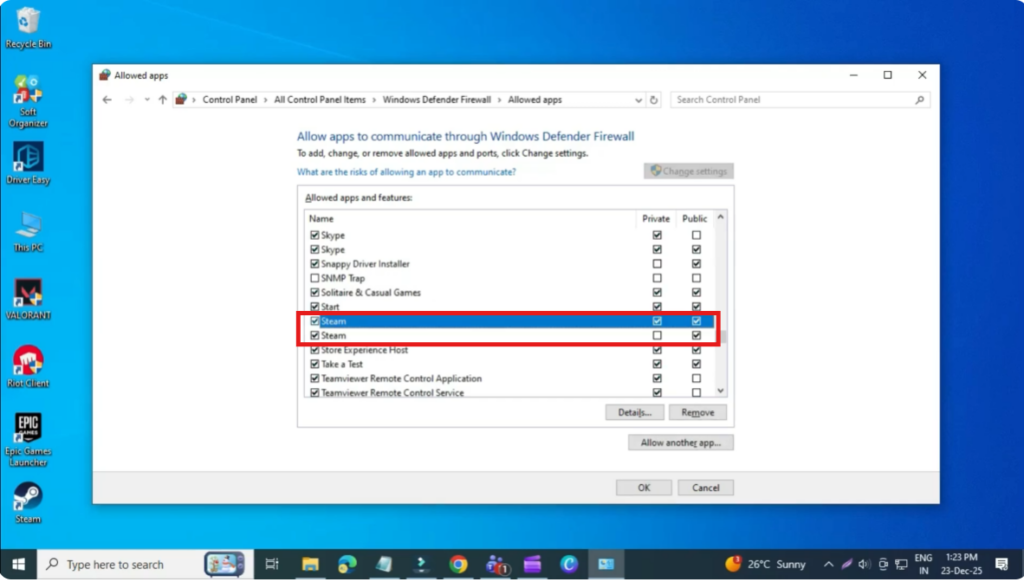
On the left side, click on Allow an app or feature through Windows Defender Firewall. Then click Change settings. Scroll down and look for Steam in the list. Make sure both Private and Public boxes are checked.
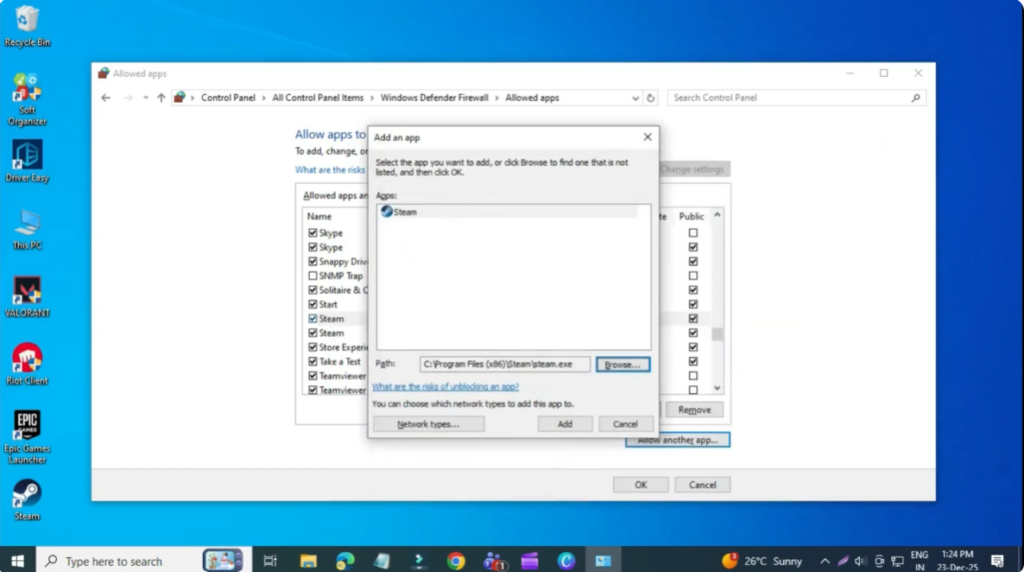
If Steam is not listed, click on Allow another app, select Browse, then go to Program Files (x86) and then Steam. Find steam.exe, double click it, and click Add. Again, ensure both Private and Public are checked, then click OK.
Clear Network Cache
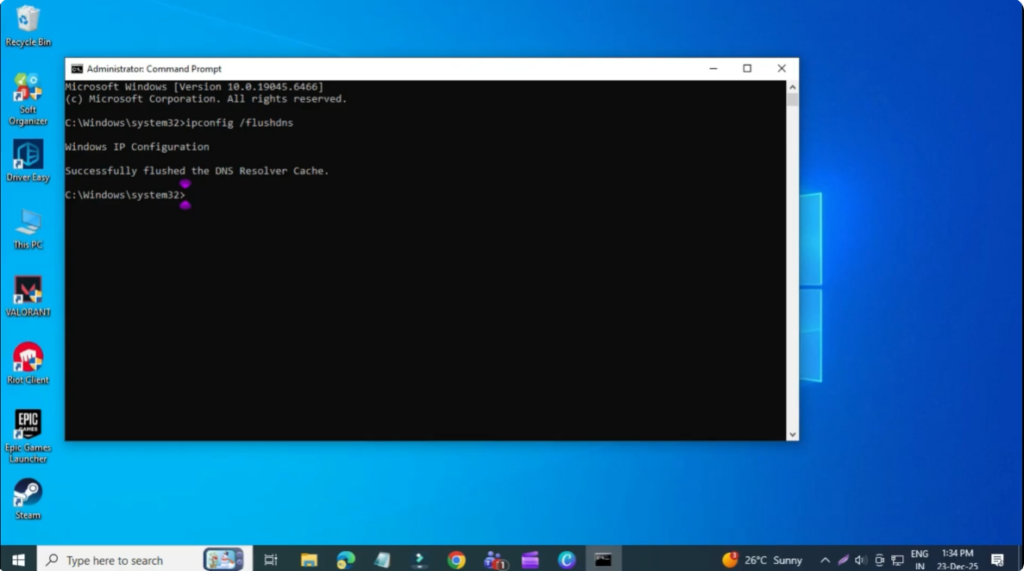
Next, we’ll clear the network cache. Open the Start menu, search for cmd, right click on Command Prompt, and select Run as administrator.
Now, type the following command:
ipconfig /flushdns
Press Enter, and once it’s done, close the Command Prompt.
Update Network Drivers
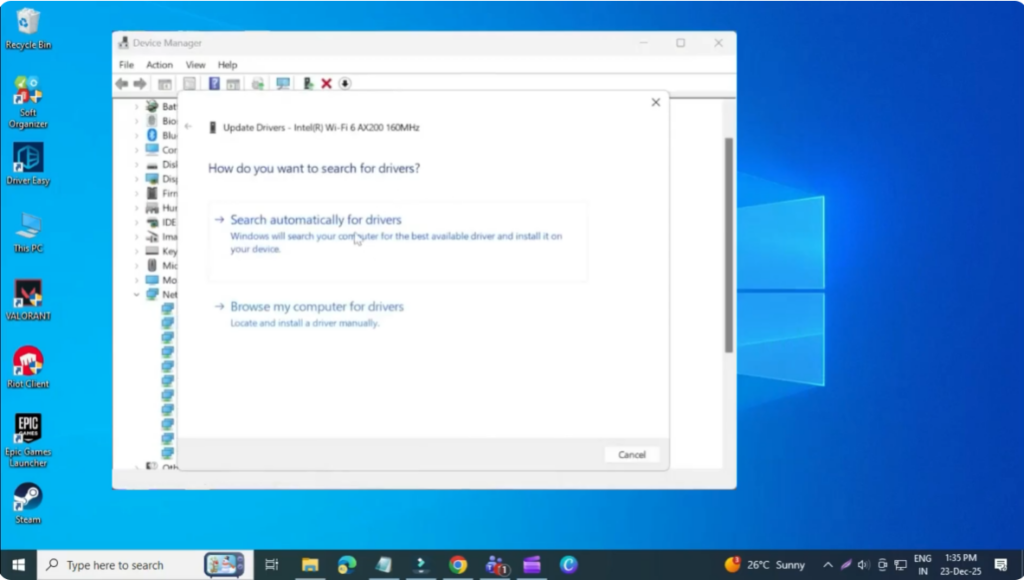
If the problem still continues, let’s update the network drivers. Open the Start menu, search for Device Manager, and open it. Expand Network adapters, then locate your Wi-Fi adapter.
Right click on it, select Update driver, and click Search automatically for drivers. If an update is available, Windows will install it automatically.
Reinstall Steam (Last Solution)
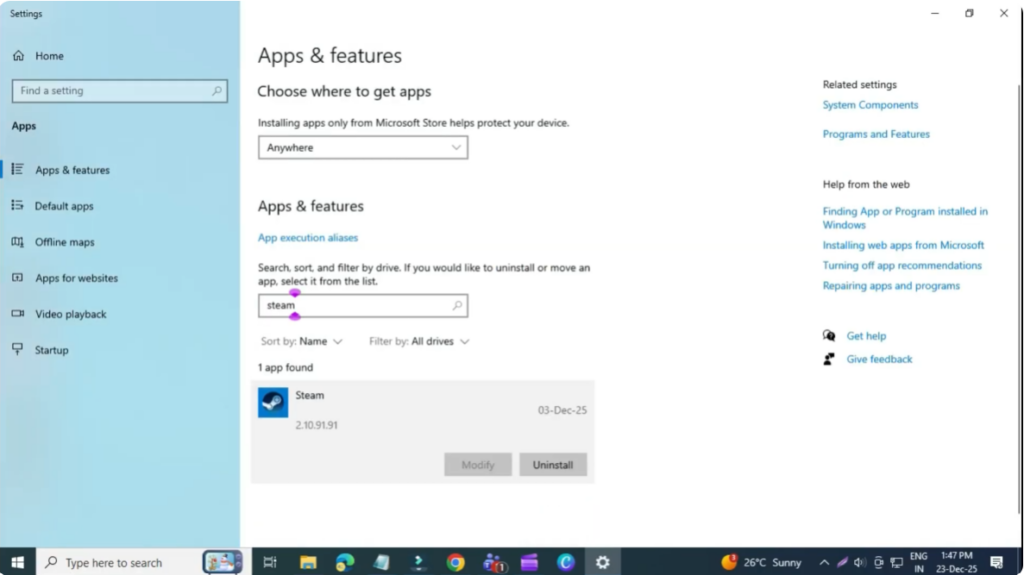
Finally, if none of these methods work, the last solution is to reinstall Steam completely. Open the Start menu, search for Add or remove programs, find Steam, click the three dots, and select Uninstall.
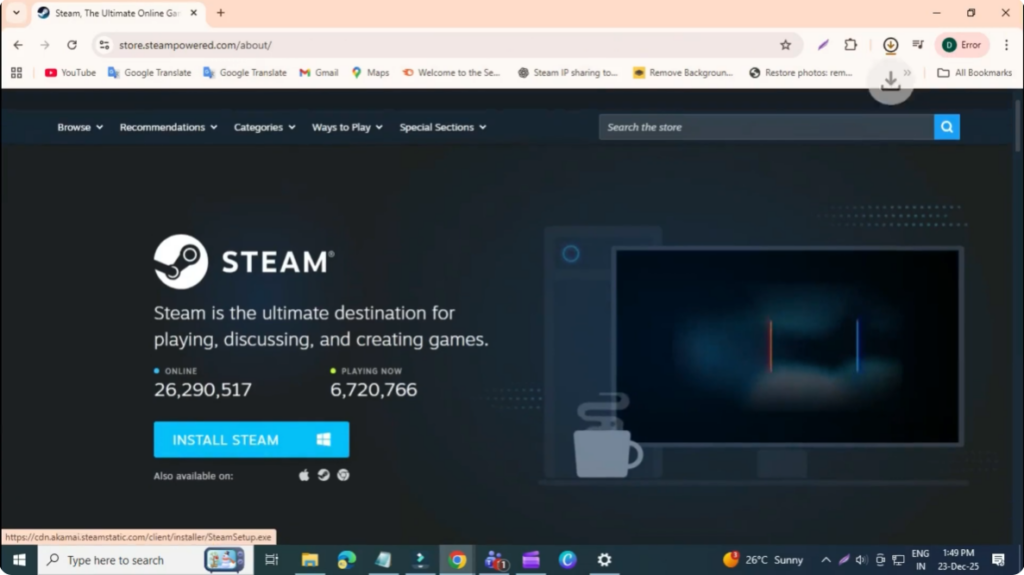
After uninstalling, press Windows + R, type %localappdata%, and press Enter. If you see a Steam folder, delete it. Now go to the official Steam website, download Steam again, and reinstall it.
Conclusion
Hopefully by following these steps, your Steam download issue is now fixed and you can start downloading games without any problem.






