

The AMD Software Driver Timeout error is a common issue that can suddenly interrupt your gaming or productivity sessions on Windows. Instead of running smoothly, your system may freeze, crash, or display this error when the graphics driver fails to respond in time. This problem often stems from outdated drivers, system conflicts, or GPU settings—but the good news is, it can usually be fixed with a few straightforward solutions. In this beginner-friendly blog, we’ll walk you through working fixes for the AMD driver timeout error, so you can restore stability and get back to using your PC without interruptions.
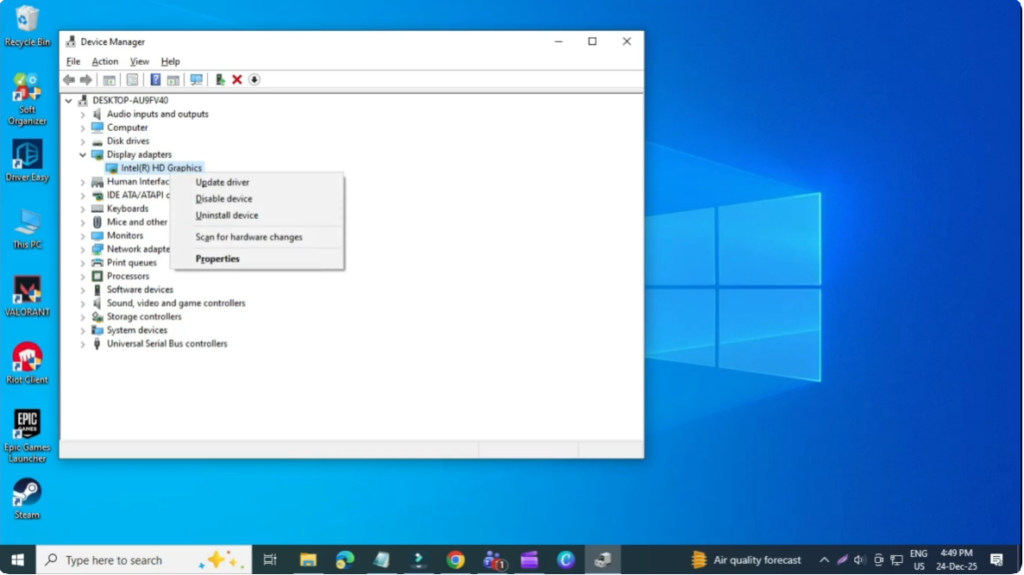
Step 1: Update Graphics Driver Using Device Manager
So guys, for the first step, go to the search bar, type Device Manager, and open it. Once Device Manager opens, expand Display adapters. Now find your graphics card, right-click on it, and select Update driver.
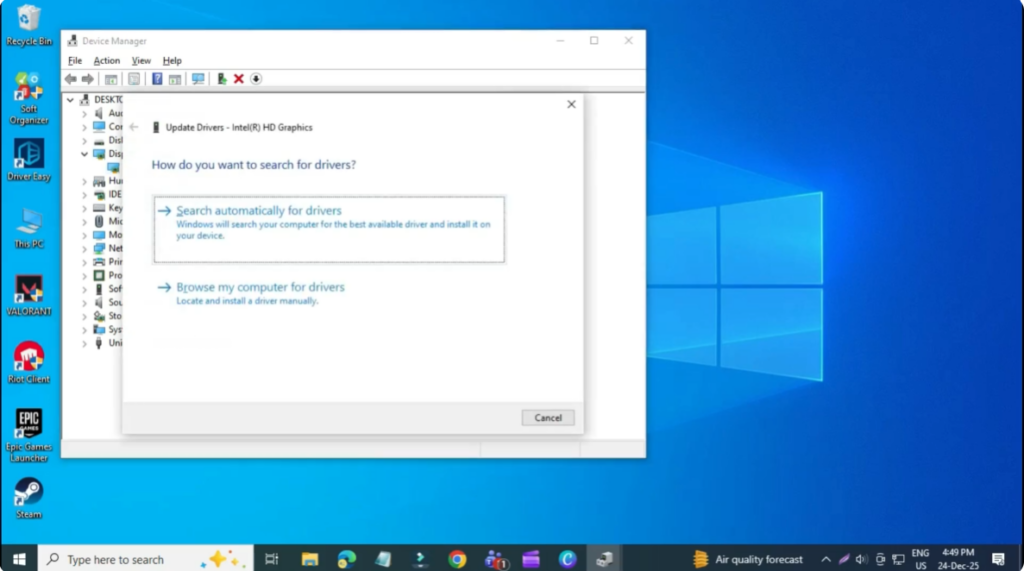
Click on Search automatically for drivers and make sure the latest and best driver is installed on your system.
Step 2: Open Registry Editor
Now for the second step, go back to the search bar and type Registry Editor, then click on it. When prompted, click Yes.
Step 3: Navigate to Graphics Drivers in Registry
Inside the Registry Editor, carefully follow these steps. First expand HKEY_LOCAL_MACHINE, then expand System, followed by CurrentControlSet, and then Control. Now scroll down and find GraphicsDrivers, then click on it.
Step 4: Create TdrDelay Value
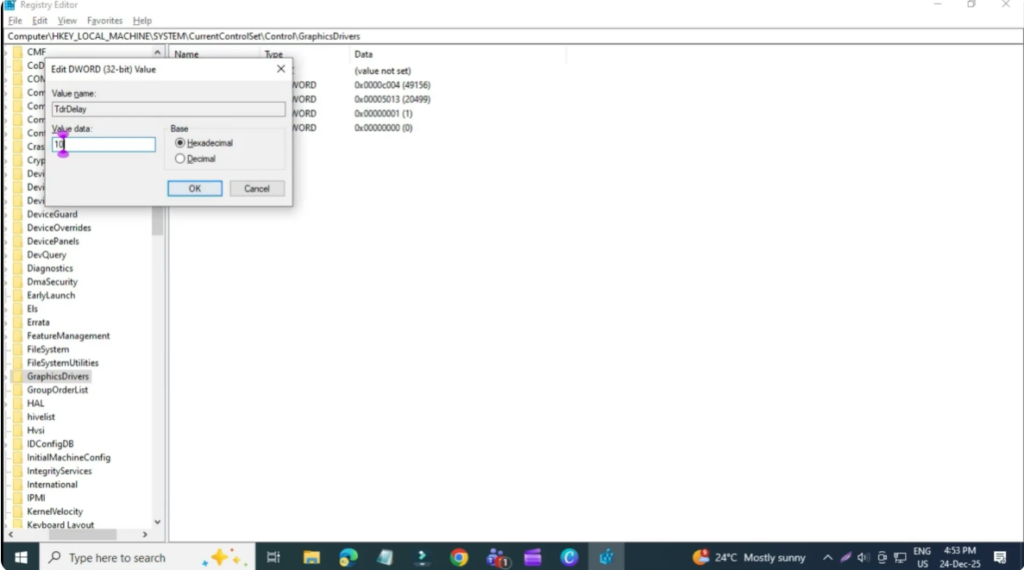
On the right-hand side, right-click in an empty area, select New, and click on DWORD (32-bit) Value. Rename this value as TdrDelay. Make sure the spelling and capitalization are exactly the same.
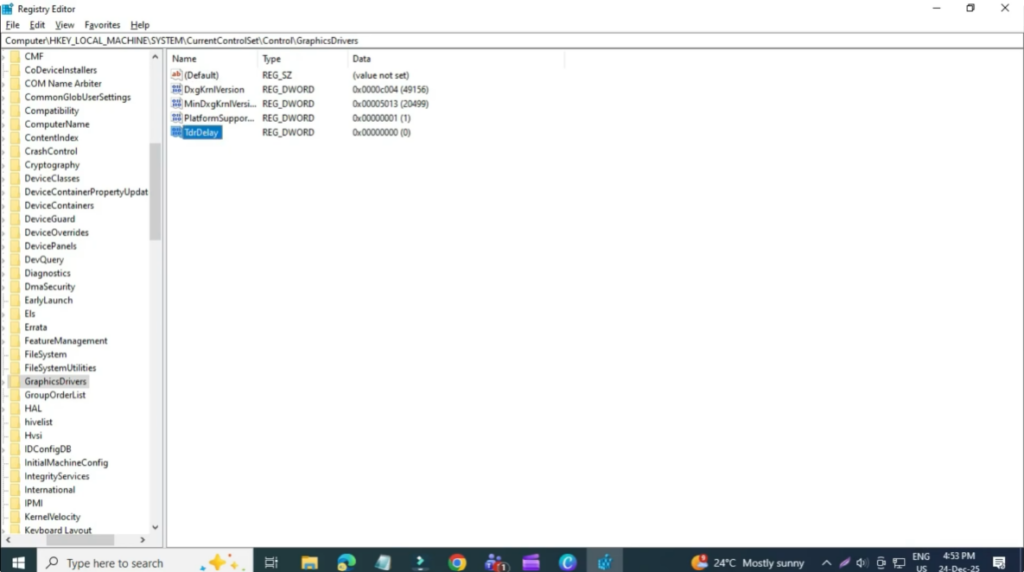
Step 5: Set the TdrDelay Value
Now, double-click on TdrDelay. Set the Value data to 10 and click OK.
Restart Your Computer
Finally, restart your computer and the problem should be fixed.





