
Creating bulk Shorts for YouTube is fast and easy using Canva and ChatGPT—even beginners can do it! With these two powerful tools, anyone can quickly turn written content into dozens of engaging short videos, perfect for sharing on YouTube or social media. By letting ChatGPT generate ideas and Canva handle the designs, bulk Shorts can be made in minutes to grow any channel and reach a bigger audience, without needing expert editing skills.
Step 1: Generate Content with ChatGPT
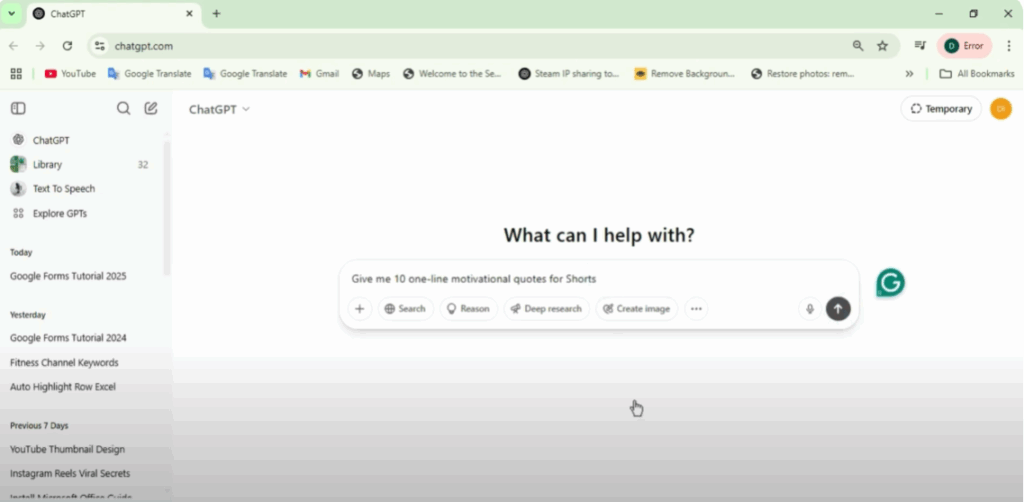
Ask ChatGPT to give you 10 catchy scripts or quotes for your niche. For example, type the prompt:
“Give me 10 one-line motivational quotes for shorts.”
You will instantly get 10 motivational quotes for shorts. As you can see, select all these rows, right-click, and copy them.
Step 2: Prepare Data in Excel
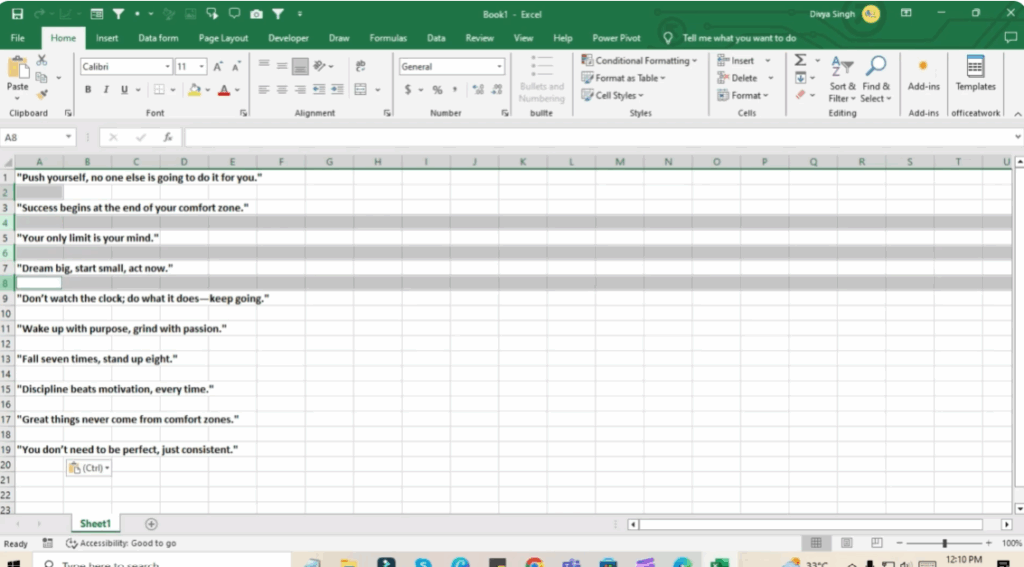
Now you have to open your Excel file and paste all that data here by pressing Ctrl + V on your keyboard.
Next, press the Control key to select all the empty rows. Then, press Delete to remove them.
After this, save the file:
- Go to File → Save As.
- Choose the location where you want to save the file (for example, Desktop).
- In Save as type, select CSV file.
- Enter a file name (e.g., Excel data) and click Save.
Step 3: Design in Canva
Open Canva, go to the homepage, and search for whatever shorts you want to make in the search bar.
Here, let’s select the Reels option for Instagram.
You will find many Canva templates. You can either:
- Select a blank post and design your own, or
- Use a ready-made template.
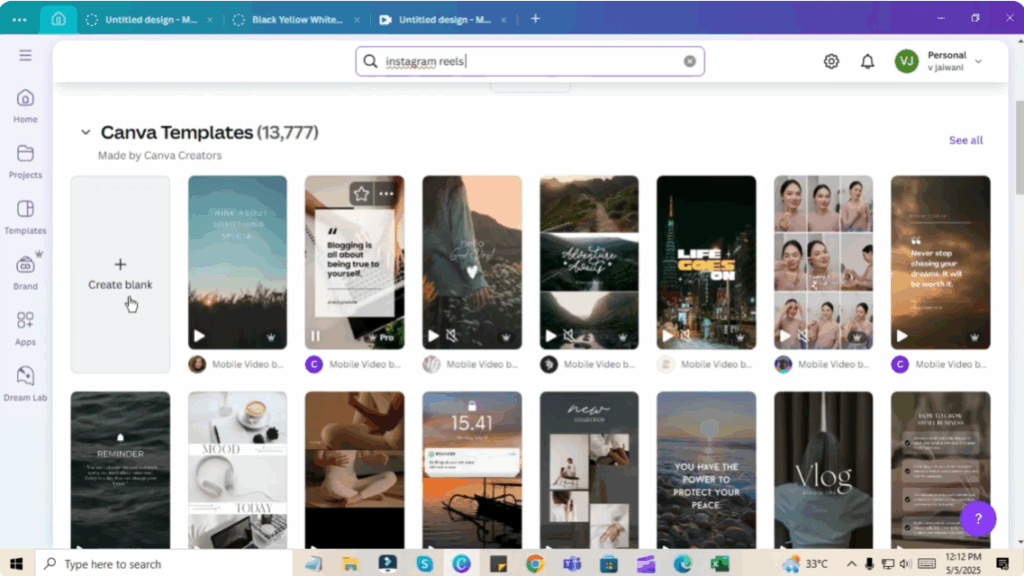
Once the template opens, you’ll see a design screen. You can create your post by clicking on Elements or Design. For this example, let’s choose a ready-made design.
Step 4: Use Bulk Create in Canva
- Go to the Apps section on the left side.
- Scroll down and click on Bulk Create.
- Click Upload Data and upload the CSV file you saved earlier.
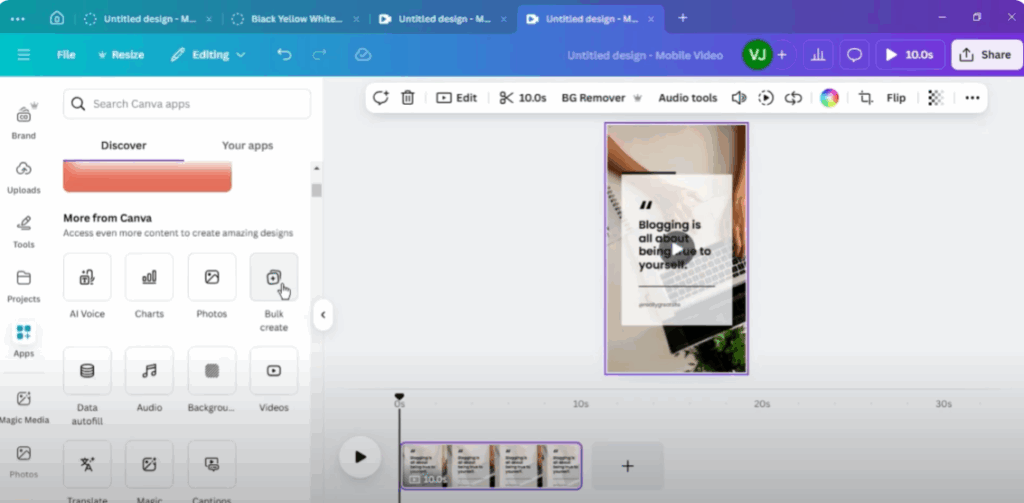
Step 5: Connect Data to Your Design
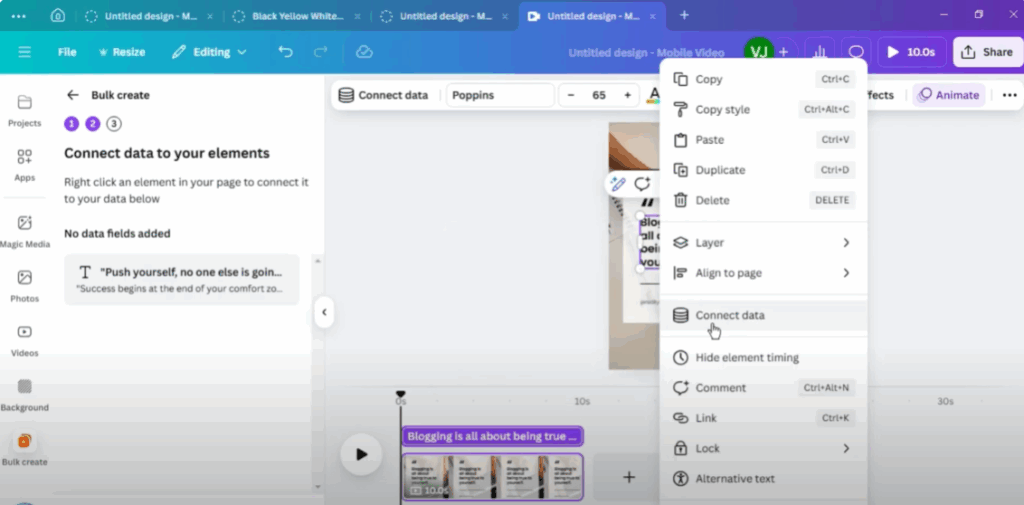
To add an element to your post:
- Right-click on the text in your design.
- Click Connect Data.
- Select the text data from your CSV file.
- Click Continue.
Now, you’ll see all the data appear on the screen. Select All.
Step 6: Generate Designs in Bulk
Click the option to generate multiple designs. Since you already made one template, Canva will ask you to generate the rest in the same way. Just click, and it will create them in bulk.
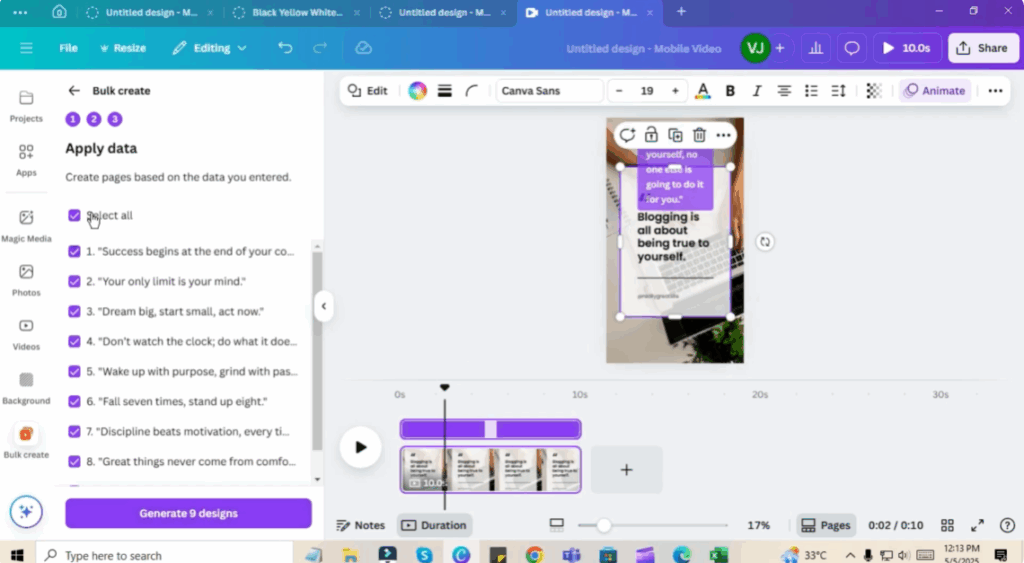
You will now see all the images generated in bulk on the screen. Similarly, if you want to generate videos in bulk, you can do that too.
And that’s it! You’ve now learned how to create multiple shorts super fast using ChatGPT + Canva.






