
Hello friends, welcome back to my YouTube channel. If you’re seeing the message, “Your Windows license will expire soon”, don’t worry. In today’s tutorial, I’ll show you the best working methods step by step to fix this issue easily without wasting any time.
Method 1: Using Task Manager
- Click on the Start button and type Task Manager in the search bar.
- Open Task Manager from the results.
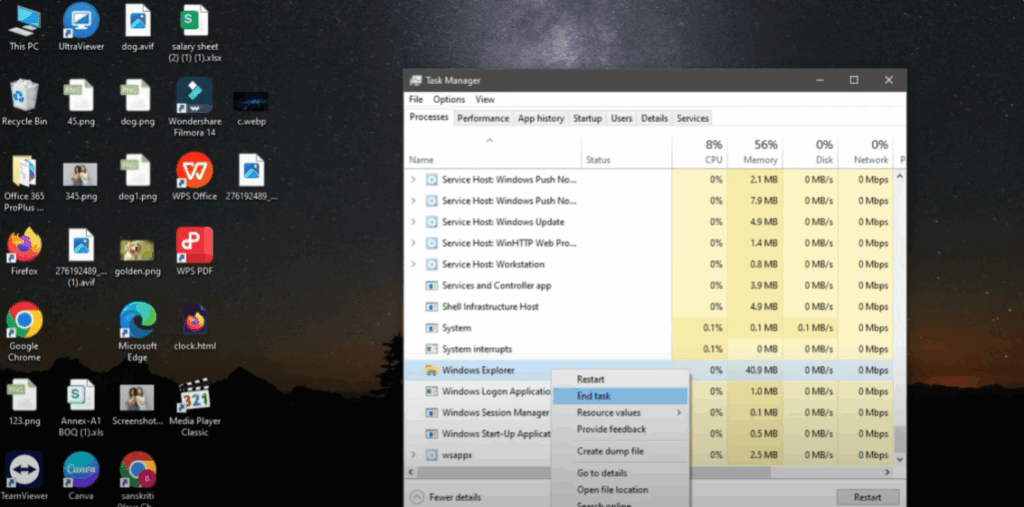
- Find Windows Explorer in the list.
- Right-click on Windows Explorer and select End Task. Note: At this point, your desktop background might go black. Don’t worry, this is normal.
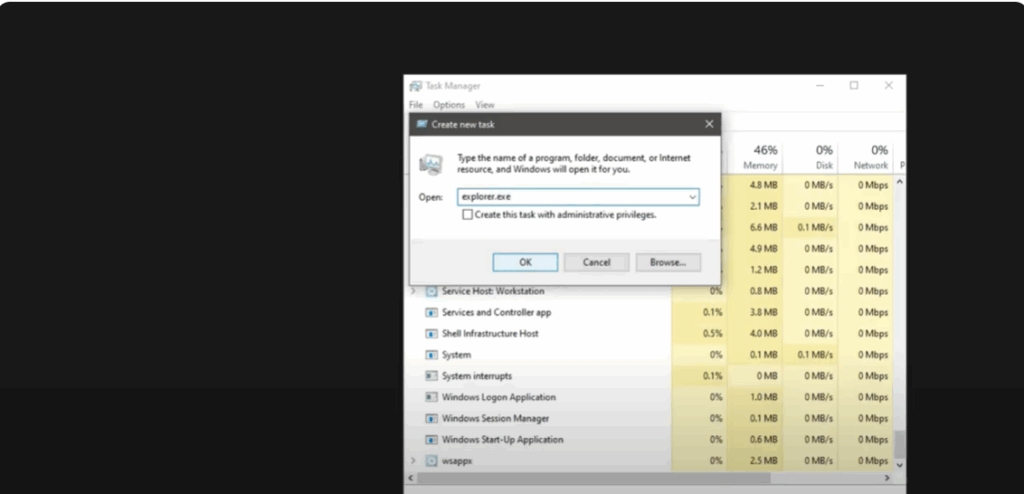
- Now, click on File in the top left corner of Task Manager and select Run New Task.
- In the box that opens, clear anything written there and type explorer.exe.
- Click OK. Your desktop will return to normal.
- Close Task Manager and refresh your desktop.
Method 2: Using Command Prompt
- Click on Start and type CMD or Command Prompt.
- Right-click on Command Prompt and select Run as Administrator.
- In the CMD window, type the given command and press Enter.
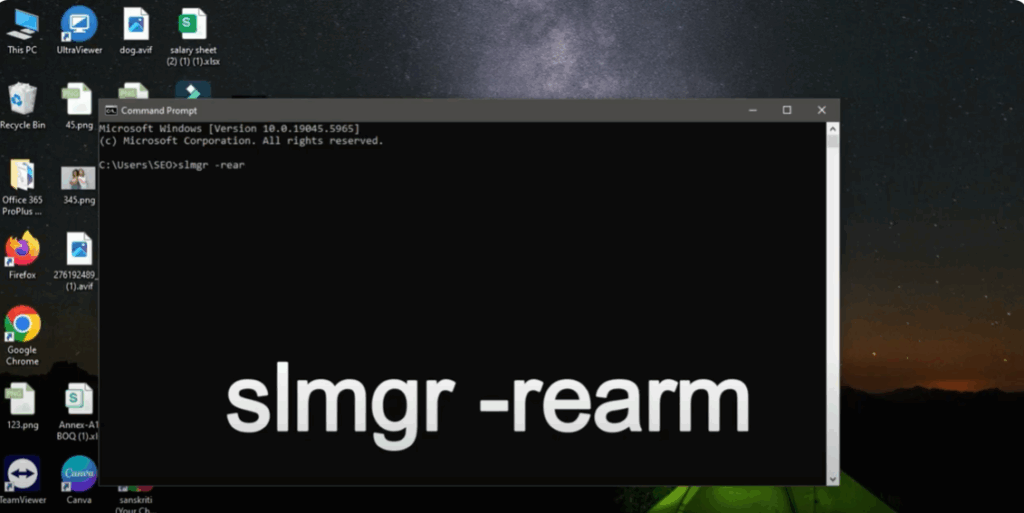
- Once you see the success message, close the window.
- Refresh and restart your system. In most cases, this command fixes the issue. But if your problem is not solved, continue to the next method.
Method 3: Disabling Windows License Manager Service
- Click on Start and type Run.
- Open the Run app.
- In the Run box, clear the text and type services.msc.
- Click OK to open the Services window.
- Scroll down and find Windows License Manager Service.
- Right-click on it and choose Properties.
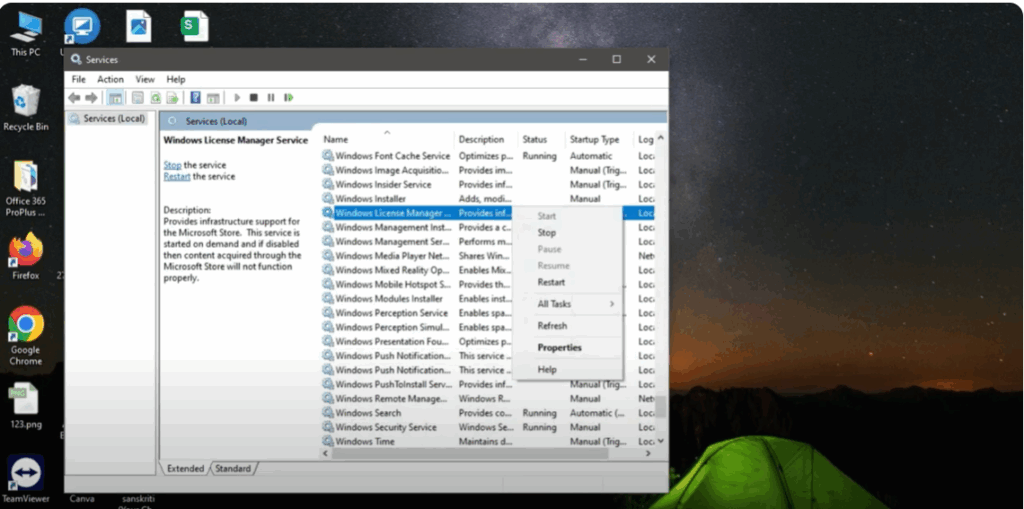
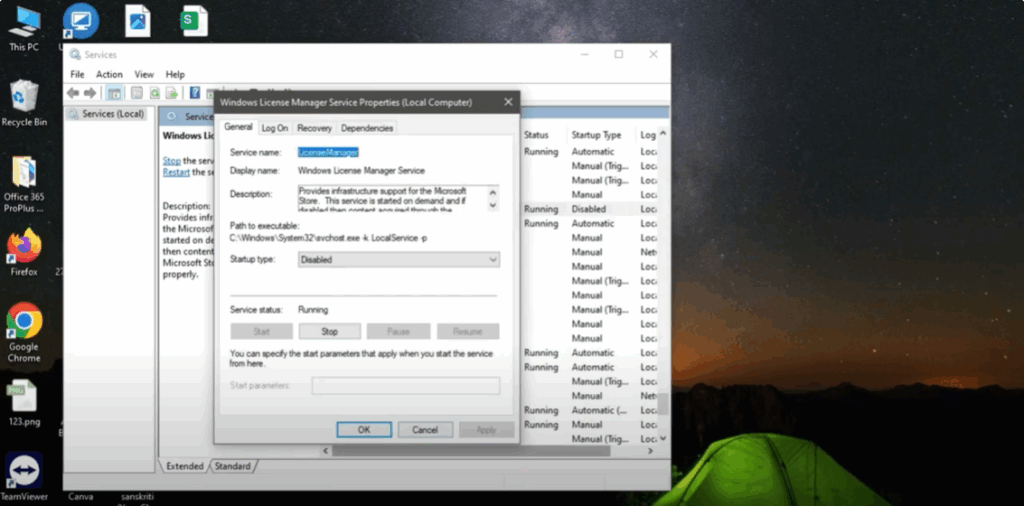
- Under the Startup Type dropdown, select Disabled.
- Click Apply and then OK.
- Close the Services window.
- Refresh your system and restart your computer.
After restarting, the activation warning should be gone and your issue will be solved for sure.
Final Words
I hope this guide helped you fix the “Your Windows License Will Expire Soon” error. Don’t forget to like this video and subscribe for more helpful tutorials.






