
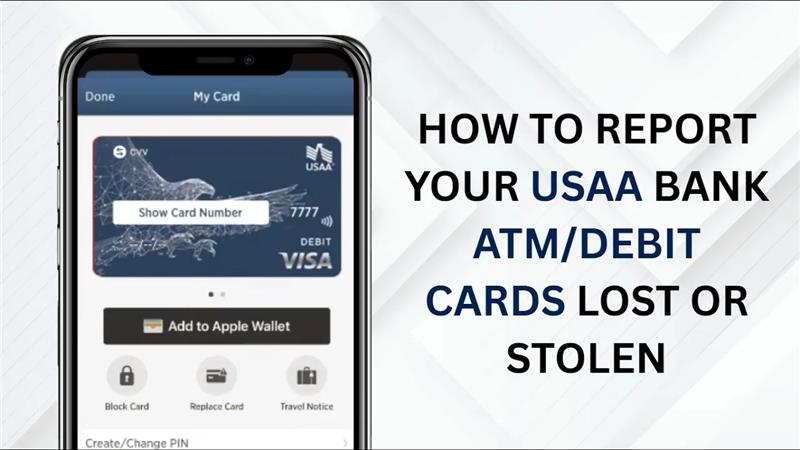
Losing your USAA Bank ATM or debit card can feel stressful, especially if you’re worried about someone else using it. The good news is that USAA makes it quick and simple to report your card as lost or stolen, so you can protect your money right away. Acting fast is very important because it helps prevent unauthorized transactions and keeps your account safe. In this guide, we’ll explain the easy steps you can follow to report your missing card, request a replacement, and make sure your account stays secure.
Let’s get started.
Step 1: Open the USAA Bank mobile app
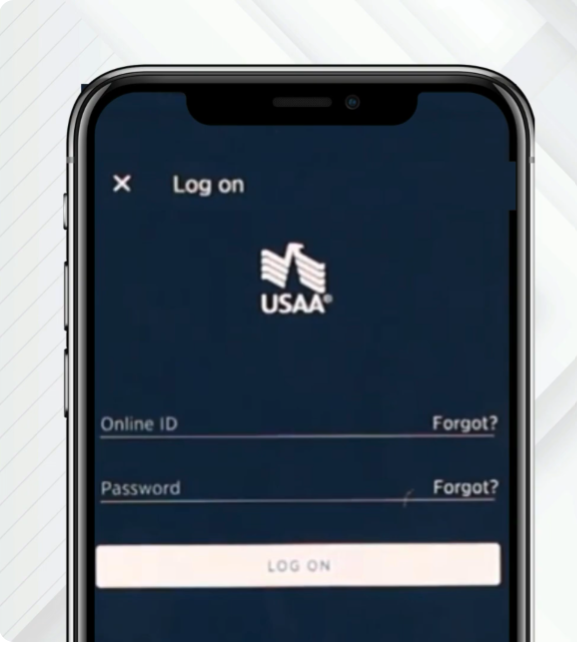
First, open the USAA Bank mobile app on your phone and log into your account.
Step 2: Select your account
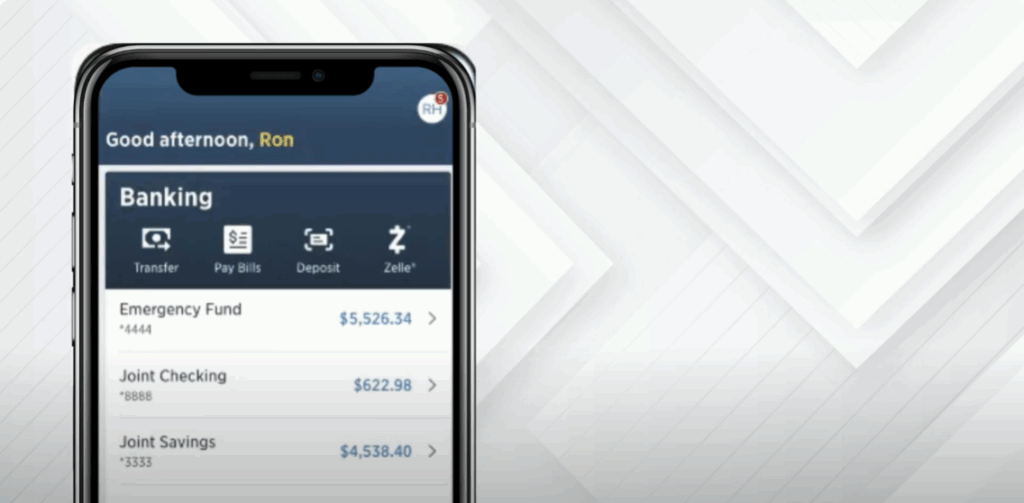
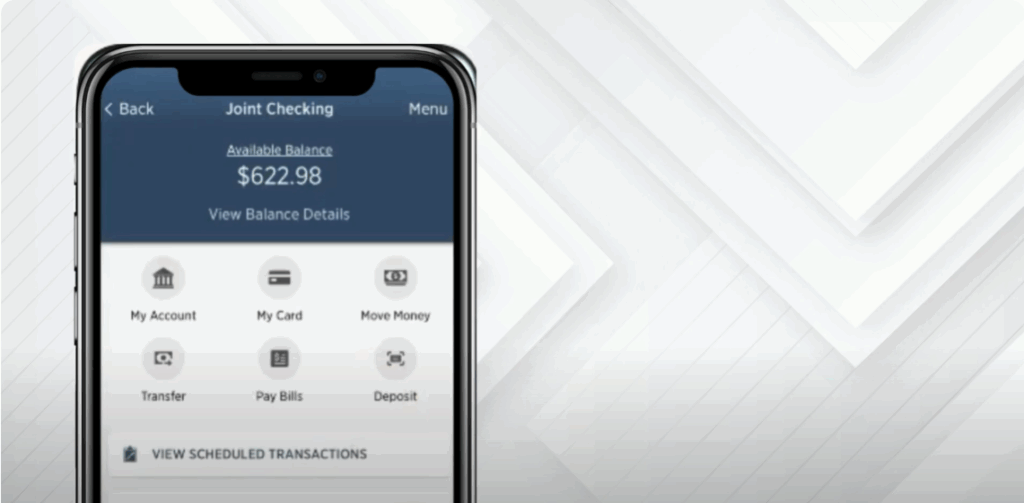
From your account dashboard, choose the bank account linked to the lost or stolen card.
Step 3: Select My Card
Under your selected account, tap on the My Card option to manage your debit card.
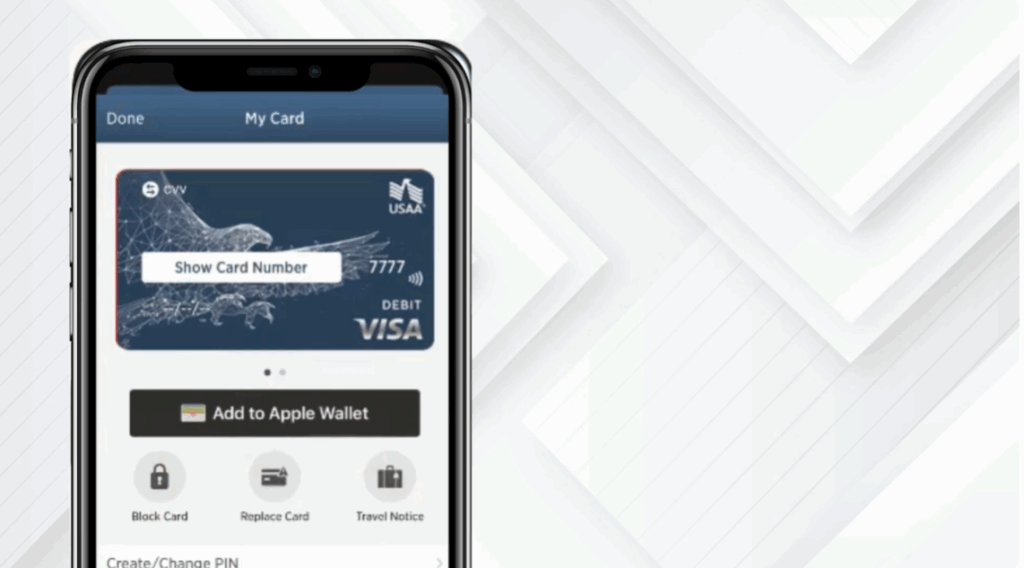
Step 4: Select Replace Card
Tap on the option labeled Replace Card to begin the replacement process.
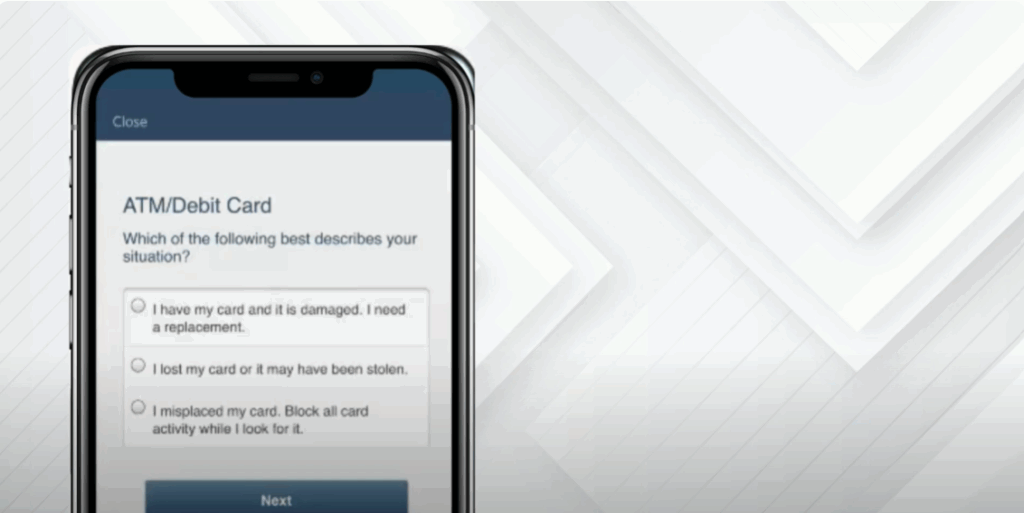
Step 5: Select the reason
Select I lost my card or It may have been stolen. Then select Next.
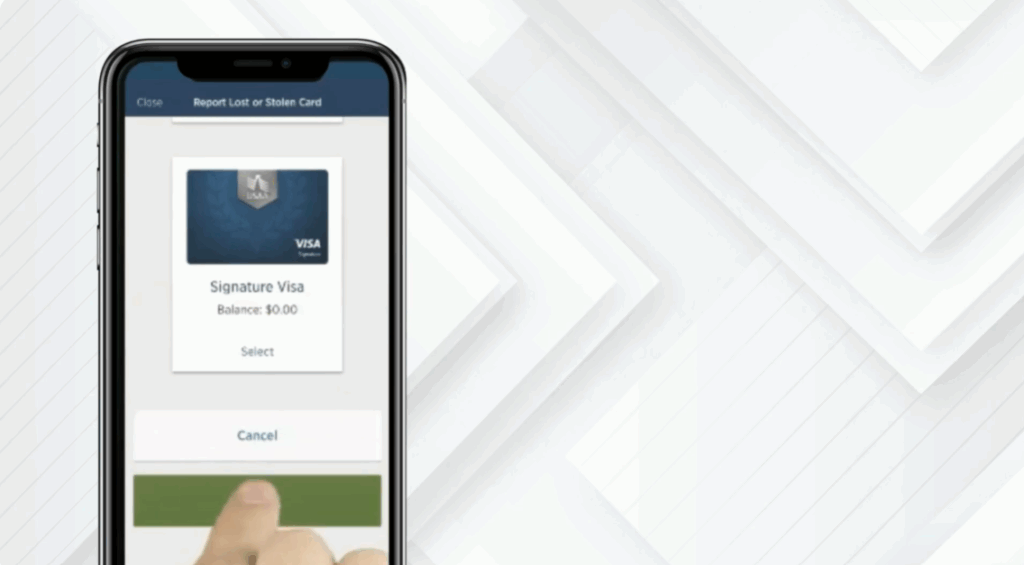
Step 6: Confirm card details
Select your lost or stolen card(s). Then tap Next to continue.
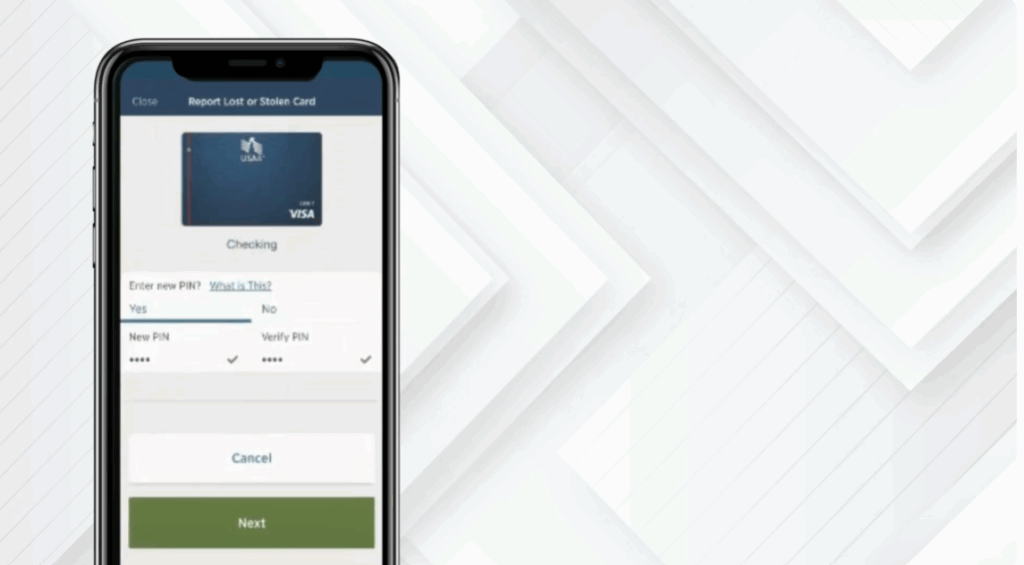
Step 7: Enter your new PIN
You’ll be prompted to create a new four-digit PIN for your replacement card. Tap Next.
Step 8: Verify your mailing address
Verify your mailing address, then select Submit.
Step 9: Replacement process completed
Your new card is on its way.
And that’s it. You’ve successfully reported your USAA Bank ATM/debit cards lost or stolen.






