
If your Recycle Bin icon is missing from the desktop in Windows 11, don’t worry—it’s easy to restore it. Sometimes the icon gets hidden or turned off by mistake, but you can bring it back by adjusting your desktop icon settings. In this blog, you’ll learn simple step-by-step methods to restore the Recycle Bin icon on your Windows 11 desktop so you can easily find and use it again.
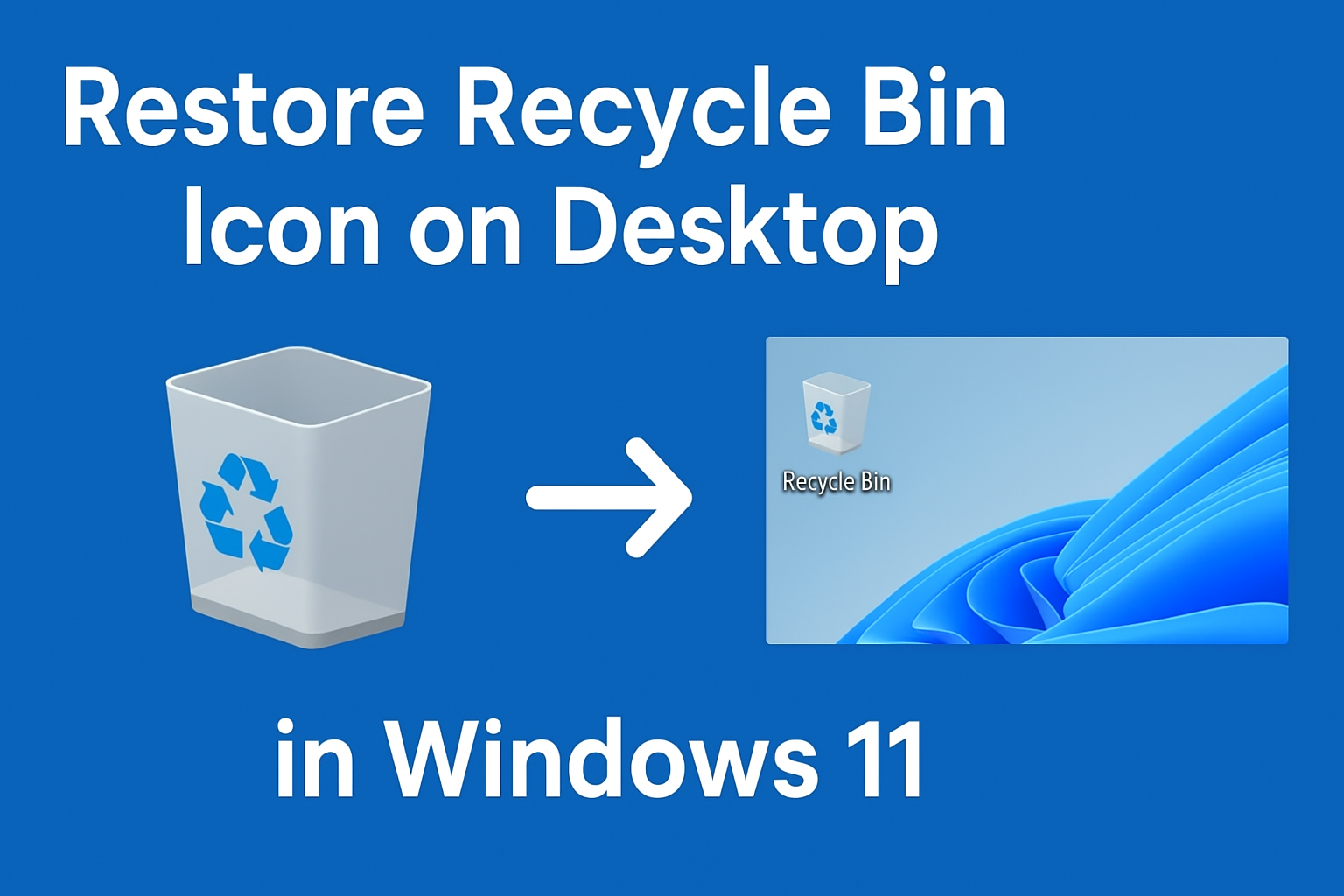
🛠 Ways to Restore the Recycle Bin Icon
Method 1: Enable Recycle Bin via Settings
- Press Windows + I to open Settings.
- Go to Personalization → Themes.
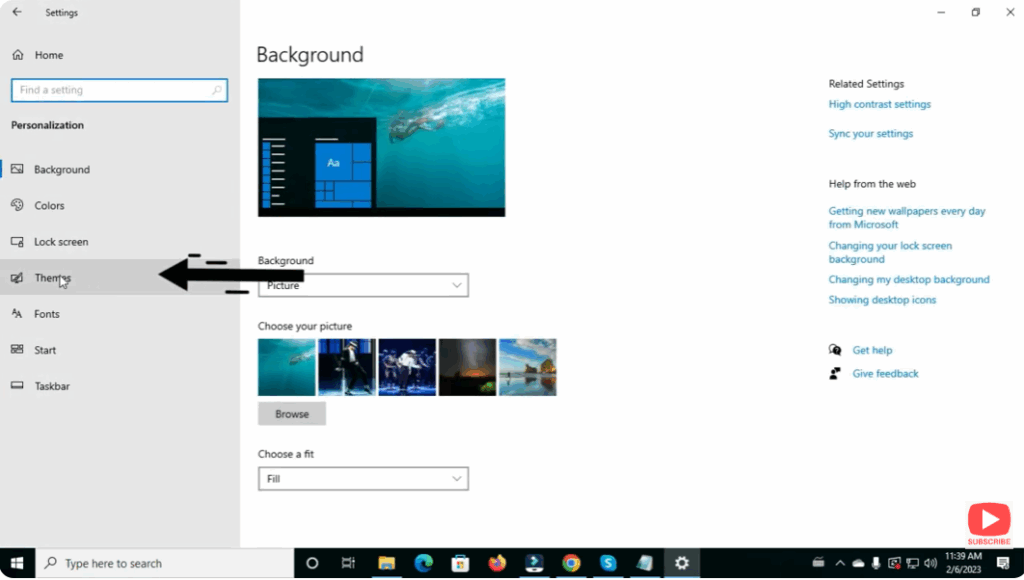
- Scroll down to Related Settings and click Desktop icon settings.
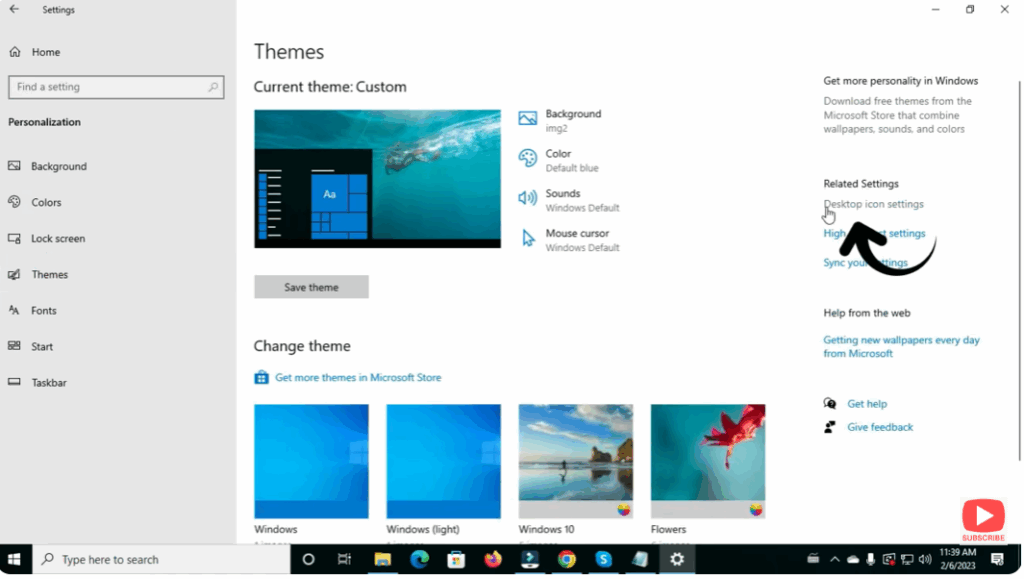
- In the Desktop Icon Settings window, check the box for Recycle Bin.
- Click Apply, then OK.
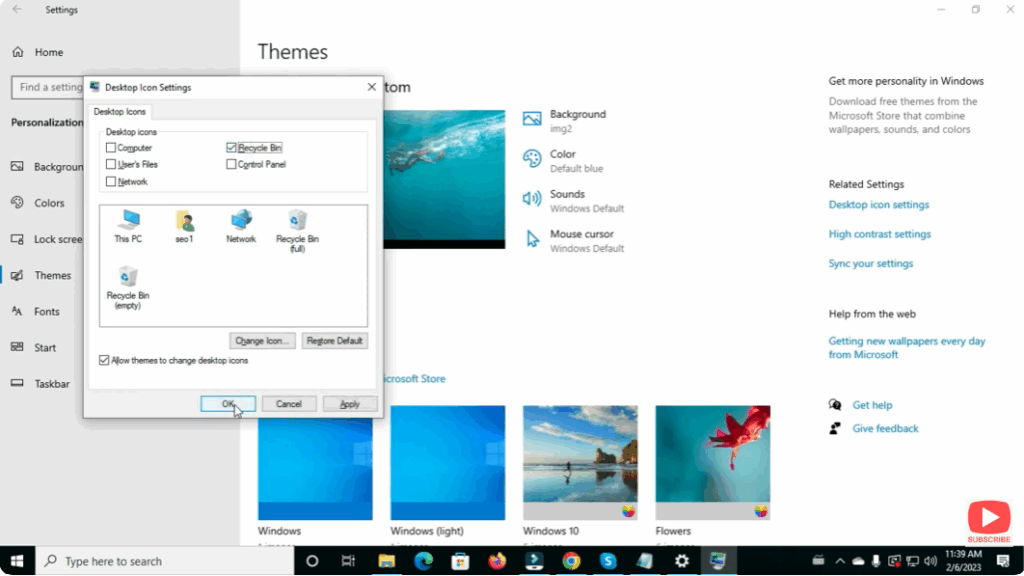
After this, the Recycle Bin icon should appear on your desktop.






