---Advertisement---

How to Restore Recycle Bin Icon on Desktop in Windows11

Published On: November 15, 2025
How to Restore Recycle Bin Icon on Desktop in Windows11
---Advertisement---

If your Recycle Bin icon is missing from the desktop in Windows 11, don’t worry—it’s easy to restore it. Sometimes the icon gets hidden or turned off by mistake, but you can bring it back by adjusting your desktop icon settings. In this blog, you’ll learn simple step-by-step methods to restore the Recycle Bin icon on your Windows 11 desktop so you can easily find and use it again.​

Restore Recycle Bin Icon on Desktop

🛠 Ways to Restore the Recycle Bin Icon

Method 1: Enable Recycle Bin via Settings

  • Press Windows + I to open Settings.
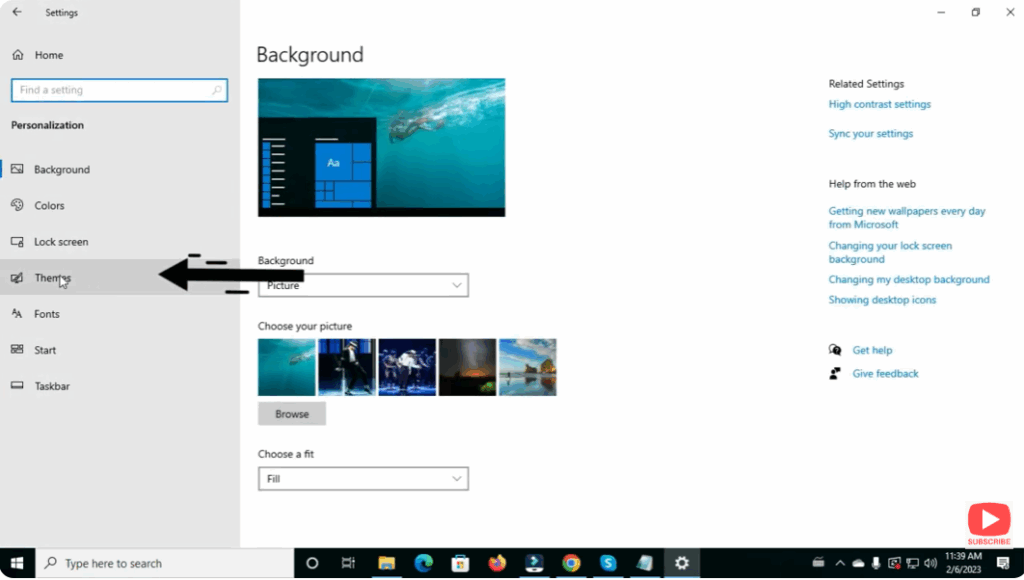
  • Go to Personalization → Themes.
Go to Personalization → Themes
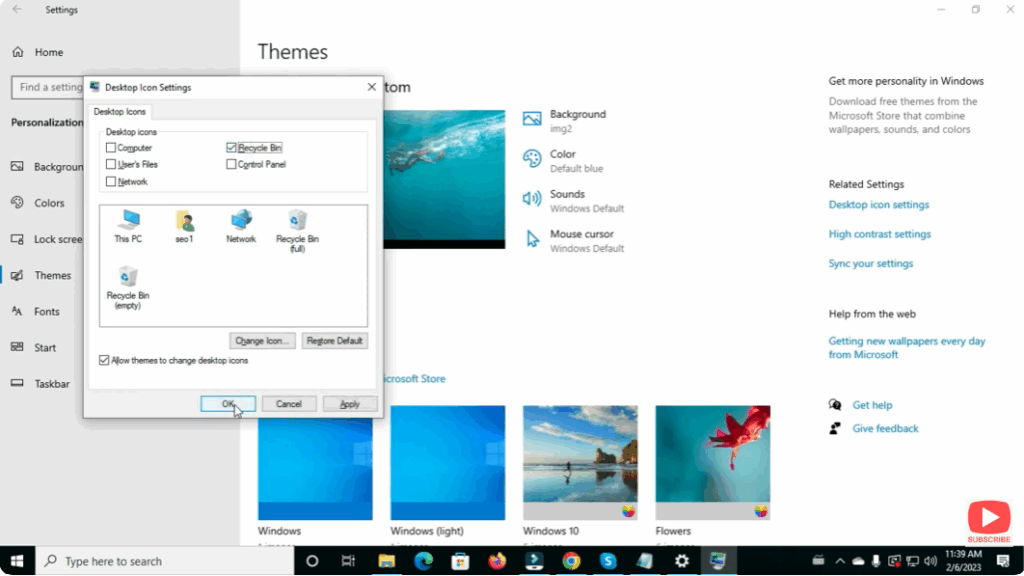
  • Scroll down to Related Settings and click Desktop icon settings.
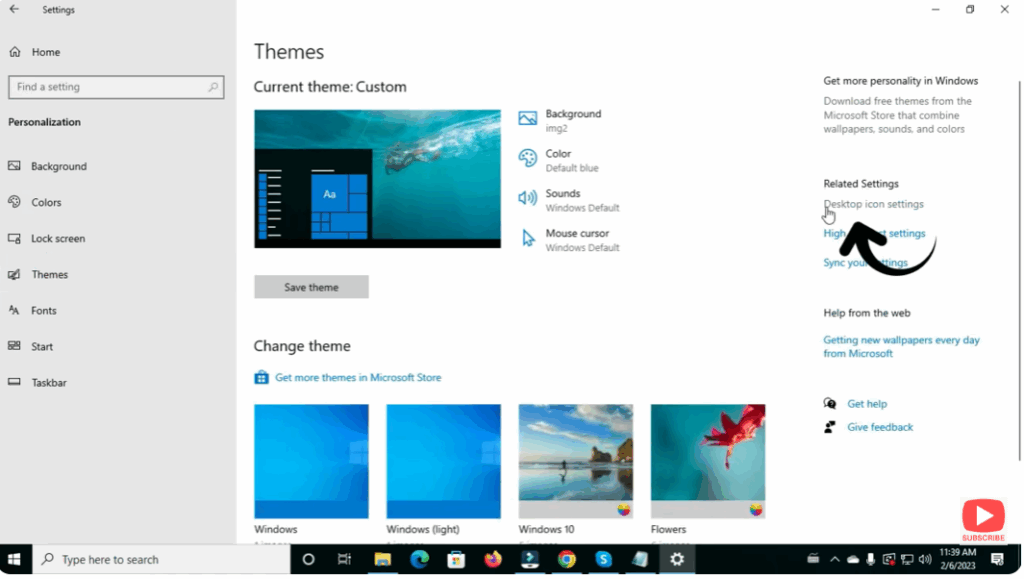
Desktop icon settings
  • In the Desktop Icon Settings window, check the box for Recycle Bin.
  • Click Apply, then OK.
Enable Recycle Bin via Settings

After this, the Recycle Bin icon should appear on your desktop.

---Advertisement---

Related Post

Enable New Windows 11 25H2 Features After December Update (KB5070311)
Enable/Disable Steam Networking IP Sharing – Step-by-Step Guide
Valorant Stuck on Loading Screen? Fix It Now!
Tips

Valorant Stuck on Loading Screen? Fix It Now!

By Tech Gitter
|
December 31, 2025
How to Increase or Decrease Font Size in Google Chrome
Solutions

How to Increase or Decrease Font Size in Google Chrome

By Tech Gitter
|
December 29, 2025

Leave a Comment

Join WhatsApp Join Telegram