
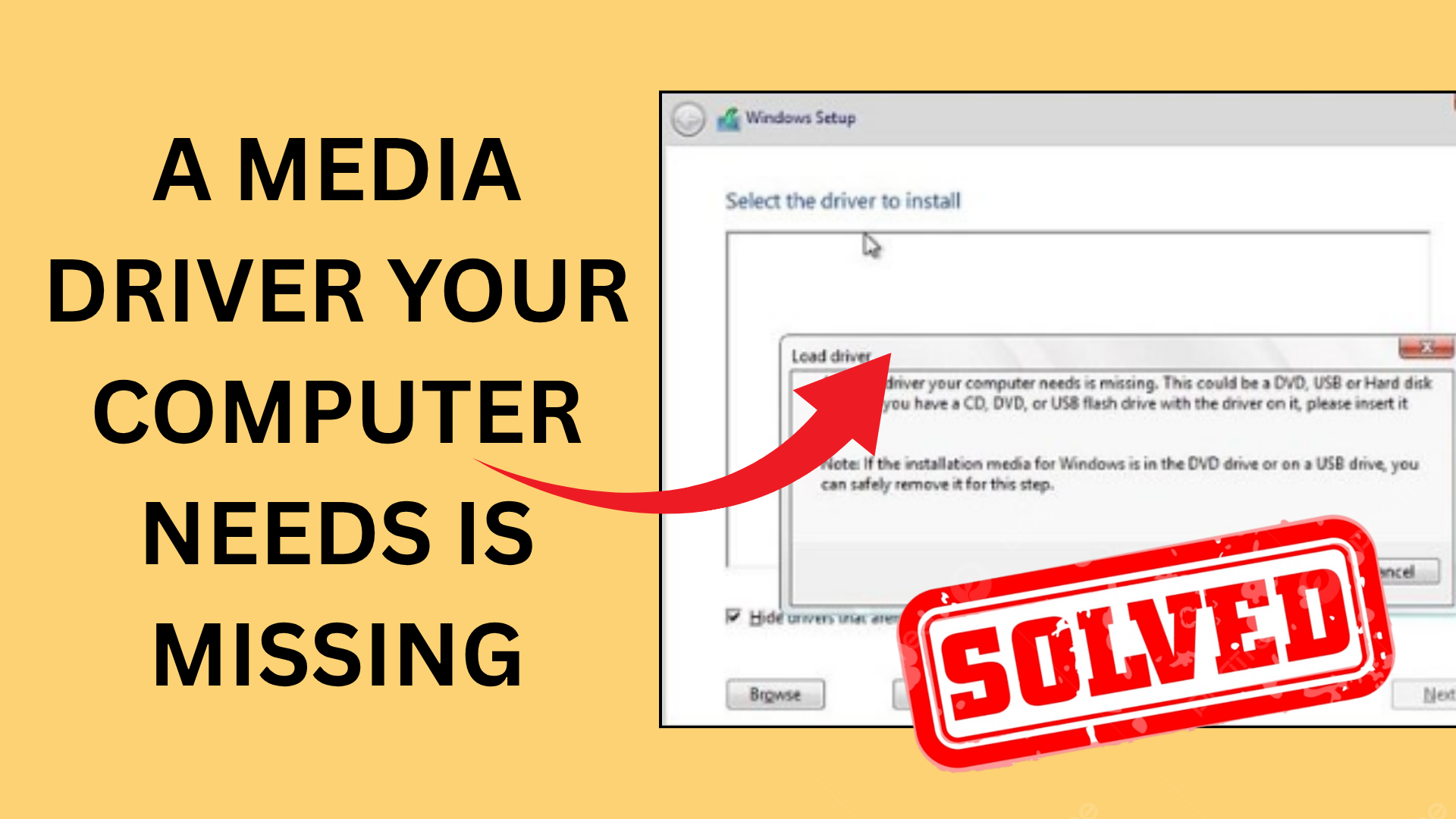
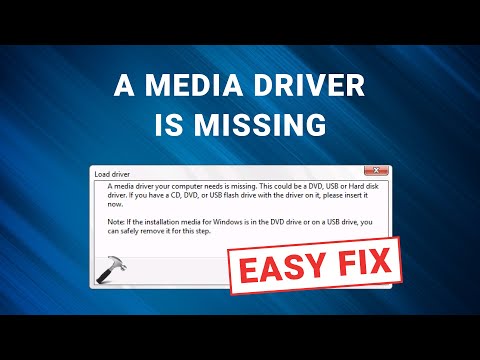
Getting the error message “A media driver your computer needs is missing” while installing Windows? Don’t worry—it’s a common issue that can be fixed easily. This error usually pops up during the setup process and stops the installation from going forward. It often means your computer can’t find the right USB, DVD, or storage driver. In this blog, we’ll explain why this error happens and how to fix it step by step, using simple language so anyone can follow along. Let’s get your Windows installation back on track!
🛠 Step-by-Step Solutions
Use the following fixes one by one. After each, retry the Windows installation to see if the error is resolved.
1. Try a Different USB Port (Preferably USB 2.0)
- Remove the installation USB drive.
- Plug it into a different USB port (especially a USB 2.0 port).
- Restart the installer and try again.
- Many users have resolved the error simply by switching from USB 3.x to USB 2.0.
2. Recreate the Installation Media / Use Better Tools
- Use the official Windows Media Creation Tool to generate installation USB.
- Or use tools like Rufus to write the ISO to USB correctly.
- If possible, try another USB stick in case the current one is faulty or corrupted.
3. Load Storage / Chipset Drivers Manually During Installation
- Download the proper chipset / storage controller drivers (e.g. Intel Rapid Storage, NVMe drivers) for your motherboard or system.
- Extract those drivers to a separate USB drive (in a folder).
- During Windows setup, when prompted with “A media driver is missing,” click Load driver, browse to the location of the extracted drivers, and select the correct
.inffile. - The installer should now be able to detect your storage device and proceed.
4. Check / Change BIOS / UEFI Settings
- Enter BIOS/UEFI setup (usually via Del, F2, etc.).
- Ensure your SATA mode is set to AHCI, not RAID (unless you specifically use RAID).
- Enable xHCI hand-off if available.
- Disable Secure Boot temporarily if needed.
- Save changes and retry installation.
5. Use Diskpart to Clean / Prepare the Target Drive
If the drive has previous partitions or improper formatting:
- At the install screen press Shift + F10 to open Command Prompt.
- Run:
diskpart list disk select disk X (replace X with your target drive number) clean exit - Close command prompt, and back in the setup, select Unallocated space and click Next.
This ensures the drive is in a fresh state for the installer.
6. Try Installing Without Installation Media (Alternative Method)
- If you can boot into an existing Windows environment or use another PC, you might mount the Windows ISO and run the
setup.exefrom within the OS instead of booting via USB.






