
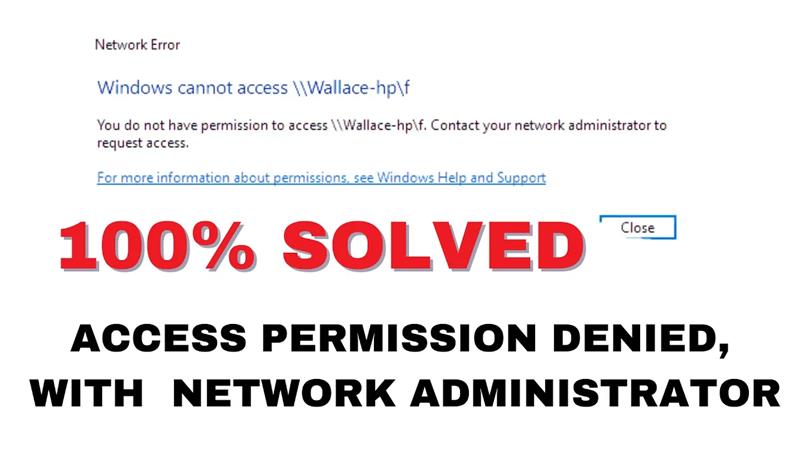
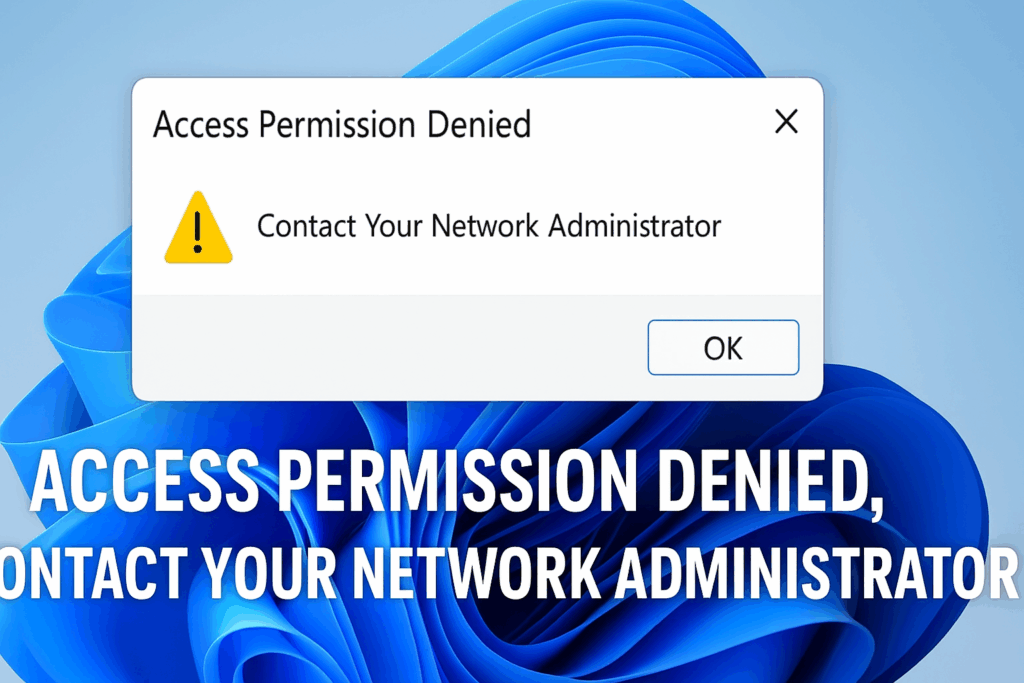
When you try to open a file, folder, or shared network resource in Windows 11 and see the message “Access Permission Denied, Contact Your Network Administrator”, it usually means your user account does not have the required rights or permissions to view or modify that item. This can happen in multiple contexts—local files, network shares, external drives, or after system updates—and resolving it involves checking permissions, ownership, sharing settings, and sometimes group policies or account privileges.
How to Fix It
Here are step-by-step fixes that often resolve this error. (Note: Before modifying system settings, make sure you have backups or are comfortable with restoring settings if needed.)
- Check & Modify Permissions
- Right-click the file/folder → Properties → Security tab.
- Check whether your user account is listed. If not, add it or add the “Users” group.
- Make sure Read / Write (or even Full Control, if needed) is enabled.
- Apply changes.
- Take Ownership
- In Properties → Security → Advanced, click Change next to the Owner field.
- Enter your username (or select your account) and apply.
- Optionally tick “Replace owner on subcontainers and objects” to apply recursively.
- Ensure Network & Sharing Settings Are Correct (for network or shared folder issues)
- Go to Settings → Network & Internet → ensure your network (WiFi/Ethernet) is set to Private (not Public).
- Open Advanced sharing settings → enable Network discovery & File and printer sharing.
- If available, disable password-protected sharing, or ensure correct credentials are set.
- Clear / Correct Credential Manager Entries
- Open Control Panel → Credential Manager.
- Remove stored credentials related to the machine or resource causing the issue.
- When accessing again, provide correct credentials when prompted.
- Use Elevated (Administrator) Account
- If your current user isn’t an admin, try logging in with an account that has administrative rights.
- If needed, enable the built-in administrator account via Command Prompt (run as Admin):
net user administrator /active:yes - Use that account to adjust permissions, then disable if you want to keep system security tighter.
- Check Security / Antivirus / Firewall Interference
- Temporarily disable antivirus or firewall software to test if they’re blocking access.
- If disabling allows access, adjust their settings or whitelist the needed file/folder.
- Restart / Reboot & Try Again
- After making changes (especially ownership or permissions), reboot or at least log off and log back in. Sometimes changes only fully take effect after a restart.
Tips to Prevent Future Issues
- Always run Windows Updates. Some permission-related bugs are fixed by patches.
- Use standardized accounts for shared use. Duplicate usernames or mismatched permissions cause conflicts.
- Regularly clean up old credentials in Credential Manager.
- When sharing folders, clearly set both share permissions and NTFS permissions (in the Security tab).
- Keep backups of critical files before making ownership/permission changes.






