
![Access Power options [explained ]- Windows 10, 11](https://techgitterofficial.com/wp-content/uploads/2025/11/Access-Power-options-explained-Windows-10-11.png)
Accessing power options in Windows 10 or 11 lets you easily adjust settings to manage battery life, performance, and how your device saves energy. You can find power options through the Settings app or Control Panel, and choose or customize plans like Balanced, Power Saver, or High Performance depending on your needs. In this blog, you’ll learn where to locate and how to use power options for better control over your Windows computer’s battery and performance.
How to Access Power Options in Windows 10 & Windows 11
Method 1: From the Control Panel
- Press Windows + R on your keyboard.
- Type:
control - Press Enter → Control Panel opens.
- Go to Hardware and Sound → Power Options.
Method 2: From the Start Menu
- Click Start Menu.
- Type Power Plan.
- Select Change Power Plan.
Method 3: From Settings (Windows 11/10)
Go to System → Power & Battery (Windows 11)
or System → Power & Sleep → Additional Power Settings (Windows 10).
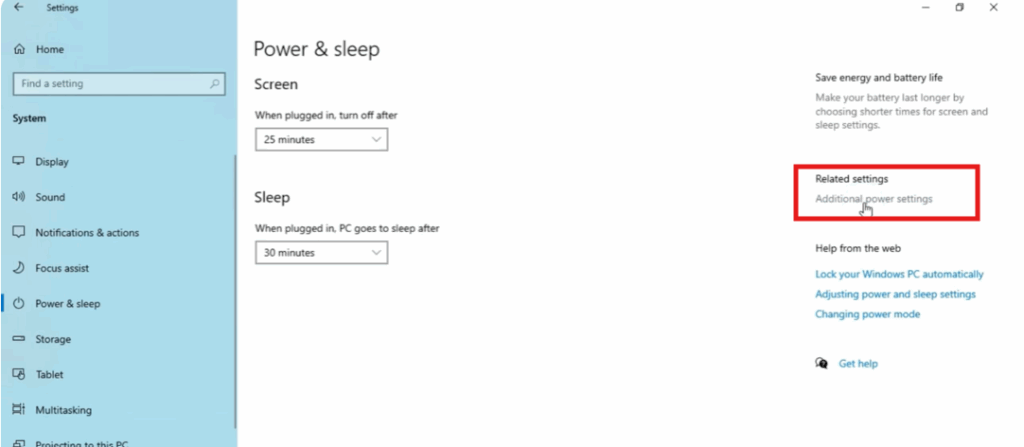
Open Settings (Press Windows + I).
Conclusion
Windows power options are powerful tools that help you control your system’s speed, battery usage, and performance. Whether you’re trying to save battery, reduce heat, or maximize performance, accessing and adjusting power settings can greatly improve the way your PC works.






