

Hello friends, welcome back to my channel Tech Gitter Official. If your laptop or PC is running slow or you have low RAM, then this guide is just for you. Today, I’ll show you the best way to boost your laptop speed by increasing virtual RAM in Windows 10 or 11 to help improve overall performance.

Step 1: Open Advanced System Settings
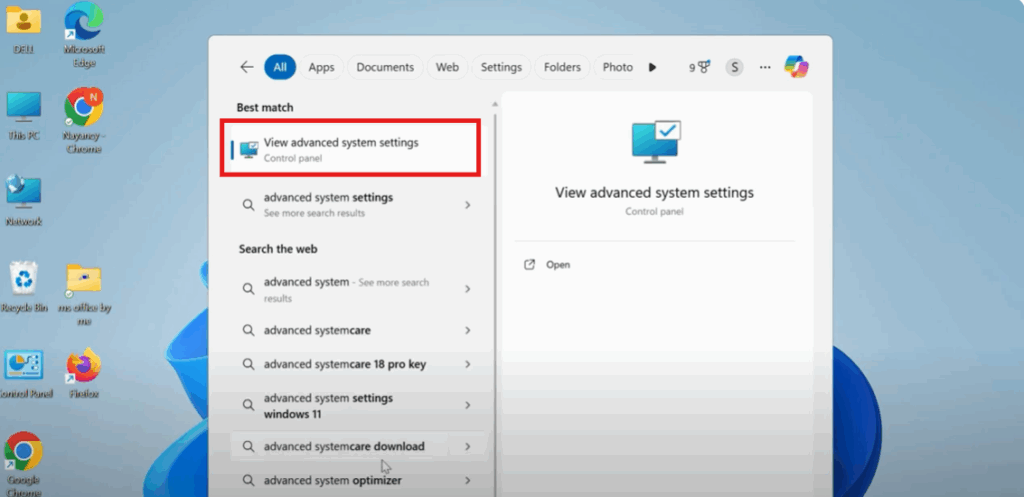
- Go to the Windows search bar and type advanced system settings.
- From the search results, click on View advanced system settings.
- This will open the System Properties window.
Step 2: Access Performance Options
- In the System Properties window, make sure you are on the Advanced tab.
- Under the Performance section, click on the Settings button.
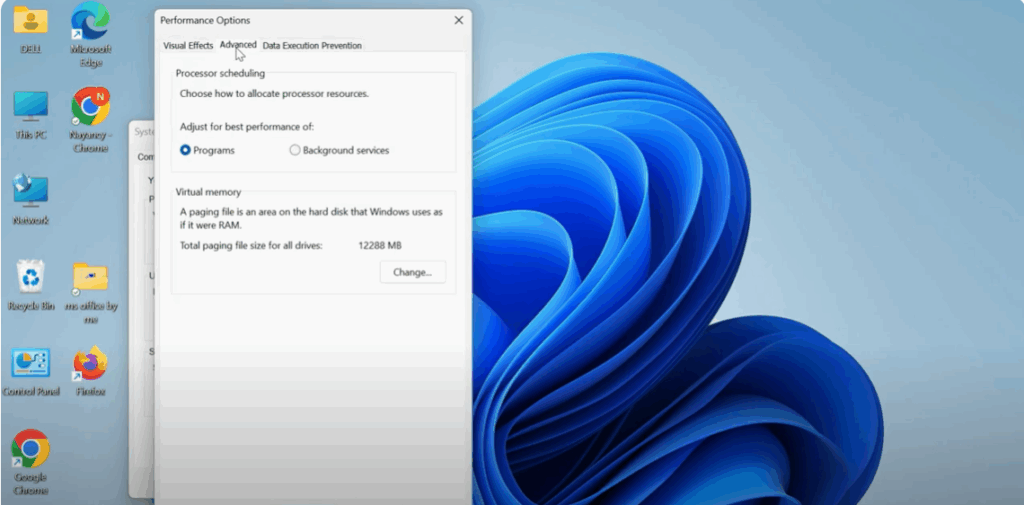
- A new window titled Performance Options will open.
- Go to the Advanced tab inside the Performance Options window.
Step 3: Change Virtual Memory Settings
- Click on the Change button under the Virtual Memory section.
- The Virtual Memory window will appear.
At the top, you’ll see a checkbox that says “Automatically manage paging file size for all drives.”
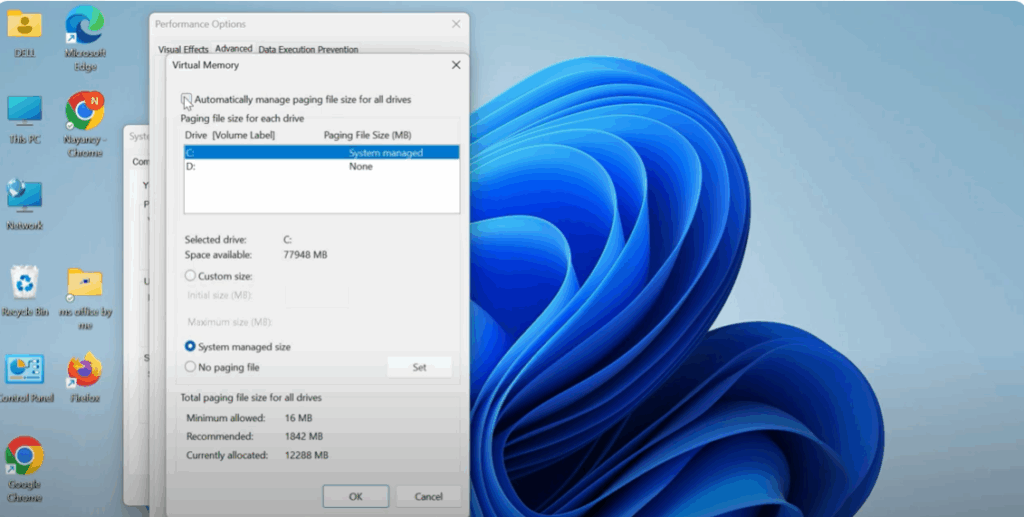
- Uncheck this box to allow manual configuration of virtual memory.
Step 4: Set Custom Virtual Memory Size
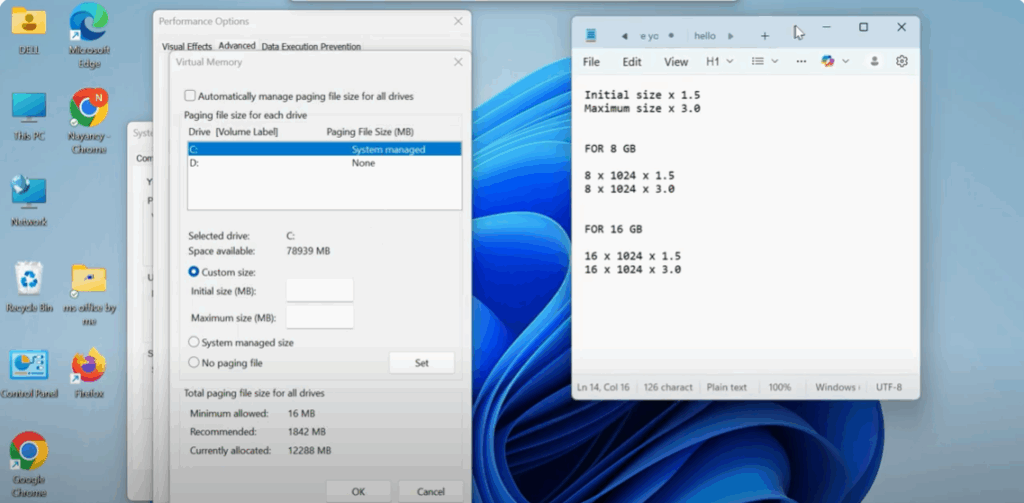
You will now see two fields:
- Initial Size (MB)
- Maximum Size (MB)
We will set custom values based on your system’s installed RAM.
For example, if your laptop has 8GB of RAM, follow this calculation:
- Initial Size (MB):
Formula:RAM (in GB) × 1024 × 1.58 × 1024 × 1.5 = 12,288 MB
Enter 12,288 in the Initial Size box. - Maximum Size (MB):
Formula:RAM (in GB) × 1024 × 3.08 × 1024 × 3.0 = 24,576 MB
Enter 24,576 in the Maximum Size box.
Step 5: Apply the Changes
- After entering the custom values, click the Set button.
- Click OK, and then OK again to confirm.
- Windows may prompt you to restart your computer—make sure you do so for the changes to take effect.
Final Words
And there you have it! This is the best and easiest way to boost your laptop speed using Virtual RAM settings in Windows 10 or 11.
If you found this guide helpful, make sure to share it and apply these steps to improve your system’s performance effectively.






