
Hello friends, welcome back to my channel Tech Gitter. In this guide, we’re going to fix the black screen with cursor issue on your Windows 10 PC. Follow each method carefully to resolve the problem.
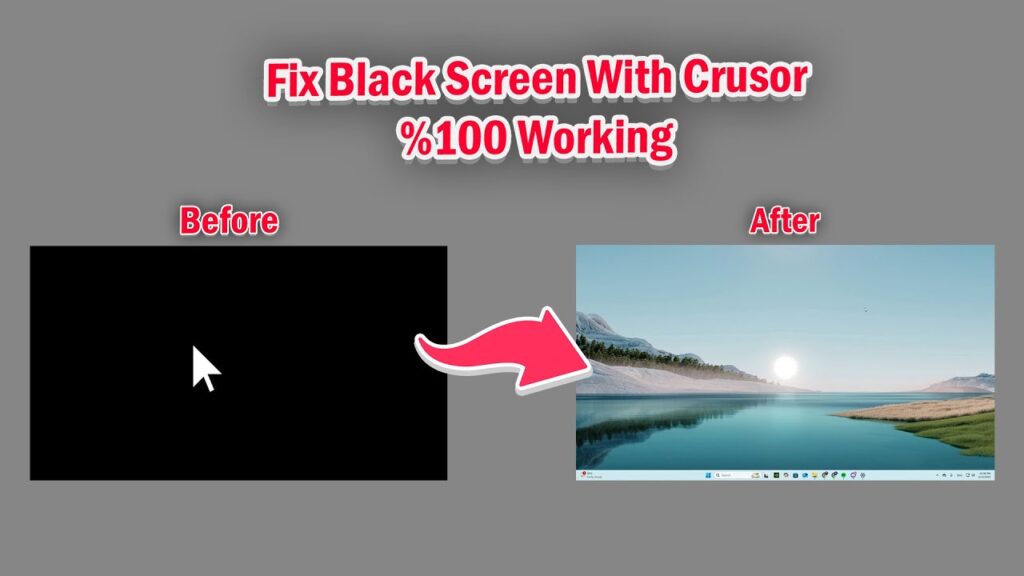
Method 1: Use Task Manager to Disable App Readiness
- Press Ctrl + Alt + Delete on your keyboard.
- Click on Task Manager.
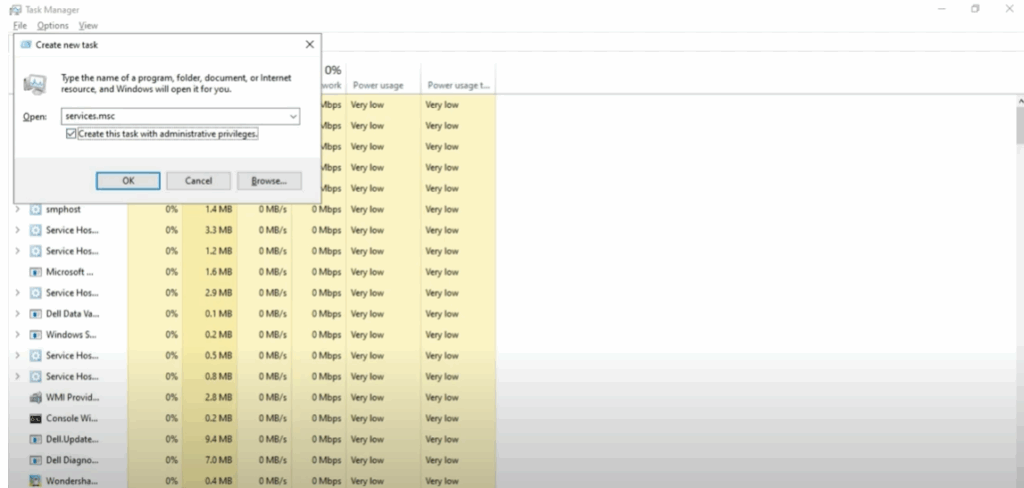
- Once Task Manager opens, click on File > Run New Task.
- Type services.msc in the box.
- Check the box Create this task with administrative privileges, and click OK.
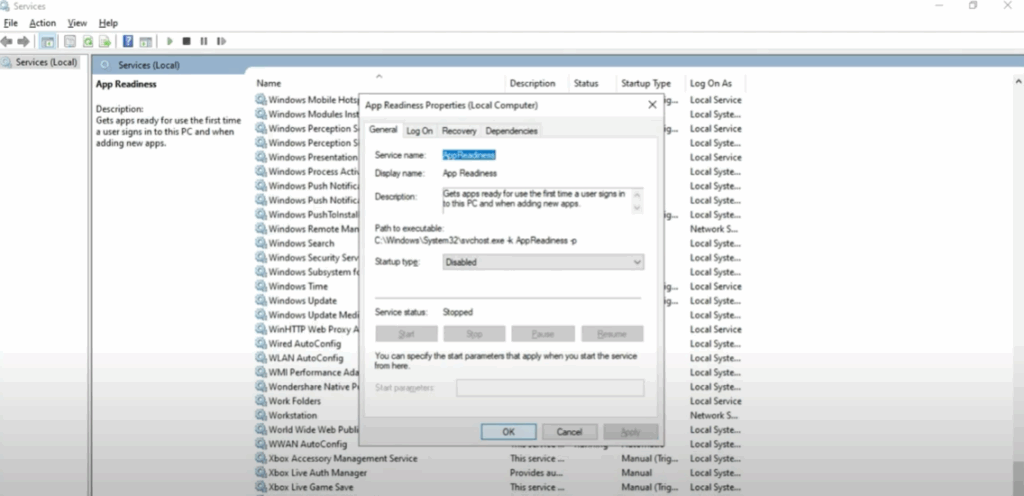
- In the Services window, scroll down and find App Readiness.
- Double-click on it and set Startup type to Disabled.
- Click Apply and then OK.
Method 2: Use Command Prompt to Shut Down and Restart
- Go back to Task Manager.
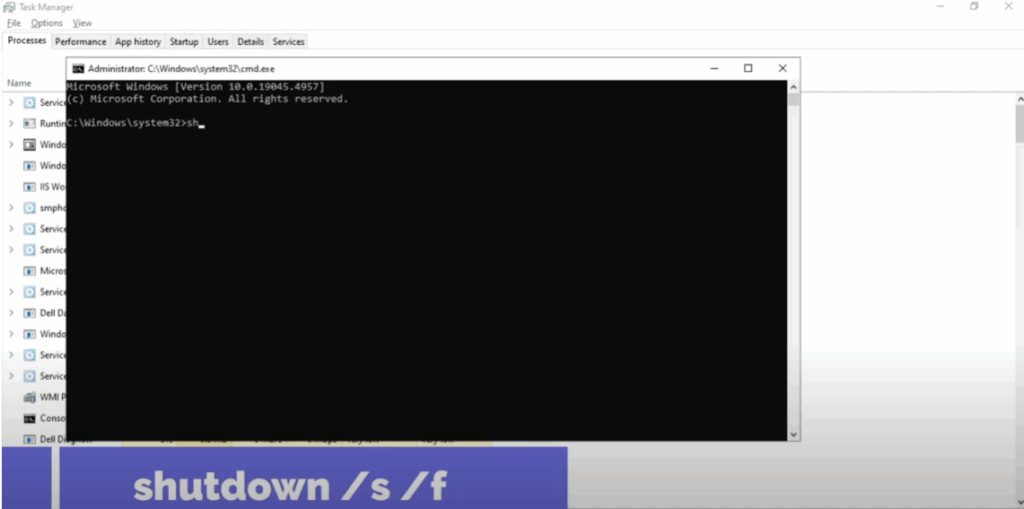
- Click File > Run New Task.
- Type command.exe.
- Check Create this task with administrative privileges and click OK.
- In Command Prompt, type the command:
shutdown /f - Press Enter. Your PC will shut down.
- Restart your computer normally to check if the issue is resolved.
Method 3: Registry Fix Using Task Manager
If Task Manager is working but the issue persists, try this registry fix:
- Press Ctrl + Alt + Delete and open Task Manager.
- Click File > Run New Task.
- Type regedit.
- Check Create this task with administrative privileges and click OK.
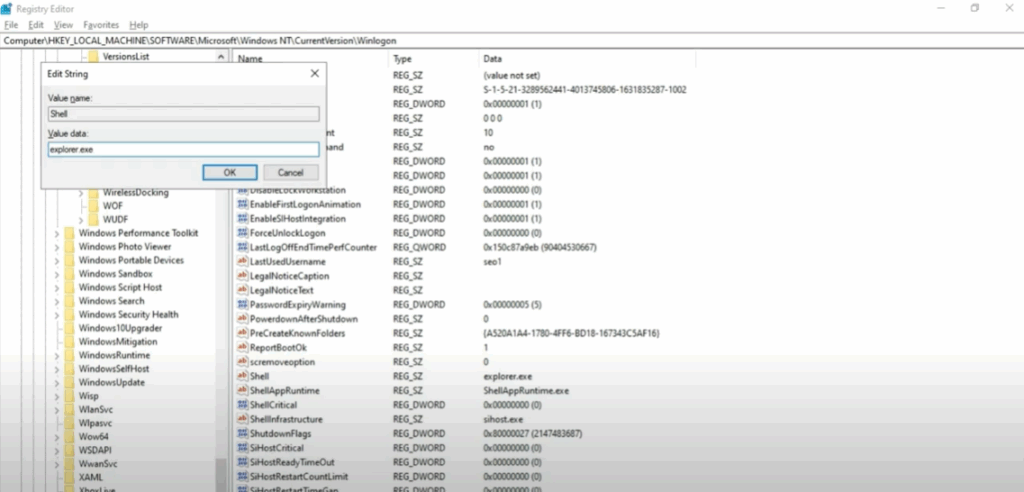
- Navigate to this path:
HKEY_LOCAL_MACHINE\SOFTWARE\Microsoft\Windows\CurrentVersion\Winlogon - On the right side, find Shell.
- Double-click on Shell and ensure the Value data is set to:
explorer.exe - If it’s not, type explorer.exe and click OK.
- Close the Registry Editor and restart your PC.
Method 4: Automatic Repair and Safe Mode
If you can’t access Task Manager or the Ctrl + Alt + Delete screen, follow these steps:
- Make sure your PC is completely shut down.
- Press the Power button to start your PC.
- As soon as you see your manufacturer’s logo or any screen flash, press and hold the Power button for 4–5 seconds to force a shutdown.
- Repeat this process 2–3 times. This will trigger Automatic Repair Mode.
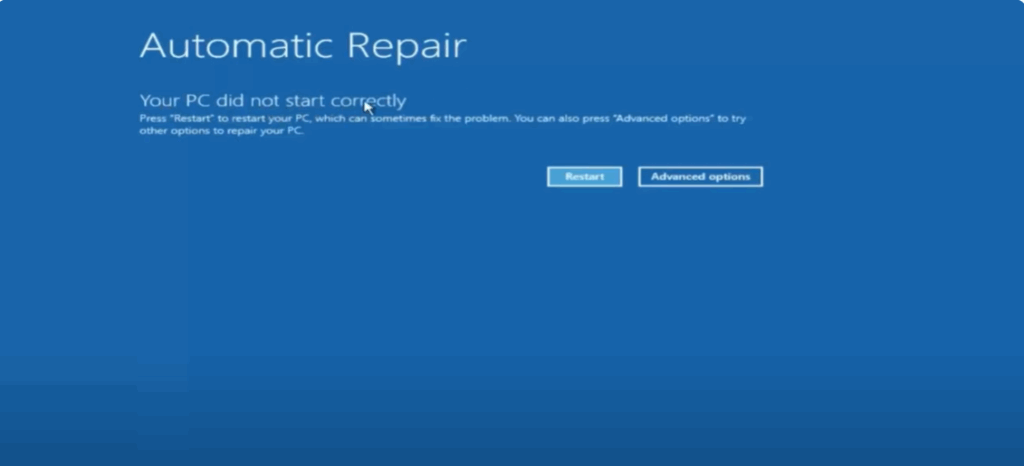
Once in Automatic Repair Mode:
- Click Advanced Options > Troubleshoot > Advanced Options again.
You now have several options:
- Option A: Startup Repair
- Click Startup Repair.
- Let Windows attempt to fix the issue automatically.
- Option B: System Restore
- If you have restore points, roll back your PC to a time when everything was working fine.
- Option C: Boot into Safe Mode
- Click Startup Settings.
- Click Restart.
- Press 4 on your keyboard to boot into Safe Mode.
Once in Safe Mode:
- Click Start > Settings > Apps.
- Look for any recently installed programs that might be causing the black screen.
- Uninstall suspicious or unnecessary apps.
- Restart your PC.
Conclusion
That’s it, friends! One of these methods should fix the black screen with cursor issue on your Windows 10 PC.
Let me know in the comments which method worked for you.
If this guide helped, like the video, share it, and don’t forget to subscribe for more helpful Windows tutorials.
Thanks for raeding!






