
Hello friends, welcome back to my channel Tech Gitter Official. Today I’m going to show you how to make Windows 10 faster.
Is your system running very slow? Do you feel a huge lag while opening files, browsers, or even while starting your PC? If yes, don’t worry. You’re in the right place.
In this guide, I’ll walk you through one of the most powerful and effective ways to speed up your Windows 10 PC without using any third-party software. These are safe and easy-to-follow steps.
Let’s get started.
Clean Up Junk Files
Step 1: Run Disk Cleanup
- Press Windows + R on your keyboard to open the Run dialog box.
- Type
cleanmgrand press Enter. - Select the system drive (usually C:).
- Wait while the system calculates junk files.
- Check all the boxes (Temporary Files, Recycle Bin, Thumbnails, Delivery Optimization Files, Windows Error Reports).
- Click OK, then click Delete Files.
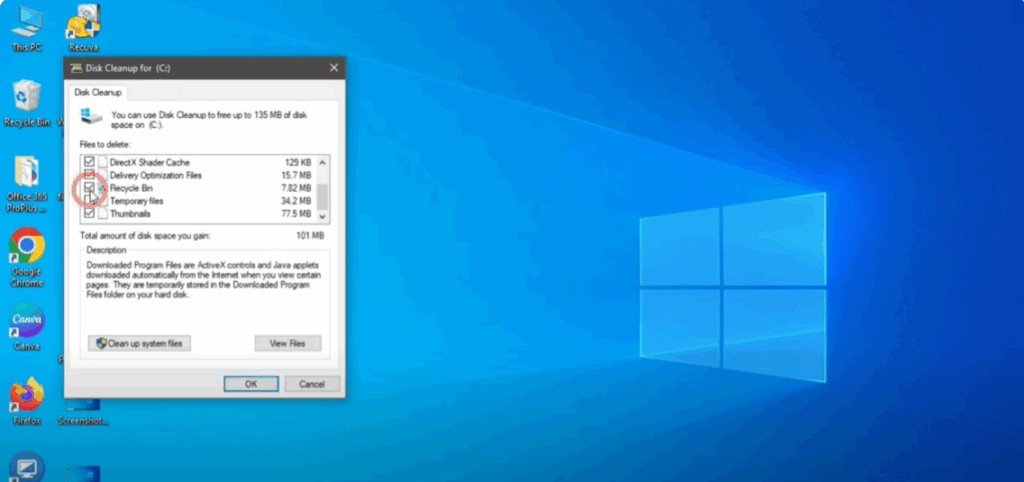
👉 This removes gigabytes of junk and improves overall system speed.
Step 2: Delete Temp Files
- Press Windows + R.
- Type
tempand press Enter. - A folder will open. Press Ctrl + A to select all files.
- Press Shift + Delete to permanently delete them.
- Click Yes. If files can’t be deleted, click Skip.
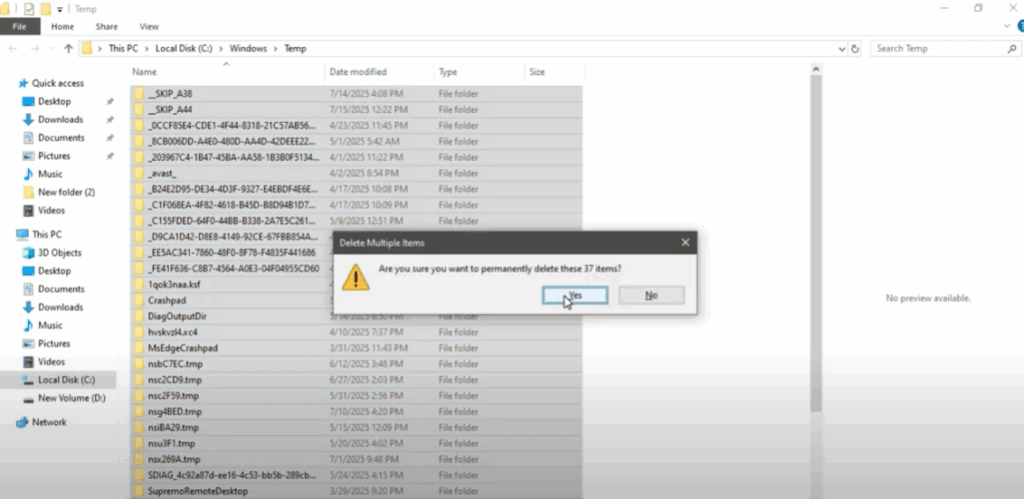
👉 These temporary app files are safe to remove and help improve speed.
Step 3: Delete System Temp Files
- Press Windows + R again.
- Type
%temp%and press Enter. - Select all files and delete using Shift + Delete.
- Confirm deletion. Skip any locked files.
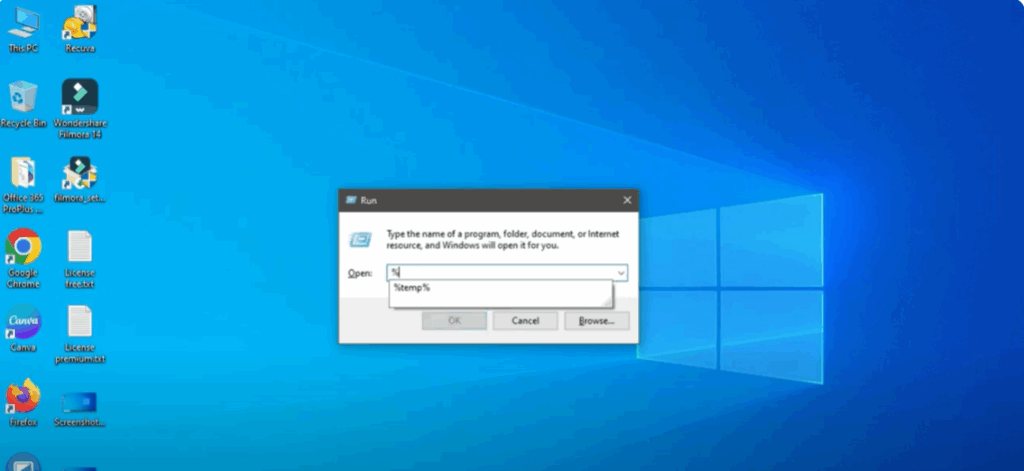
👉 This clears system cache and releases RAM and CPU usage.
Step 4: Clear Prefetch Files
- Press Windows + R.
- Type
prefetchand press Enter. - Click Continue if asked for permission.
- Select all files and press Shift + Delete.
- Confirm deletion.
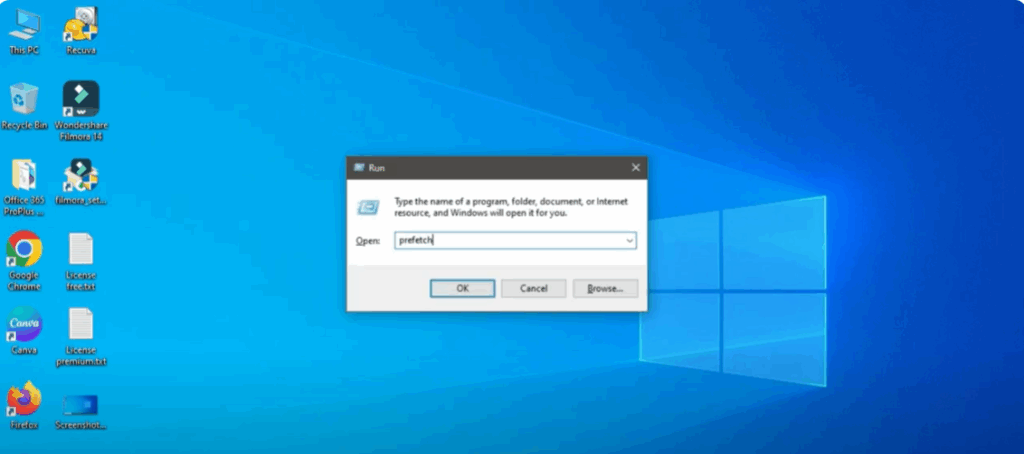
👉 Prefetch files store old launch data. Removing them improves startup performance.
Clean Up Browser Settings
If your browser is lagging or showing pop-ups, follow these steps:
Part A: Remove Proxy Settings
- Press Windows + R.
- Type
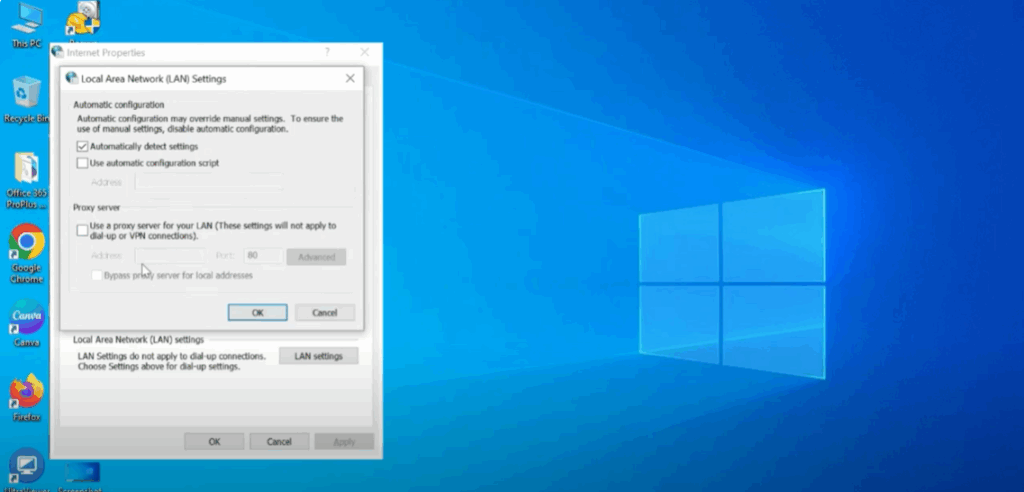
inetcpl.cpland press Enter. - Go to the Connections tab → Click LAN Settings.
- Uncheck Use a proxy server for your LAN.
- Make sure Automatically detect settings is checked.
- Click OK.
Part B: Reset Internet Settings
- In the same window, go to the Advanced tab.
- Click Restore Advanced Settings.
- Then click Reset.
- Check Delete Personal Settings and confirm.
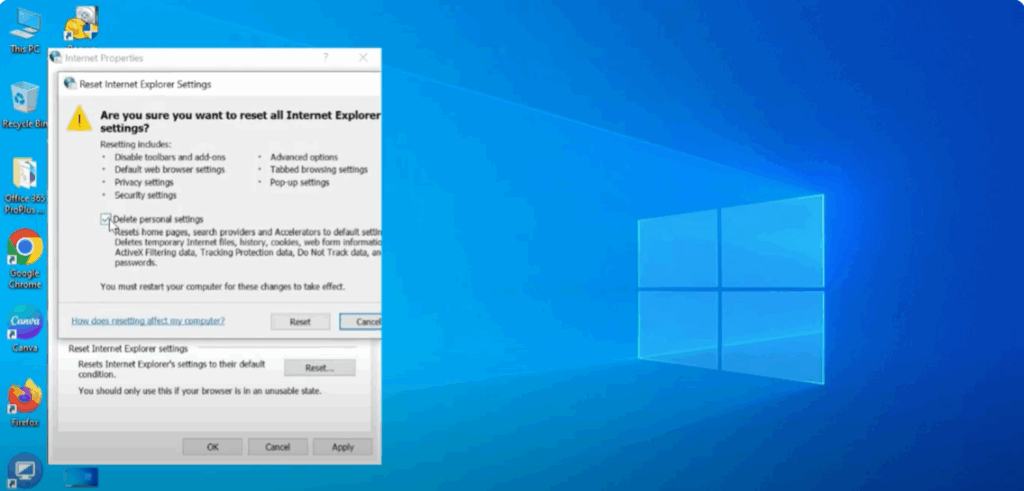
👉 This resets the browser and fixes lag caused by corrupted settings.
Step 6: Disable Unwanted Startup Programs
- Right-click the taskbar and open Task Manager.
- Go to the Startup tab.
- Disable all non-essential apps by right-clicking and selecting Disable.
- Keep only important apps like antivirus or drivers.
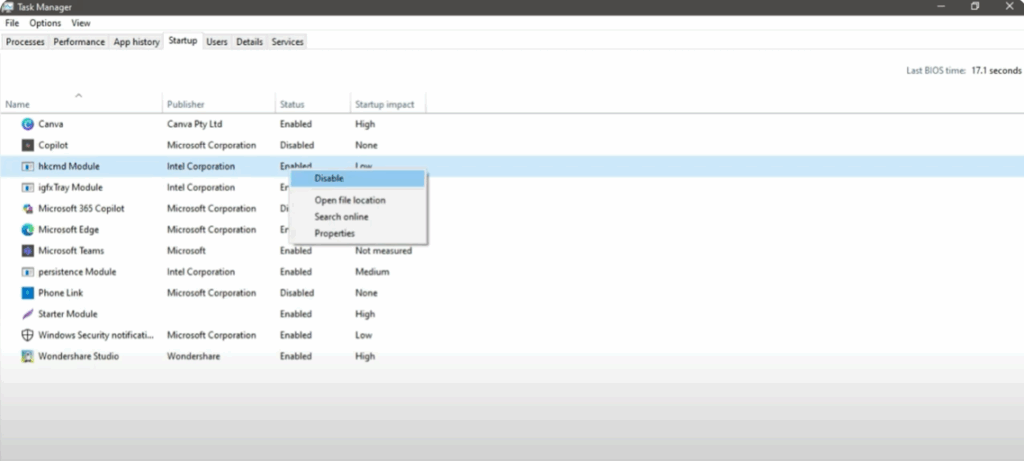
👉 These apps slow down startup and use memory in the background.
Bonus Tip: Check Running Apps in Task Manager
- Open Task Manager.
- Go to the Processes tab.
- Look for apps using high CPU or memory.
- Right-click and choose End Task for unused apps.
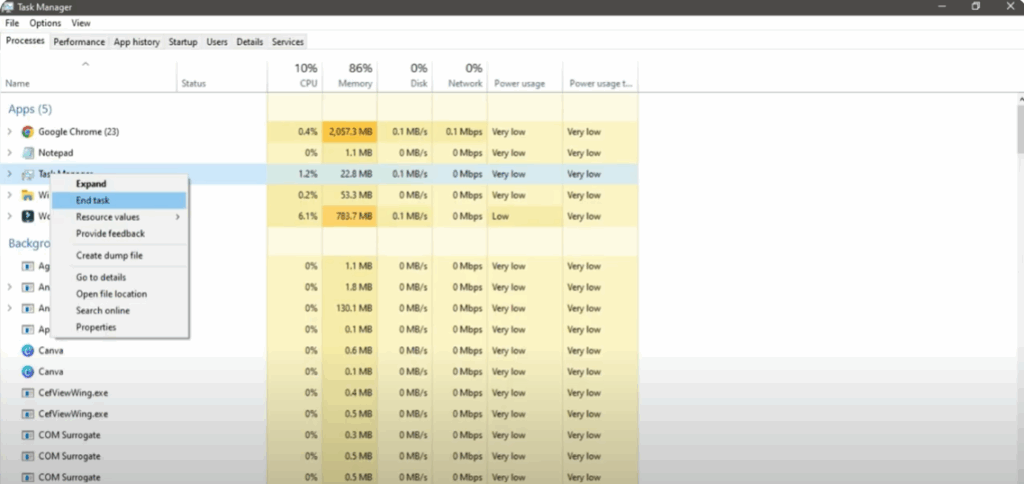
👉 This frees up system resources immediately.
Final Step: Restart Your Computer
Once all steps are complete, restart your system. You’ll now notice:
- Faster boot time
- Smoother performance
- Fewer freezes and lags
- More free space
- Clean and fast browser experience
That’s it for today’s guide! Thanks for reading. Don’t forget to like, share, and subscribe to Tech Gitter Official for more quick tech fixes.






