
Sometimes Windows icons become broken, blank, or missing, making it hard to find and open your apps quickly. This problem can happen because of corrupted icon cache, system glitches, or update issues. In this blog, you will learn easy fixes like clearing the icon cache, restarting Windows Explorer, and running system scans to restore your Windows icons and get your desktop looking normal again.

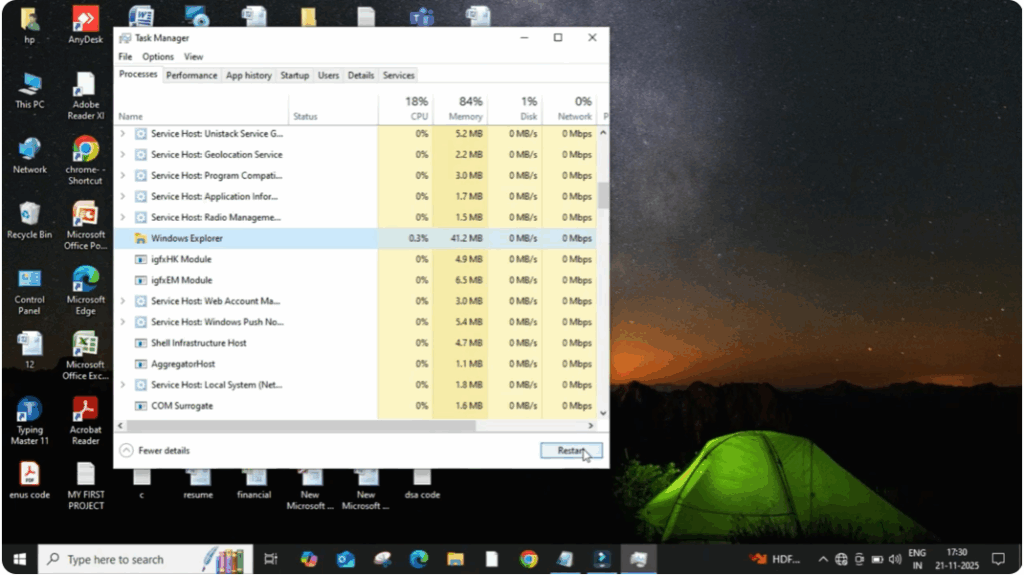
Firstly, click on the search bar and type task manager.
Then open it. After that, try to find Windows Explorer in the list. Once you find it, click on it and then click on restart. This will refresh your entire Windows interface and sometimes the icons come back instantly.
If the problem still remains then don’t worry.
Try the next method.
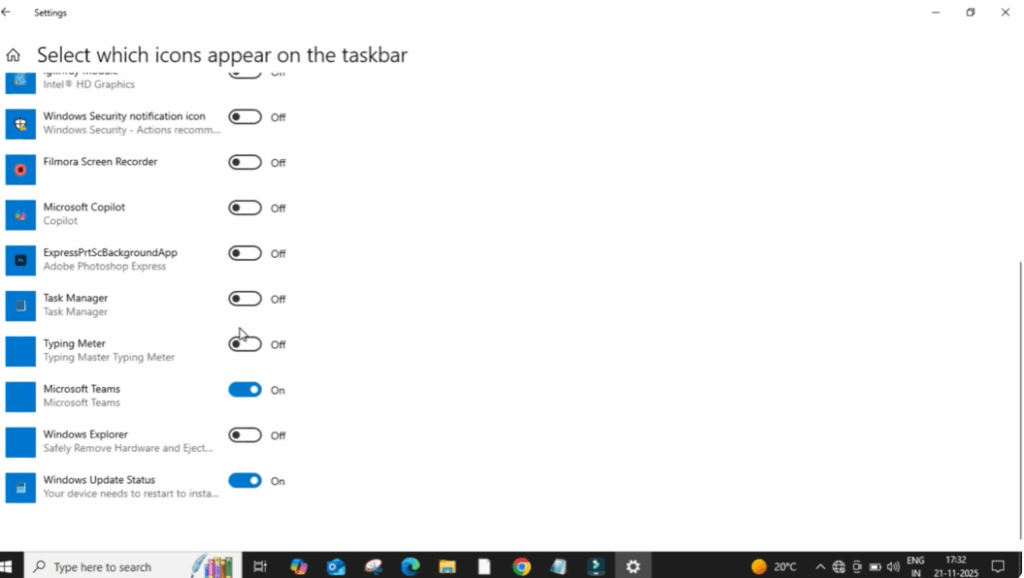
Now click on the start menu and open settings. After that click on personalization and then click on taskbar. Here you will see many options related to icons. Now click on select which icons appear on the taskbar. From here you can turn on or off the icons you want to show. If any important icon was disabled earlier, turning it on will fix the issue. After making the changes, go back to the home screen and check again.
If the icons are still broken, try this deeper method.
Press Windows plus R on your keyboard.
Type percent app data percent and press enter. A new window will open. Now on the top, click on app data, then open the local folder. After that on the top right side click on view then click on options and again click on the view tab here make sure to tick the option show hidden files folders and drives. After selecting it click on apply and then okay.
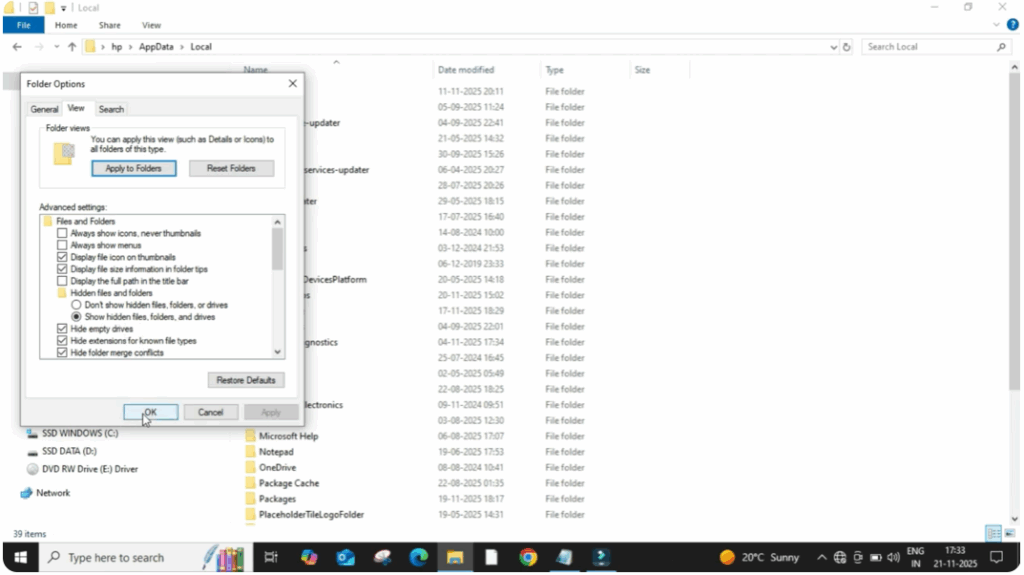
Now scroll down and find a file named icon cache. Right click on icon cache and then click on delete. This file stores your Windows icon cache and when it gets corrupted icons don’t appear properly. After deleting it, close everything.
Now, simply restart your PC. When Windows starts again, it automatically creates a fresh icon cache. And in most cases, all your icons appear correctly and the problem is fully resolved.






