
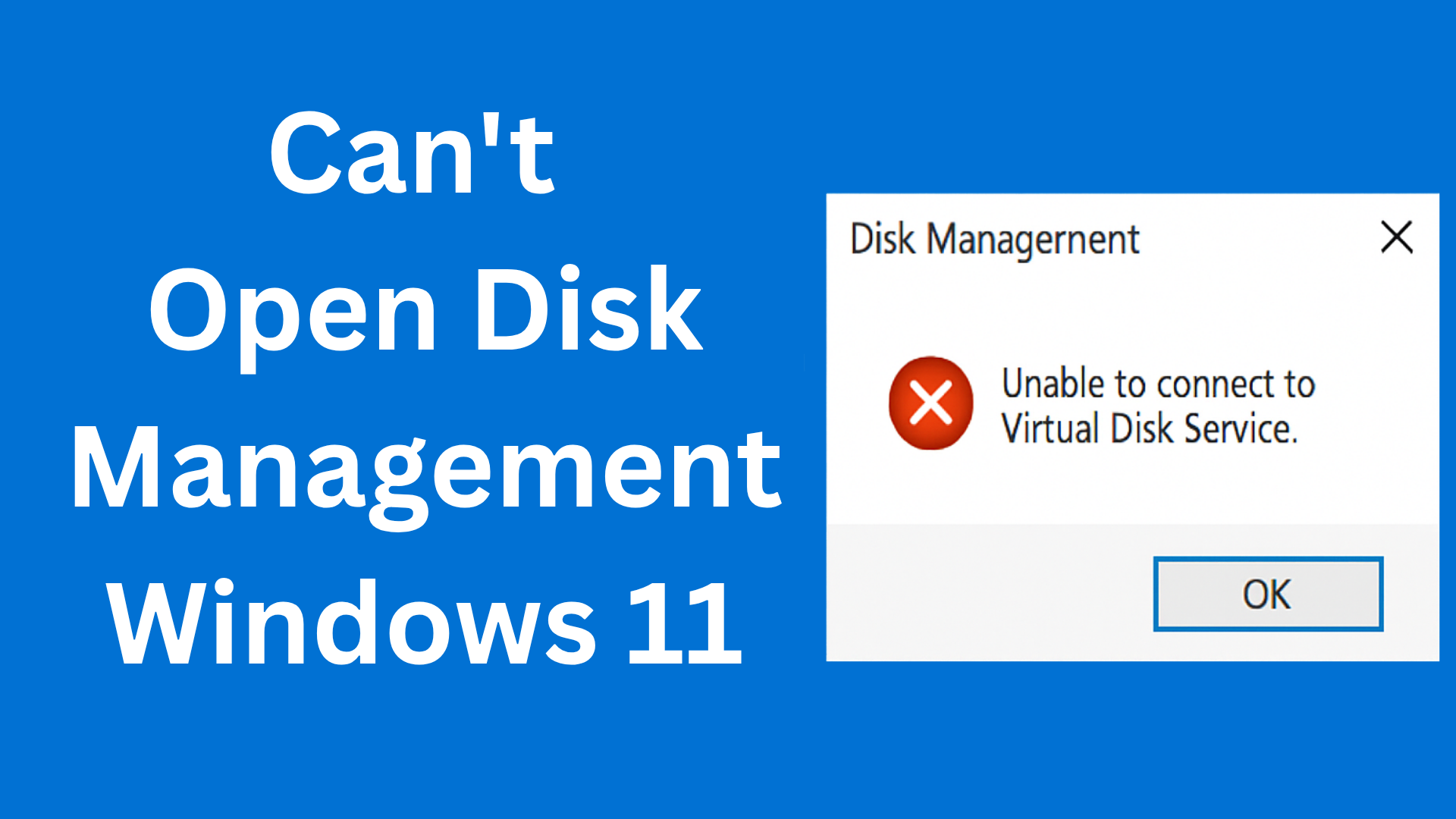
If you can’t open Disk Management in Windows 11, don’t worry—you’re not alone. Many users face this issue because of problems with system files, disabled services, or issues with the Virtual Disk Service. Disk Management is an important tool used to manage drives, partitions, and storage devices, so when it fails to open, it can interrupt your workflow. The good news is that you can fix it easily by restarting essential services, running system scans, or using command-line tools. In this blog, you’ll learn simple step-by-step methods to fix the “Can’t Open Disk Management” issue and get your storage settings working again smoothly.
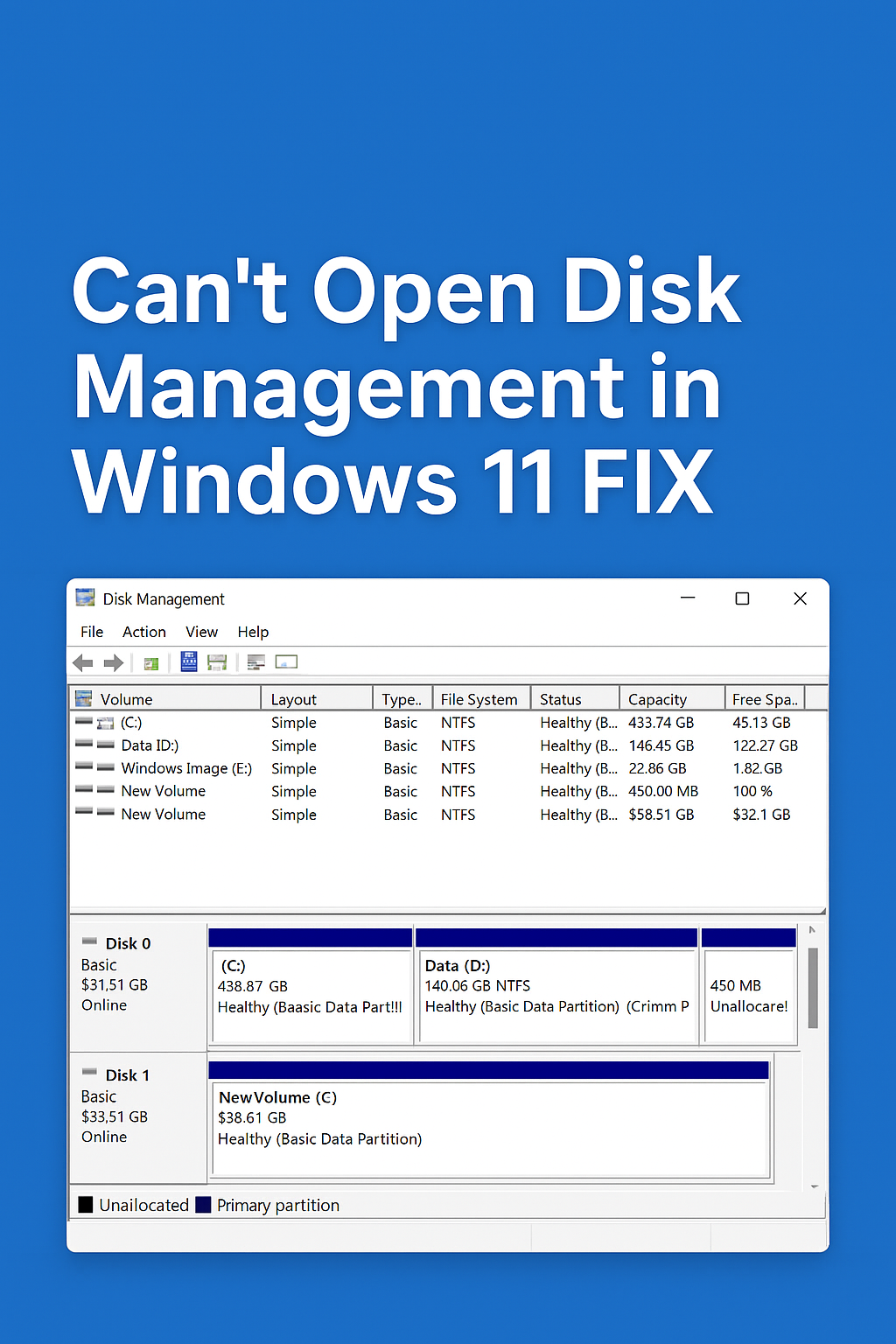
🧰 Method 1: Run Disk Management via Run Command
- Press Windows + R keys together to open the Run dialog box.
- Type diskmgmt.msc and press Enter.
- This directly launches the Disk Management utility.
If it doesn’t open, proceed to the next fix.
⚙️ Method 2: Use Computer Management Console
- Right-click on the Start Menu and select Computer Management.
- In the left pane, click on Storage → Disk Management.
- Check if it loads successfully.
If it still doesn’t open, you may need to check for system file issues.
🧩 Method 3: Run SFC and DISM Scans
- Search CMD in the Start Menu, right-click it, and select Run as administrator.
- Type the following command and press Enter:
sfc /scannowWait for the process to finish. - Then, type these DISM commands one by one:
DISM /Online /Cleanup-Image /CheckHealth DISM /Online /Cleanup-Image /ScanHealth DISM /Online /Cleanup-Image /RestoreHealth - After completion, restart your PC and check if Disk Management opens.
🔧 Method 4: Use DiskPart Tool
If Disk Management still won’t open, you can use DiskPart, a command-line disk utility.
- Open Command Prompt as administrator.
- Type
diskpartand press Enter. - Then type
list diskto view all connected drives.
You can manage partitions using additional commands if needed.
💡 Method 5: Check Windows Management Instrumentation (WMI) Service
- Press Windows + R, type services.msc, and press Enter.
- Locate Windows Management Instrumentation service.
- Right-click it → choose Restart.
- Try opening Disk Management again.
🔄 Method 6: Restart Your PC
Sometimes a simple restart can resolve background process issues preventing Disk Management from launching properly.
✅ Final Thoughts
By following these steps, you should be able to fix the “Can’t Open Disk Management in Windows 11” problem. Most of the time, corrupted system files or service errors are the main causes. Running SFC/DISM scans or restarting the WMI service should restore functionality.






