
Having trouble opening Disk Management on your Windows 10 or 11 PC? If it’s not working, loading, or responding, you might feel stuck when trying to manage your hard drives or partitions. This issue can happen due to system glitches, corrupted files, or background services not running properly. But don’t worry—there are easy ways to fix it! In this blog, we’ll walk you through simple steps to get Disk Management working again, so you can manage your storage without any hassle. Let’s fix it together!
✅ Fix 1: Restart the Virtual Disk Service
Disk Management depends on a service called Virtual Disk. If it’s stopped, Disk Management won’t open.
- Press Windows + R, type:
services.mscand press Enter. - Scroll down and find Virtual Disk.
- Right-click → Properties.
- Set Startup type to Automatic.
- Click Start → Apply → OK.
Try opening Disk Management again:
Windows + X → Disk Management
✅ Fix 2: Open Disk Management Using Command
Sometimes the normal shortcut does not work. Try running it through Run or Command Prompt.
Using Run:
Press Windows + R, type:
diskmgmt.msc
Press Enter.
Using CMD:
Open Command Prompt and type:
diskmgmt.msc
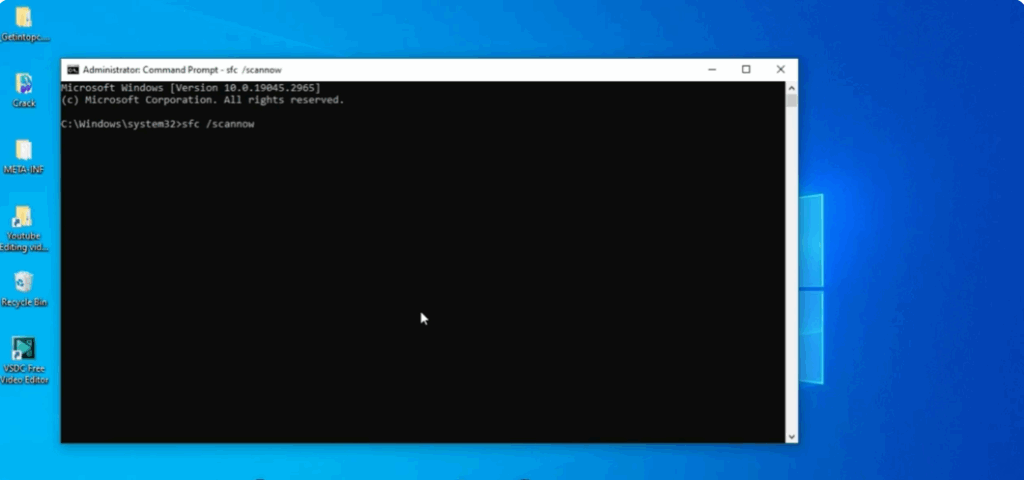
✅ Fix 3: Repair Corrupted System Files (SFC + DISM)
- Open Command Prompt as Administrator.
- Run SFC scan:
sfc /scannow - After it finishes, run DISM:
DISM /Online /Cleanup-Image /RestoreHealth
Restart your PC after completion.
✅ Fix 4: Use Computer Management to Access Disk Tools
- Press Windows + X → Select Computer Management
- Click Disk Management in the left sidebar.
If it loads here, the standalone tool is the issue, not the service.
✅ Fix 5: Remove Third-Party Partition Managers
Apps like:
- AOMEI Partition Assistant
- EaseUS Partition Master
- MiniTool Partition Wizard
may conflict with Disk Management.
Uninstall them, then restart your PC.
✅ Fix 6: Check for Windows Updates
- Open Settings → Windows Update.
- Click Check for updates.
- Install all updates → Restart.
Sometimes storage management fixes come in updates.
✅ Fix 7: Use PowerShell Storage Commands (Advanced)
If nothing works:
- Open PowerShell (Admin)
- Type:
Get-Disk
If your disks show here but not in Disk Management, then Disk Management is glitching and needs Windows repair.
You can reset Windows components with:
DISM /Online /Cleanup-Image /RestoreHealth
🎯 Conclusion
Most of the time, Disk Management not opening is caused by Virtual Disk Service being stopped or corrupted system files. By following the steps above, you should be able to restore full functionality without reinstalling Windows.






