
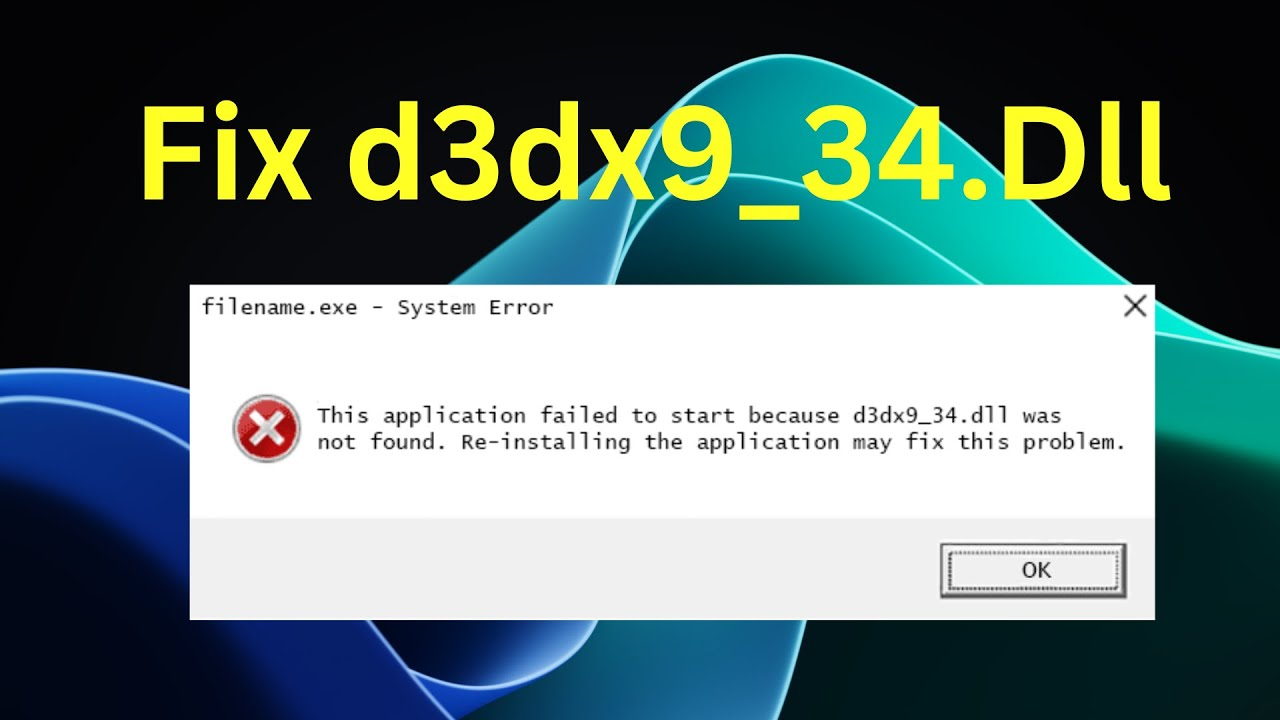
If you see a d3dx9_34.dll error while trying to run a game or graphics program in Windows 11, it means your system is missing a crucial file from the Microsoft DirectX collection. This error usually pops up when launching older games like Call of Duty or Need for Speed, and happens because DirectX 9 isn’t fully installed or a file is corrupted. Fortunately, you can fix the problem quickly by installing the latest DirectX runtime or updating your graphics drivers. In this blog, you’ll learn simple steps to resolve d3dx9_34.dll errors and get your favorite apps and games working again.
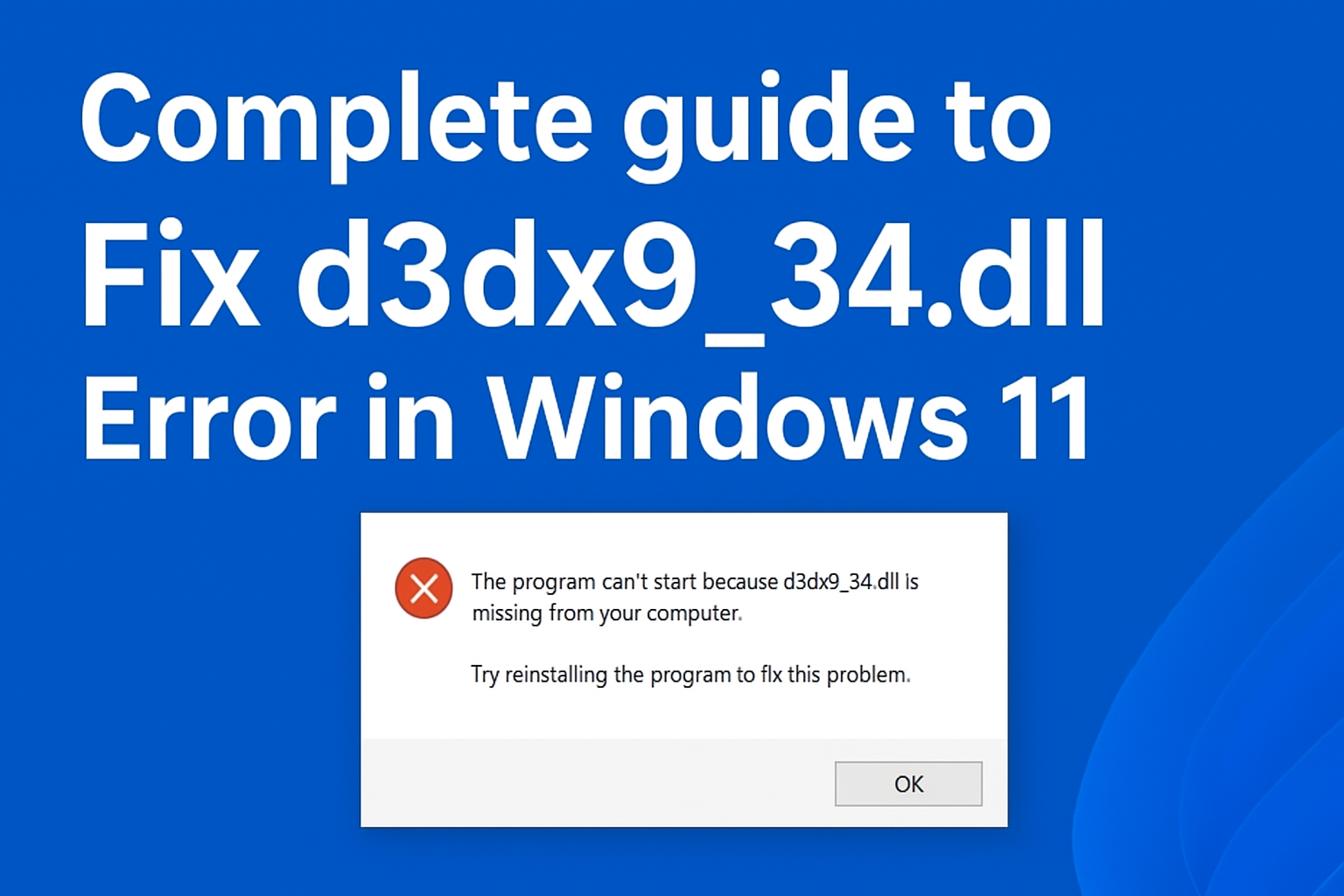
✅ Solution: Install DirectX End-User Runtime
Follow the steps to fix the error:
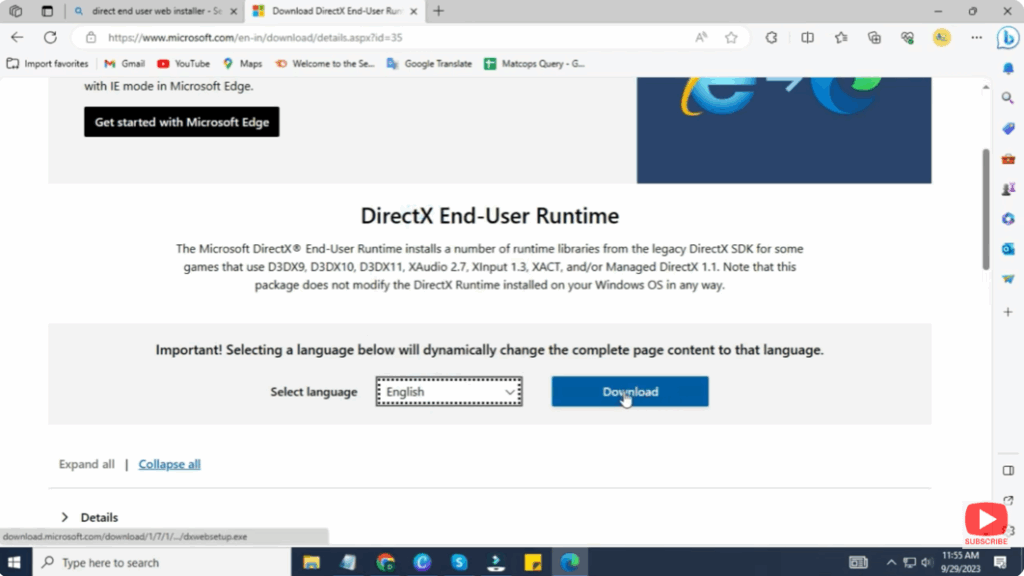
Step 1: Download DirectX End-User Runtime
- Open your browser.
- Search for DirectX End-User Runtime Web Installer or click the official Microsoft download link.
- Download the installer to your PC.
Step 2: Run the Installer
- Open the downloaded DXSETUP.exe file.
- Accept the terms and click Next.
- Wait for the installation to complete.
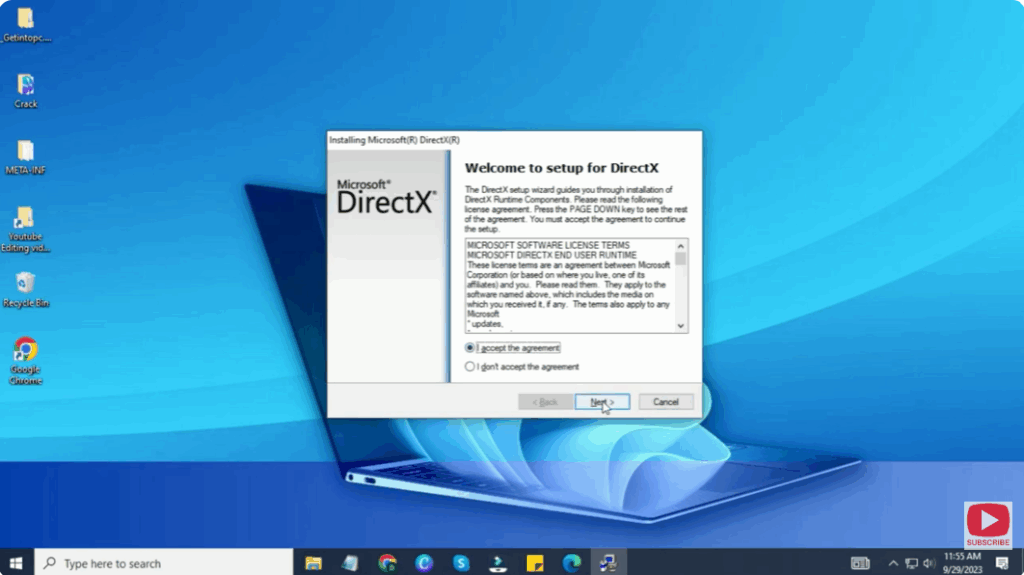
This will install all the missing DirectX 9, 10, and 11 components, including d3dx9_34.dll.
🔄 Restart Your PC
After installation is complete, restart your system.
Now, try launching the game or program again. It should start without any errors.






