
Ever noticed Chrome asking if it should open certain links with apps like Zoom, Gmail, or other services? That’s because of protocol handlers—a feature that lets websites handle specific types of links. While it can be useful, it might also get annoying or confusing. The good news is, you can turn off protocol handlers in Google Chrome easily. In this blog, we’ll walk you through simple steps to disable them, so you stay in control of how your browser behaves.
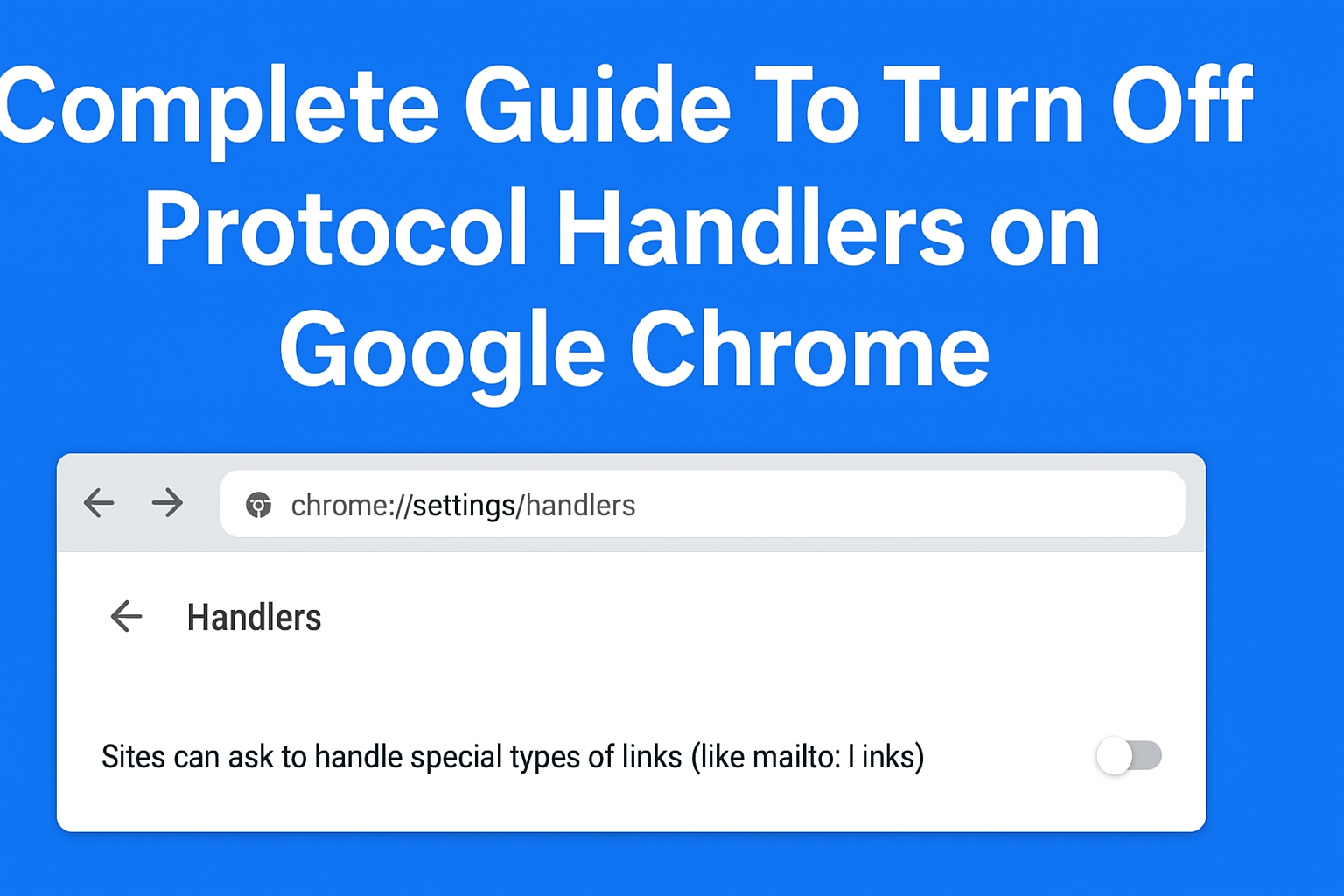
🛠 Step-by-Step Detailed Instructions
Step 1: Open Handlers Settings
- Launch Chrome.
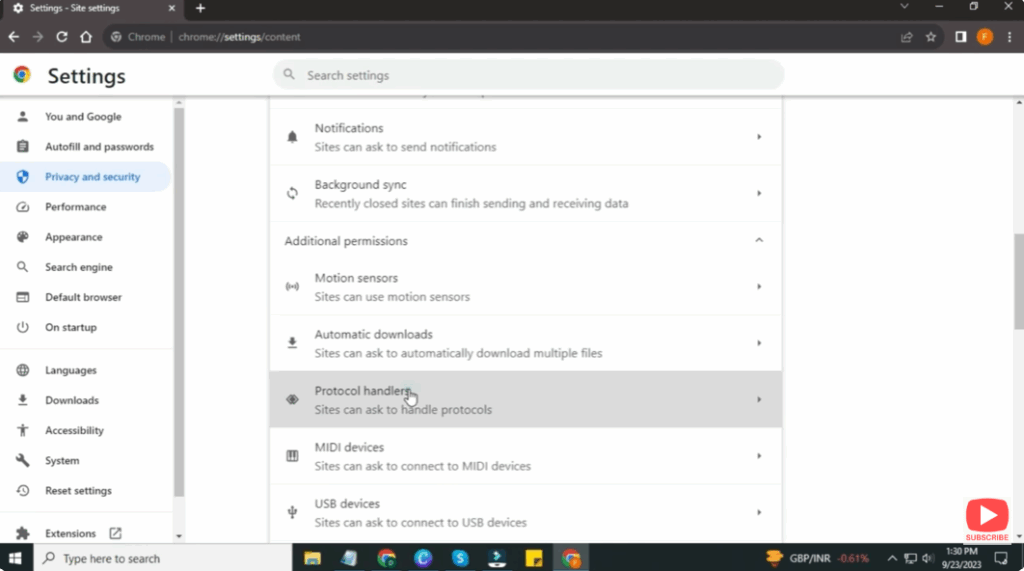
- Go to Settings → Privacy & security → Site settings → Additional permissions → Protocol handlers.
Step 2: Disable Sites Asking to Handle Protocols
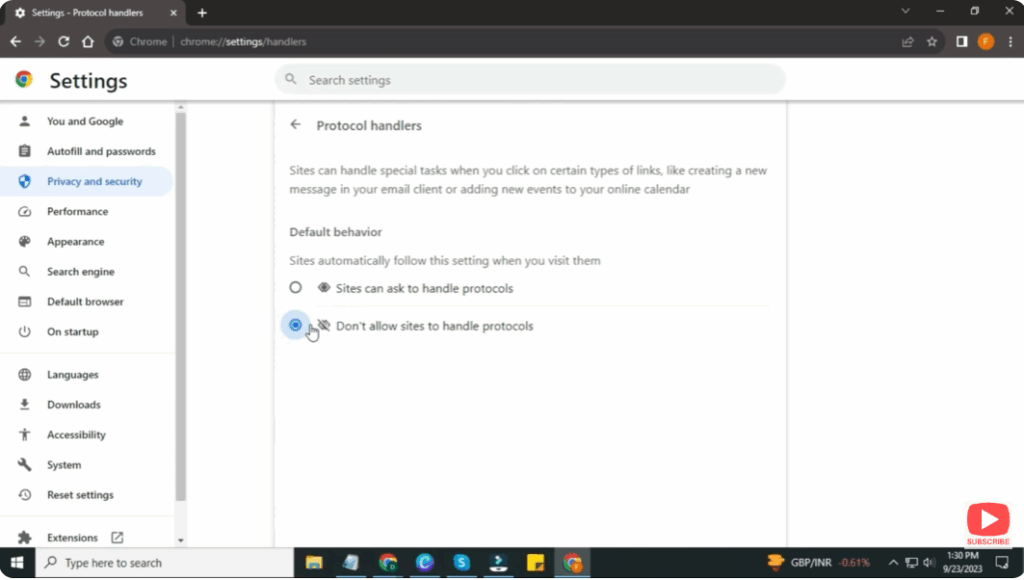
- You’ll see a setting labelled something like: “Sites can ask to handle special types of links (like mailto: links)”.
- Select the option “Don’t allow sites to handle protocols” (or equivalent) to turn the feature off.
- Once toggled off, Chrome will stop presenting prompts asking if a site wants to become a handler.
Step 3: Remove Existing Handler Assignments (Optional)
- On the same page, any sites already allowed to handle protocols may be listed.
- Click on the ⋮ (three dots) next to each and choose Remove or Block as needed.
- This clears prior permissions.
Step 4: Restart Chrome & Test
- Close Chrome and reopen it to ensure the setting takes effect.
- Click a link such as
mailto:on a webpage to check if Chrome asks or just opens the default. With the setting off, you should not get a “Allow site to open…” prompt anymore.






