
Want to make fun and engaging animation videos without spending money? Thanks to AI tools, you can now create amazing animations right from your mobile or PC—no need for complicated software or professional skills. These tools are simple to use and can turn your ideas into eye-catching videos in just a few clicks. In this blog, we’ll show you how to create animation videos for free using AI, so you can bring your stories, projects, or content to life easily.
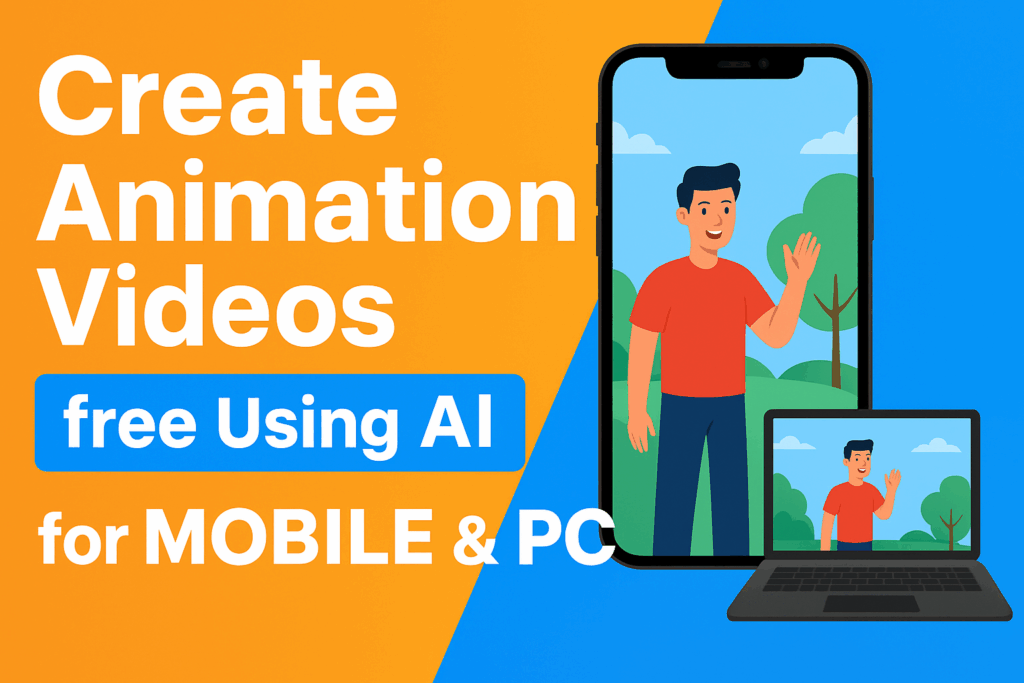
Step-by-Step: How to Create an Animated Video Free Using AI
1. Choose the Right Tool for Mobile & PC
- On PC (browser-based): Look for free AI platforms that let you sign up and start a project in minutes.
- On Mobile (iOS/Android): Check the app store for animation video apps with “AI” or “auto animate” features.
- Ensure the tool supports exporting the animation (MP4 or similar) and has a decent free tier.
2. Start a New Project
- Open the platform/app and choose New Project or Create Animation.
- Select the video dimensions (e.g., 1920×1080 for YouTube, 1080×1080 for Instagram).
- Choose a template if available (many free options have pre-designed scenes you can modify).
3. Add Characters / Elements and Background
- Use the built-in character options — pick one that fits your video’s tone.
- Add a background: select from the library or upload your own image or video clip.
- Insert props or other visual elements (e.g., icons, objects) if supported.
- On mobile: tap to add, on PC: drag & drop or click to insert.
4. Apply Motion & Animation
- Select each character or object and apply a motion preset (like walk, wave, jump) or customize the movement path.
- Customize timing: when the motion starts and how long it lasts.
- Add transitions between scenes to make the video flow smoothly.
5. Add Text, Voice-over, Music
- Insert text overlays for titles, subtitles or motion captions. Choose font, size, color.
- Use AI voice-over (if available) to convert text into spoken narration.
- Or record your own voice on mobile/PC and upload it.
- Add background music from the platform’s free library or upload your own. Make sure the music is free for the intended use.
6. Preview & Fine-Tune
- Preview your animation to see how everything looks and flows.
- Adjust motion timing, scene durations, audio volume levels, and text placements to polish it.
- Remove any extra blank spaces or pauses.
7. Export & Share
- When you’re satisfied, click Export. For free tiers, the resolution may be limited (e.g., 720p).
- Choose the output format (typically MP4).
- Download the video and share it on social media, YouTube, or your website.
Final Thoughts
Thanks to AI, creating animation videos is now accessible for anyone with a smartphone or PC — no costly licenses or steep learning curves. Start with the tools listed above, play around with characters, templates and voice-over, and soon you’ll be producing animated content that looks professional. The key is to just begin and iterate.






