
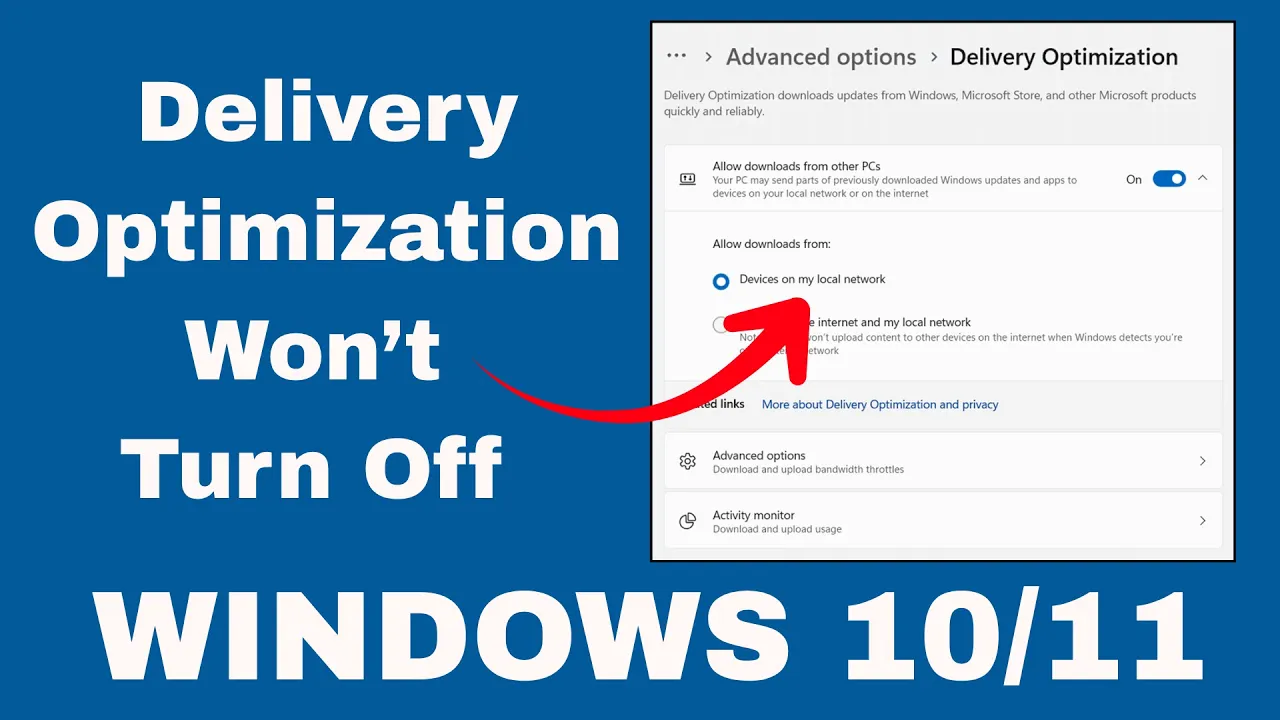
Is Delivery Optimization refusing to turn off on your Windows 10 or 11 PC? You’re not alone—many users face this issue where Windows keeps using internet bandwidth to share updates, even after trying to disable it. This can slow down your connection and feel frustrating, especially if you’re on a limited data plan. In this blog, we’ll explain what Delivery Optimization is, why it might stay active, and show you easy steps to turn it off properly. Let’s take back control of your internet speed!
🔧 Steps to Forcefully Disable Delivery Optimization
According to the video:
- Open Services (services.msc)
- Press Win + R, type
services.mscand press Enter. - In the Services list, locate Delivery Optimization.
- Press Win + R, type
- Stop the Delivery Optimization service
- Right-click Delivery Optimization → Stop.
- If the Stop button is unavailable (greyed out), proceed to the next step.
- Set its “Startup type” to Disabled
- Still in Services, right-click Delivery Optimization → Properties.
- Under “Startup type,” select Disabled from the drop-down.
- Click Apply and OK.
- Use Registry Editor to override settings
- Press Win + R, type
regedit, press Enter to open Registry Editor. - Navigate to:
HKEY_LOCAL_MACHINE\SYSTEM\CurrentControlSet\Services\DoSvc
- Press Win + R, type
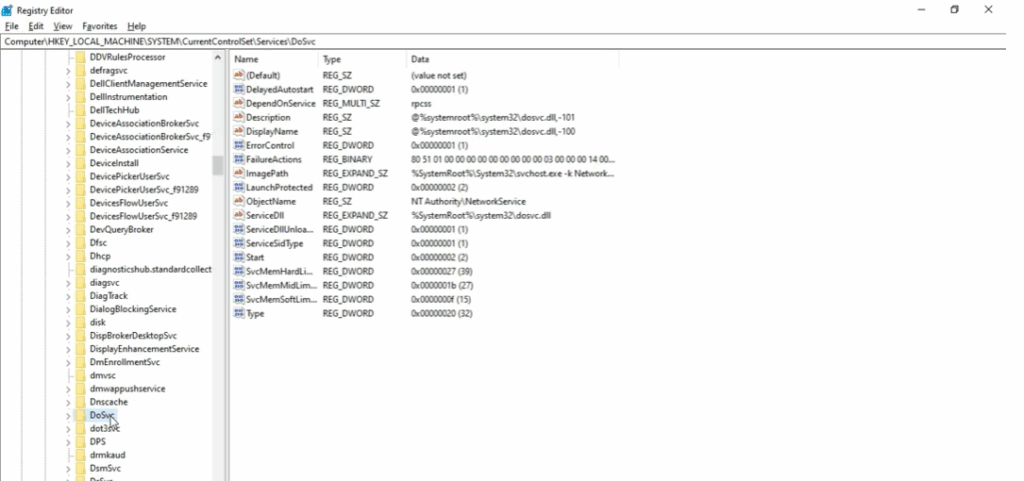
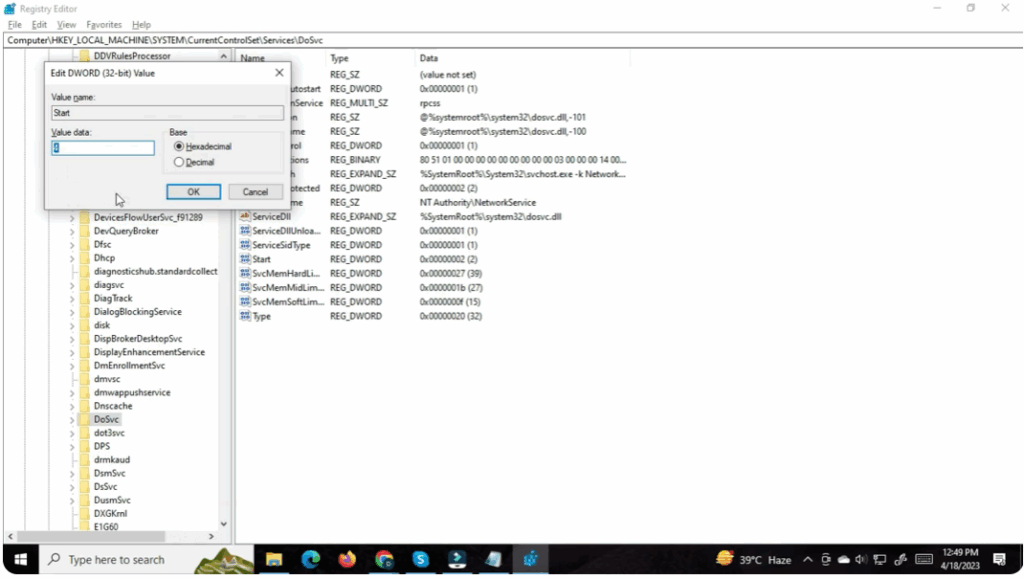
- In the right pane, find the
StartDWORD (value). - Change its value to
4(this corresponds to disabled) - Save and exit Registry Editor.
- Reboot your PC
- After these changes, restart the system.
- Upon reboot, Delivery Optimization should be disabled and not run again automatically






