
![Discord Installation Has Failed Error How To Fix Discord Installation Has Failed Error [2023]](https://techgitterofficial.com/wp-content/uploads/2025/10/Discord-Installation-Has-Failed-Error-How-To-Fix-Discord-Installation-Has-Failed-Error-2023.jpg)
Trying to install Discord but keep getting the “Installation has failed” error? You’re not alone—many users run into this problem, especially in 2023, due to leftover files, permission issues, or antivirus interference. The good news is, it’s usually easy to fix with a few simple steps. In this blog, we’ll explain why the Discord installation fails and guide you through easy solutions to get it working again. Let’s fix the error and get you back to chatting and gaming with friends!
🛠️ Step-by-Step Fixes
Follow these methods, one by one, until the installation succeeds.
1. Run the Installer as Administrator
- Right-click the Discord installer (usually
DiscordSetup.exe) - Choose “Run as administrator”
- This ensures the installer has elevated permissions to write files, modify system settings, etc.
Often this simple step alone can overcome the “installation failed” error.
2. Kill All Running Discord Processes
- Open Task Manager (Ctrl + Shift + Esc)
- In the Processes tab, find any processes named Discord
- Right-click → End task
- Also check under Background processes — terminate anything relating to Discord
This ensures no Discord processes are running in the background to block installation.
3. Delete Discord’s AppData & LocalAppData Folders
Often leftover files interfere with installation. The video shows:
- Press
Win + R, type%appdata%, press Enter - In the folder that opens, delete the Discord directory
- Again press
Win + R, type%localappdata%, press Enter - Delete the Discord folder there as well
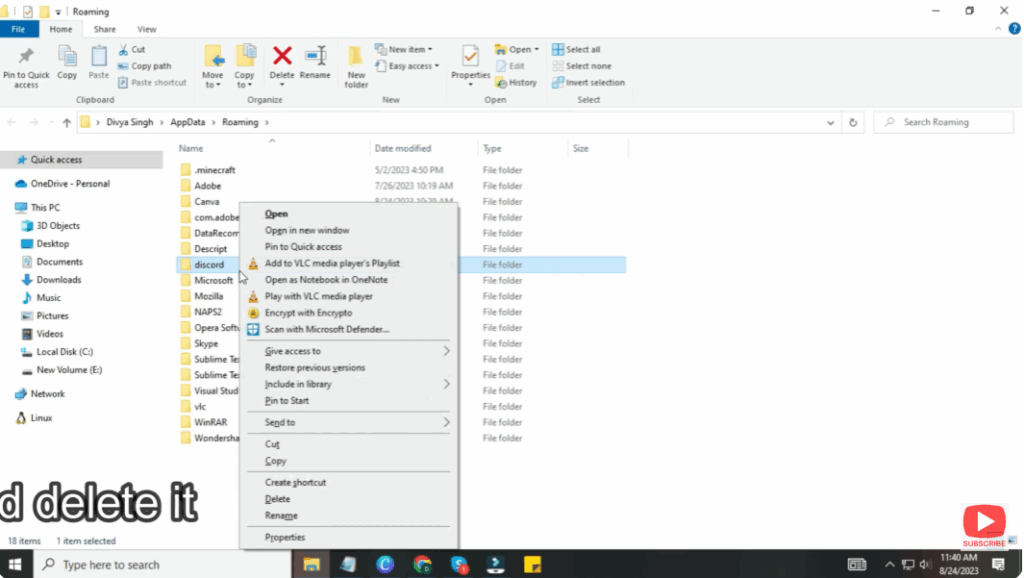
These actions remove residual files and configurations that may be corrupted.
4. Clear Temporary Files
- Press
Win + R, typetemp, and press Enter - In the temp folder, delete all files (you might need admin permission)
- Next, press
Win + R, type%temp%, Enter - Delete all files here too
Clearing temp data helps the installer run cleanly without interference from leftover garbage files.
5. Use the Discord Full Setup (Offline Installer)
- Instead of using the online/updater version, download the full installer / offline setup from Discord’s official site
- Run that full installer (again, as administrator)
The video emphasizes that using the complete package often avoids errors that appear in lightweight / patching versions.
6. Disable Antivirus / Firewall Temporarily
- Temporarily turn off your antivirus or firewall protection (especially if they have real-time scanning or “block unknown installers”)
- Then run the Discord installer
Once Discord is installed successfully, you can re-enable your protection.






