
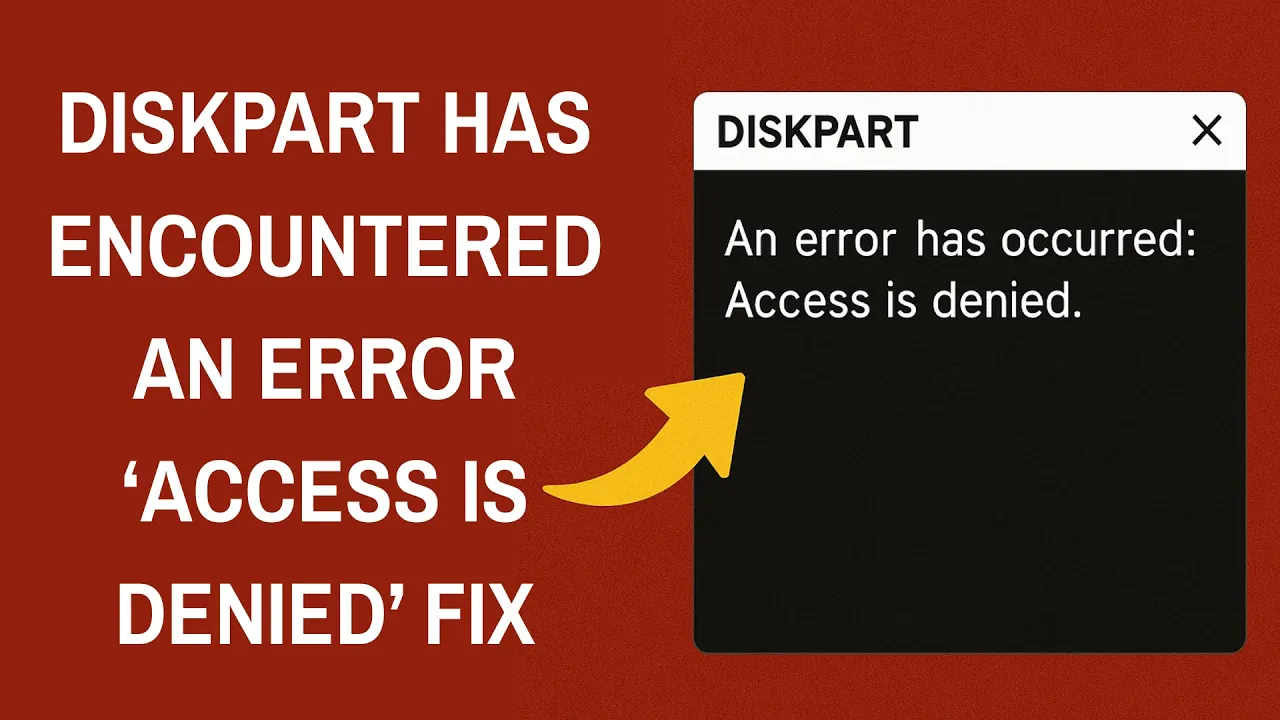
When using Diskpart to manage drives or partitions in Windows, you might see the error “Diskpart has encountered an error: Access is denied” because of missing admin rights or write protection on the disk. This blocks commands like clean or format, frustrating disk management tasks. In this blog, you’ll learn simple fixes like running Command Prompt as administrator, clearing write protection via registry, and checking disk errors to solve the access denied problem easily.

⭐ Method 1: Run Command Prompt as Administrator
The most common cause is lack of admin rights.
Follow these steps:
- Click Start and type cmd.
- Right-click Command Prompt → click Run as administrator.
- Now run your DiskPart commands again:
diskpart
list disk
select disk X
clean
If the problem was due to normal mode, this will fix it.
⭐ Method 2: Remove Write Protection Using DiskPart
If your USB or disk is write-protected:
- Open Command Prompt (Admin)
- Run:
diskpart
list disk
select disk X
attributes disk clear readonly
- Try the operation again.
This removes the write protection that prevents DiskPart from modifying your disk.
⭐ Method 3: Change Security Permissions of the Drive
Sometimes, the disk is blocked by system permission settings.
- Open File Explorer
- Right-click your drive → Properties
- Go to Security tab
- Click Edit
- Select Users
- Check Full Control → Apply → OK
Now DiskPart should work without restrictions.
⭐ Method 4: Disable BitLocker (If Enabled)
If your drive is encrypted:
- Go to Control Panel → System and Security → BitLocker Drive Encryption
- Find your drive
- Click Turn off BitLocker
- Wait for the process to complete
Try DiskPart again.
⭐ Method 5: Use Disk Management Instead of DiskPart
If DiskPart continues to show errors, try using the GUI tool:
- Right-click Start → select Disk Management
- Select the drive
- Format
Delete Volume
Create New Simple Volume
Change Drive Letter
Disk Management uses administrative privileges automatically.
⭐ Method 6: Check for Drive Errors (File System Repair)
- Open Command Prompt (Admin)
- Run:
chkdsk X: /f /r
This fixes file system errors causing DiskPart to fail.
⭐ Method 7: Try Cleaning the Disk Using WinRE (Advanced Repair Mode)
If nothing works:
- Restart your PC
- Hold Shift → click Restart
- Go to Troubleshoot → Advanced options → Command Prompt
- Run DiskPart commands here:
diskpart
list disk
select disk X
clean
WinRE runs outside Windows, so no processes lock the drive.
✅ Conclusion
The error “DiskPart has encountered an error: Access is denied” usually appears due to permissions, write protection, or locked disks. By using the methods above—especially running CMD as admin and clearing read-only attributes—you can fix the problem easily.






