

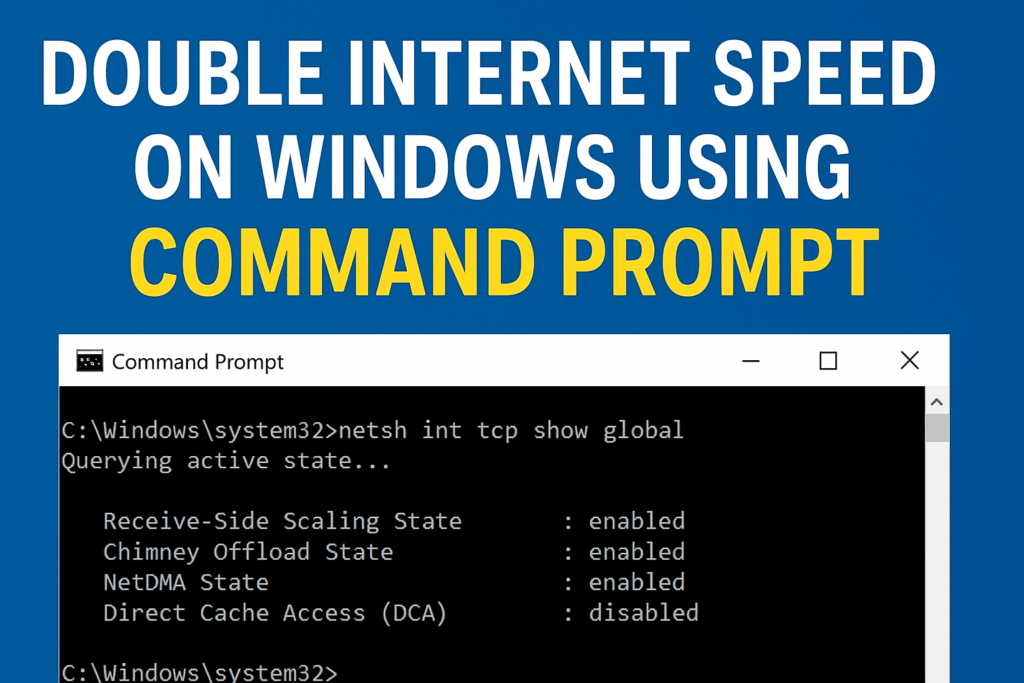
Welcome back to my channel Tech Gitter Official. In today’s video, we will learn how to double your internet speed using CMD on Windows 10 and 11.
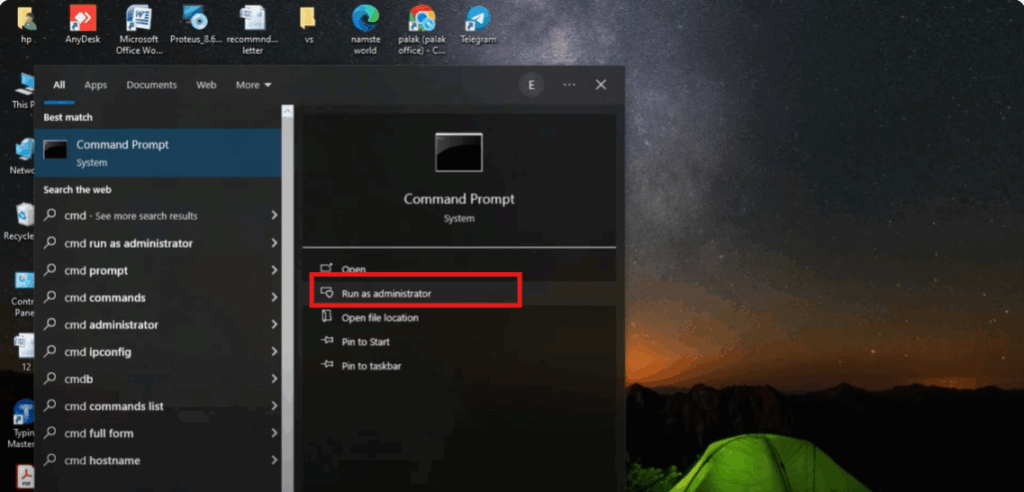
Step 1: Open Command Prompt as Administrator
First, go to your search bar and type cmd. You’ll see Command Prompt appear in the results. Now, on the right-hand side, click on Run as Administrator.
This step is important because you’ll need administrative access to make the changes.
Step 2: Check Current TCP Settings
Once the command window opens, the first thing you need to type is:
netsh int tcp show global
and then press Enter.
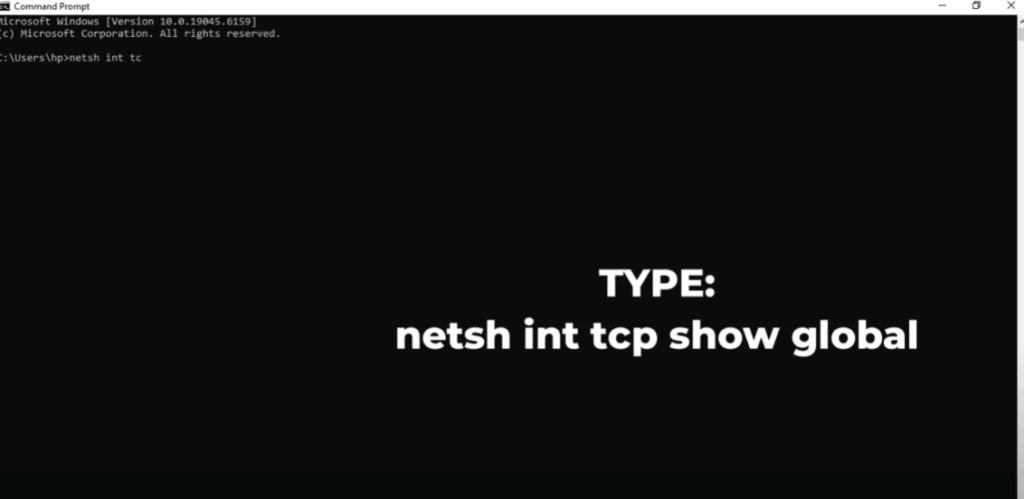
This shows you the current TCP settings of your system.
Step 3: Apply Optimized TCP Settings
Now we’ll tweak a few settings to optimize your connection.
Type the following commands one by one and press Enter after each:
netsh int tcp set global chimney=enabled
netsh int tcp set global autotuning=normal
netsh int tcp set global congestionprovider=ctcp
This last command enables a more efficient congestion control algorithm, helping to improve data flow on modern networks.
Finally, confirm that your settings have been applied by typing:
netsh int tcp show global

Step 4: Exit and Restart Your PC
Then type exit and press Enter to close the Command Prompt window.
Now all that’s left is to restart your PC to apply the changes.
Final Result
Once rebooted, you should experience better and more stable internet speed.
And that’s it. Thanks for watching. If this video helped you, don’t forget to like, share, and subscribe to Tech Gitter Official.






