
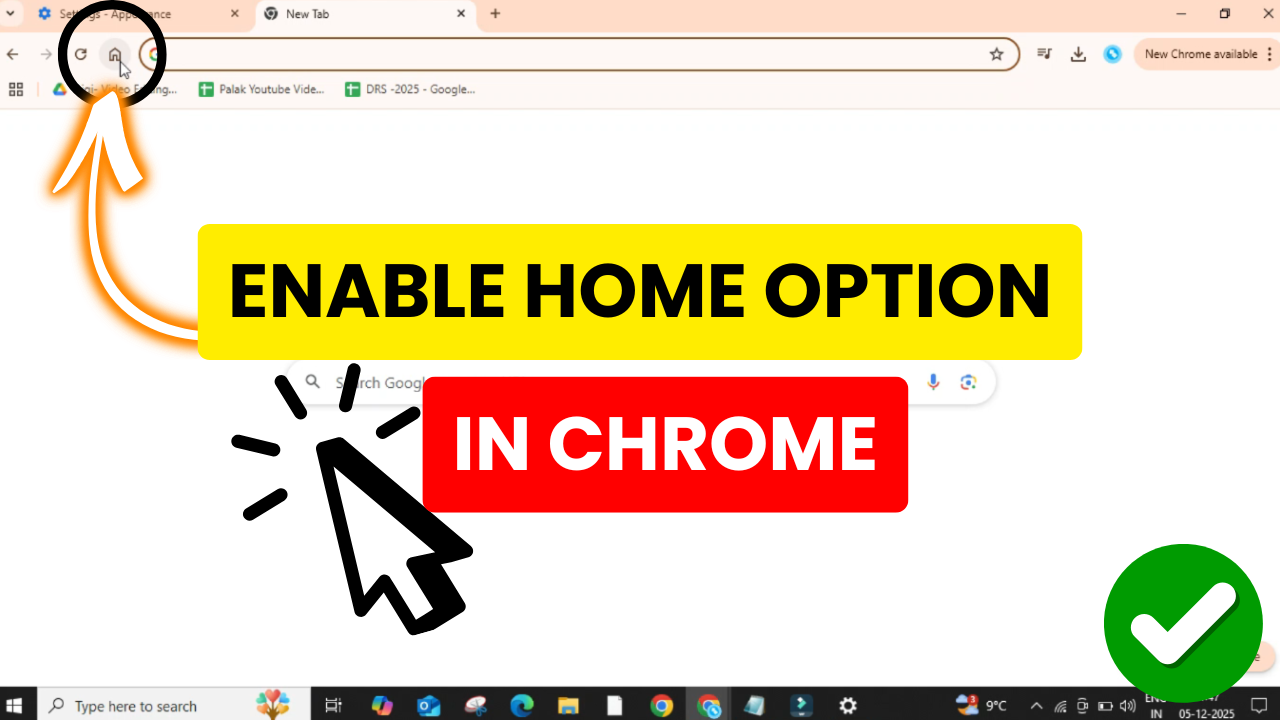
The Home button in Google Chrome is a handy shortcut that lets you jump back to your favorite start page with just one click. By default, Chrome doesn’t show the Home button, which can make navigation a little slower. The good news is, you can enable it in just a few seconds through Chrome’s settings. This simple tweak makes browsing faster and more convenient, especially if you often return to the same website. In this beginner-friendly blog, we’ll explain how to enable the Home button on Chrome step by step, so you can set it up instantly.
Step 1: Open Google Chrome
Firstly, open Google Chrome on your computer. Then, click on the three dots located at the top right corner of the screen.
Step 2: Open Chrome Settings
From the menu that appears, click on Settings.
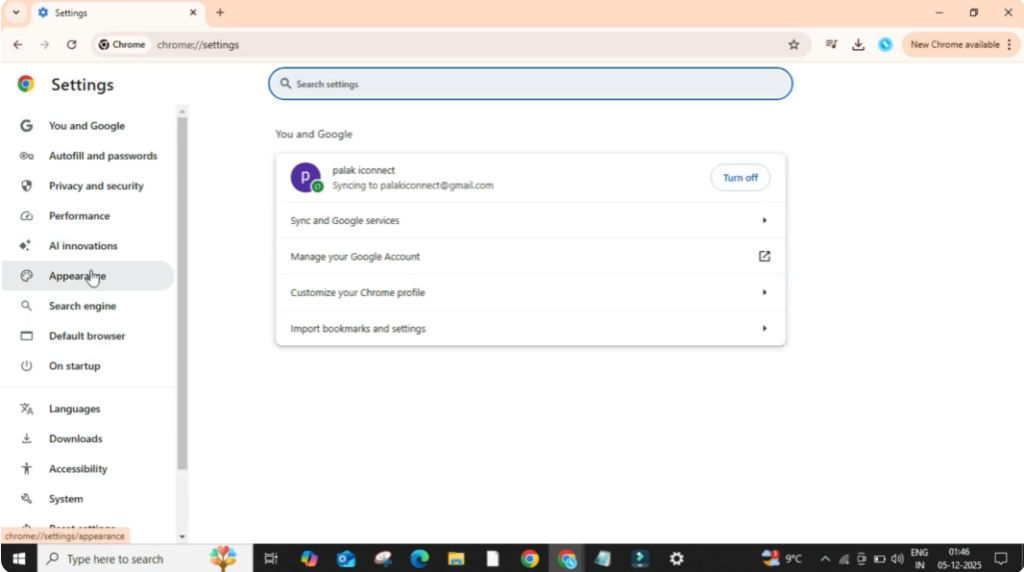
Now, look at the left panel and click on Appearance.
Step 3: Enable the Home Button
In this section, you will find the option Show home button.
If this option is turned off, click on the switch to turn it on.
Once it is enabled, you will see two options below it:
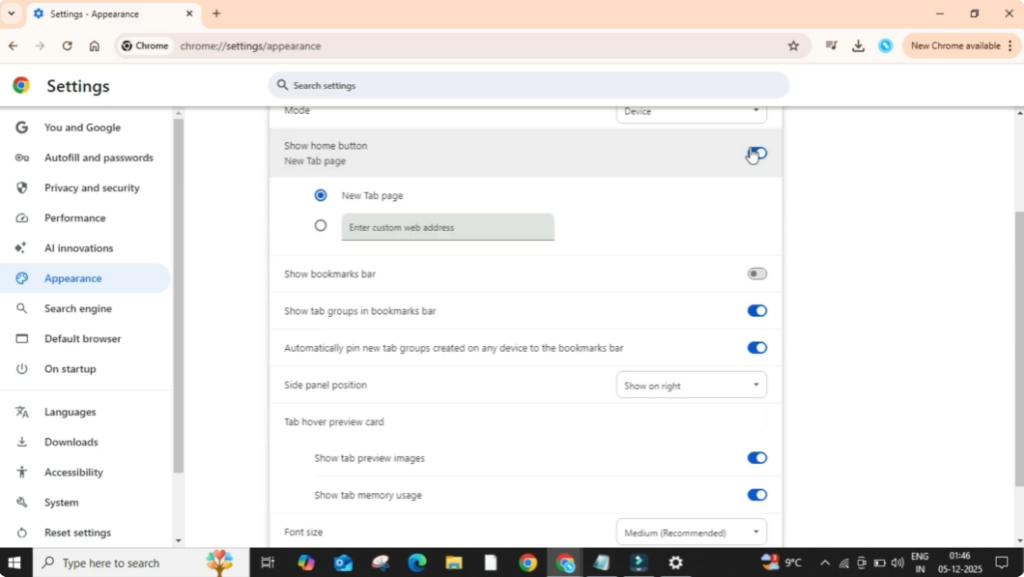
1. New Tab Page
It means whenever you click on the home button, Chrome will take you to a fresh new tab — basically, your browser’s start page.
2. Enter Custom Web Address
This option allows you to set any website as your homepage.
For example, you can set Google, YouTube, or any site you use daily. Just type the website address in the box provided.
Right now I am selecting the first option New Tab Page.
Step 4: Check the Home Button
As soon as you enable it, you will notice a small home icon appearing at the left side of the address bar.
Let’s take an example:
If I open YouTube and then click on the home icon, it will immediately take me back to the homepage where a new tab opens. This makes browsing faster and convenient.






