
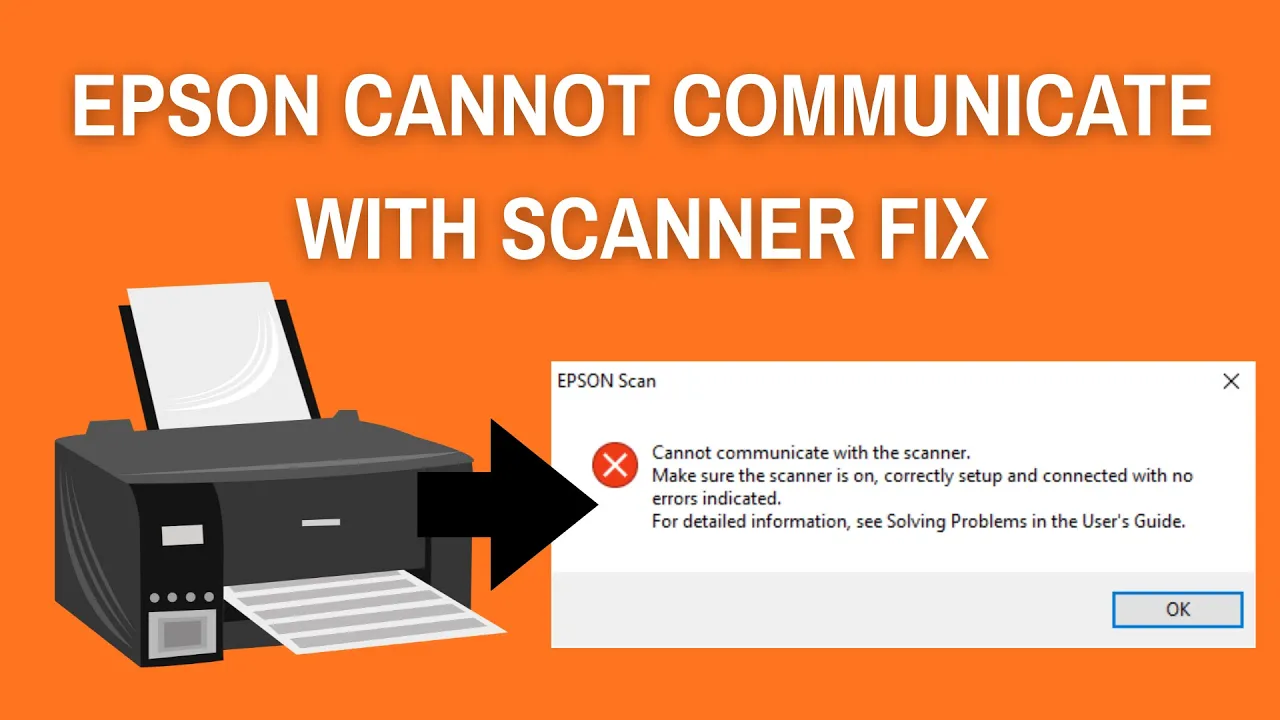
Sometimes when you try to scan a document with your Epson scanner, you may see an error message saying “Cannot communicate with the scanner.” 🖨️ This problem is quite common in Windows and can happen due to simple issues like connection problems, outdated drivers, or wrong settings. The good news is, it’s usually easy to fix without needing expert help. In this blog, we’ll explain step by step how to solve the Epson scanner communication error, so you can get your scanner working smoothly again.
Epson Cannot Communicate with Scanner – How to Fix It
1. Check the physical connections
• If your scanner is connected via USB, ensure the cable is firmly plugged into both the scanner and the PC. Try a different USB port or cable to rule out a faulty connection.
• If the scanner is on the network (Wi-Fi or wired Ethernet), make sure the scanner is powered on, connected to the correct network, and that your PC is on the same network.
• Turn off the scanner and computer, wait about 30 seconds, then power them back on. A simple reboot often restores communication.
2. Confirm the scanner is powered on and ready
Check the scanner’s display (if it has one) or indicator lights. Make sure it’s not in an error state (paper jam, cover open, etc.). Resolve any visible errors on the unit.
3. Check the driver and software
• Open the scanner software on your PC (for example, the official Epson scanning utility). If the software cannot find the scanner, it likely means the driver is missing, outdated, or corrupted.
• Visit Epson’s official website, locate your scanner model, and download the latest driver and utilities for your operating system.
• Install or reinstall the driver. After installation, restart your computer.
4. Ensure the correct scanner is selected
Sometimes the scanning utility tries to connect to a different device or is set to “offline”. In the scanning software:
• Go to the settings or “Select Device” menu.
• Ensure your Epson scanner is selected.
• If networked, make sure “Network Scanner” or the device’s IP address is selected.
5. Check firewall and security software
Your firewall or antivirus may be blocking the scanner’s communication. To fix this:
• Temporarily disable your firewall or antivirus (just for testing).
• If the scanner now communicates, configure the firewall to allow the Epson scanning software and scanner network traffic (usually via TCP/IP).
• Re-enable your security software after verifying the scanner works.
6. Reset the scanner utility or Windows image-acquisition service
If you’re on Windows:
• Open Services (search for “services.msc”) and locate “Windows Image Acquisition (WIA)”. Right-click and select Restart.
• Then open Epson’s scanning utility and attempt again.
If the scanner utility has a reset or “restore defaults” option, use it.
7. Update your operating system and do a full restart
Sometimes OS updates introduce compatibility issues.
• Install all pending updates for your OS.
• After updating, restart your PC.
• Then check the scanner again.
8. Try scanning from a different application
Open a generic scanning app (for example, Windows Scan on Windows 10/11 or Image Capture on macOS) and see if the scanner is detected there.
• If it works in a generic app, the issue may lie with the Epson-specific utility.
• If it doesn’t work, the problem is more fundamental (driver/network).
9. Use the printer/scanner’s built-in network tool (for networked units)
If your Epson scanner is a networked model, access its onboard web interface via its IP address:
• Check the network status page and ensure it’s connected properly.
• Note the IP address and ensure the PC can ping that IP (open Command Prompt → ping <IP>).
• If ping fails, there’s a network connectivity issue (router, firewall, VLAN, etc).
10. As a last resort: factory reset the scanner
If nothing else works, check your scanner’s manual for a “factory reset” or “initialize settings” option.
• Reset the scanner to defaults.
• Reinstall the drivers/software on the PC.
• Reconnect and test again.
Final thoughts
The “Cannot Communicate with Scanner” error is usually caused by one of three main issues: a faulty/loose connection, a driver/software problem, or a network/firewall blockage. By systematically working through the steps above, you’ll most likely restore the communication between your PC and scanner.






