
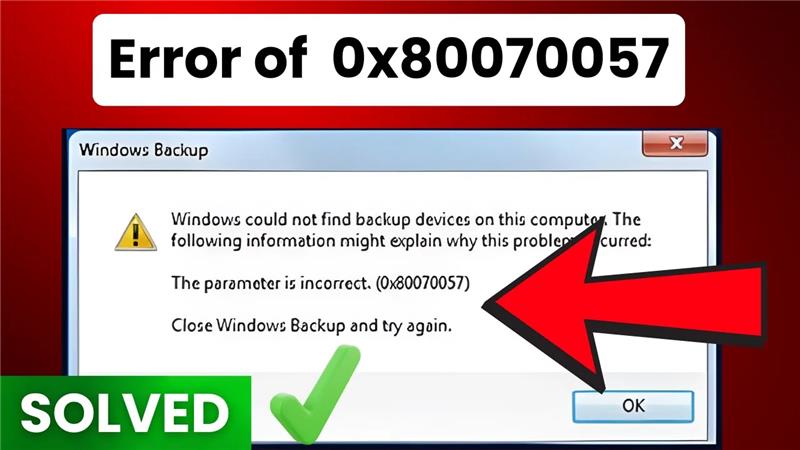
The Error 0x80070057 is one of those frustrating Windows problems that can pop up during updates, installations, or even while backing up files. It usually means something went wrong with your system settings or file handling, and many users start to panic when they see it. But don’t worry—the fix is easier than it sounds! In this beginner-friendly blog, we’ll explain in simple language what causes Error 0x80070057 and how to fix it step by step, so you can get your Windows PC back to normal without stress.
Method 1: Run Disk Check
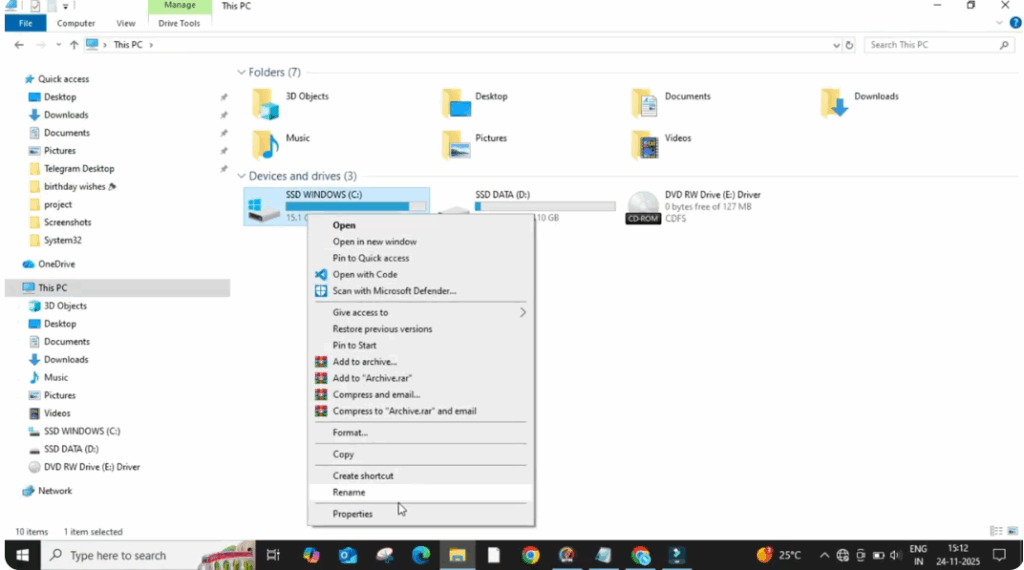
First, open File Explorer and click on This PC.
Now, right click on the C drive and select Properties.
After the window opens, go to the Tools tab and click on the Check button.
Windows will start scanning your drive for issues.
This process can take a few minutes, so wait patiently.
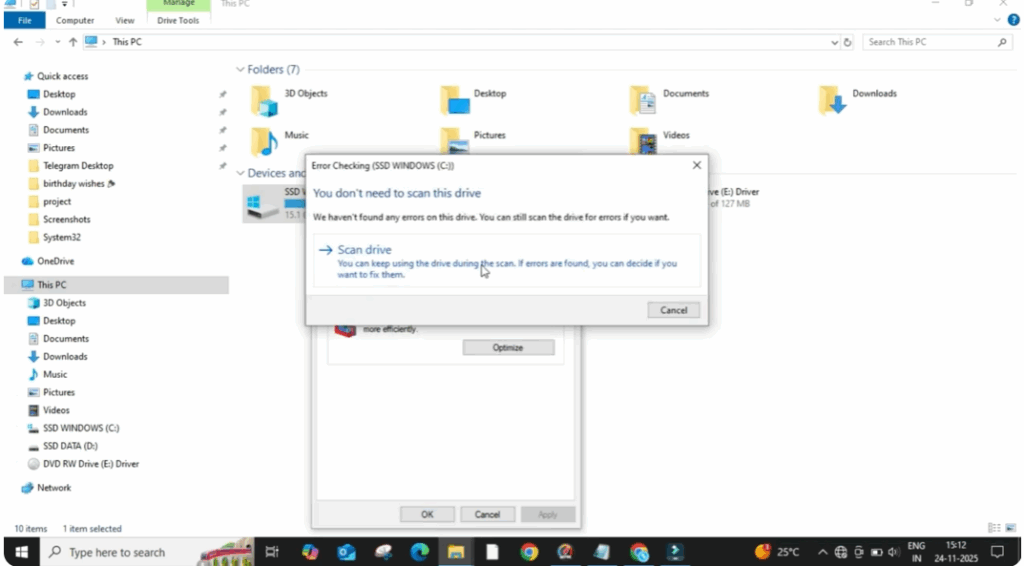
Once the scan is complete, it will show a message saying the drive was successfully scanned.
Click Close and exit the window.
Method 2: Reset Windows Update Components
Click on the search bar and type cmd.
When it appears, select Run as administrator.
After the command prompt opens, we will reset some important Windows update components.
Carefully type the following commands one by one:
- First, type net stop wuauserv.
- Then type net stop cryptsvc and press enter.
- After that, type net stop bits and press enter.
- Then type net stop msiserver and press enter.
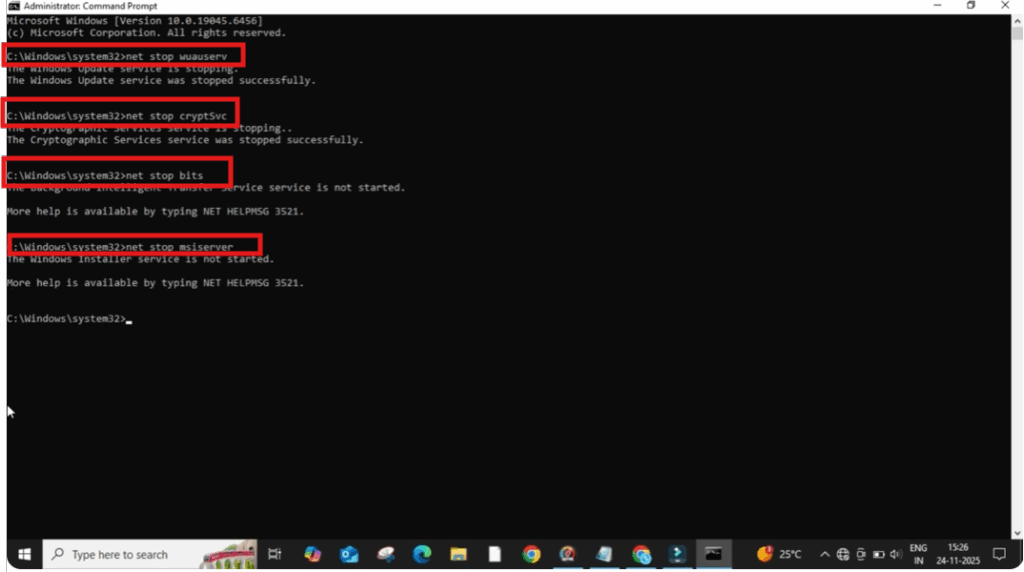
These commands stop update-related services.
Rename Important Folders
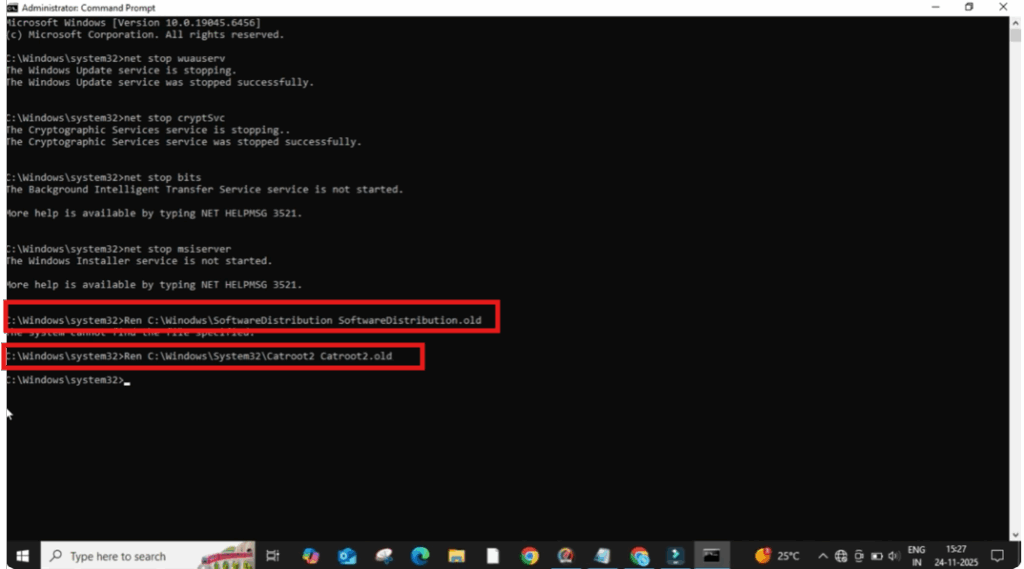
Next, we will rename two important folders.
Type:
ren C:\Windows\SoftwareDistribution SoftwareDistribution.old
and press enter.
After that type:
ren C:\Windows\System32\catroot2 catroot2.old
and press enter.
Restart the Services
Once this is done we will restart the services again:
- Type net start wuauserv and press enter.
- Then type net start cryptsvc and press enter.
- After that, type net start bits and press enter.
- And finally, type net start msiserver.
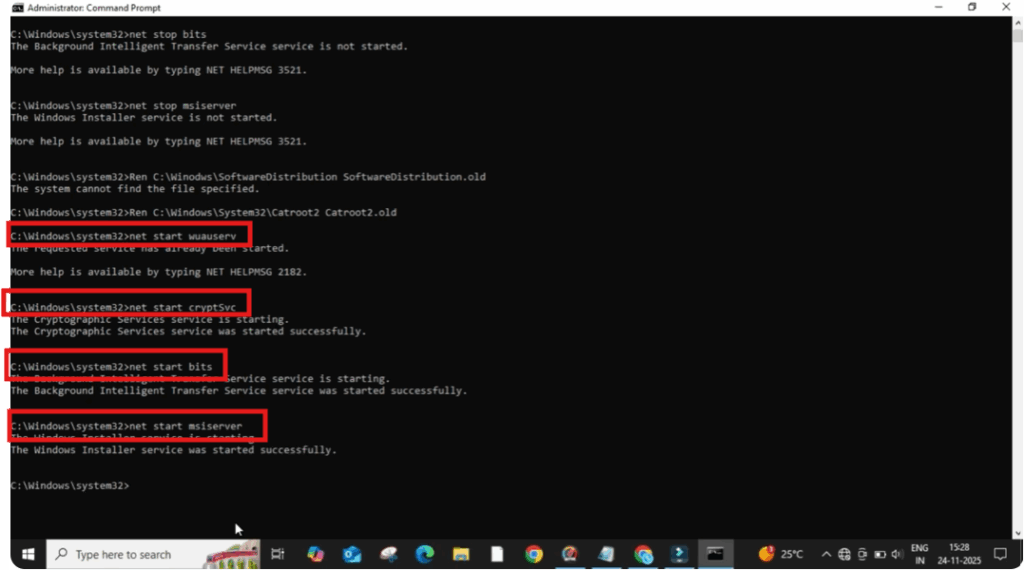
These commands rebuild your update components from scratch.
When everything is completed, close the command prompt.
Now, restart your PC and check again.
In most cases, the 0x80070057 error disappears completely.






